How to Show Phone Links Notifications on Windows 11 Taskbar

You can show Phone Link notifications directly on your Windows 11 taskbar to get instant alerts for calls, messages, and app activity from your connected phone. Phone Link, formerly known as Your Phone, bridges your Android or iOS device with your PC, allowing for seamless interaction.
This integration lets you see crucial updates without constantly checking your phone or switching between applications on your computer. You have control over which apps can push their notifications to appear right on your taskbar.
For instance, a missed call or a new SMS alert appearing on your taskbar means you’ll never miss an important notification again, keeping your workflow smooth and uninterrupted.
Open the Phone Link app, click the Settings gear icon, navigate to General, and toggle on “Show badges for unread messages and notifications on your PC’s taskbar.” This displays alerts directly on your taskbar icons.
Why Control Notification Badges?
Controlling notification badges on your Windows 11 taskbar helps you stay focused by reducing distractions from constant alerts.
How to Turn Notification Badges On or Off in Phone Link
You can easily turn notification badges on or off within the Phone Link app by opening the app, clicking the gear icon for settings, and navigating to the ‘General’ menu.
Step 2: If you have not added a phone yet, follow the steps to add one. If you already have a phone connected, look for the Settings button. It looks like a gear icon at the top right corner of the app. Click it.
Step 3: Click on ‘General’ from the menu that appears.
Step 4: Scroll down on the right side until you find the ‘Badges’ section.
Step 5: Look for the option that says “Show badges for unread messages and notifications on your PC’s taskbar.” You will see a toggle switch next to it.
Step 6: To turn badges on, move the switch to the ‘On’ position. To turn badges off, move the switch to the ‘Off’ position.
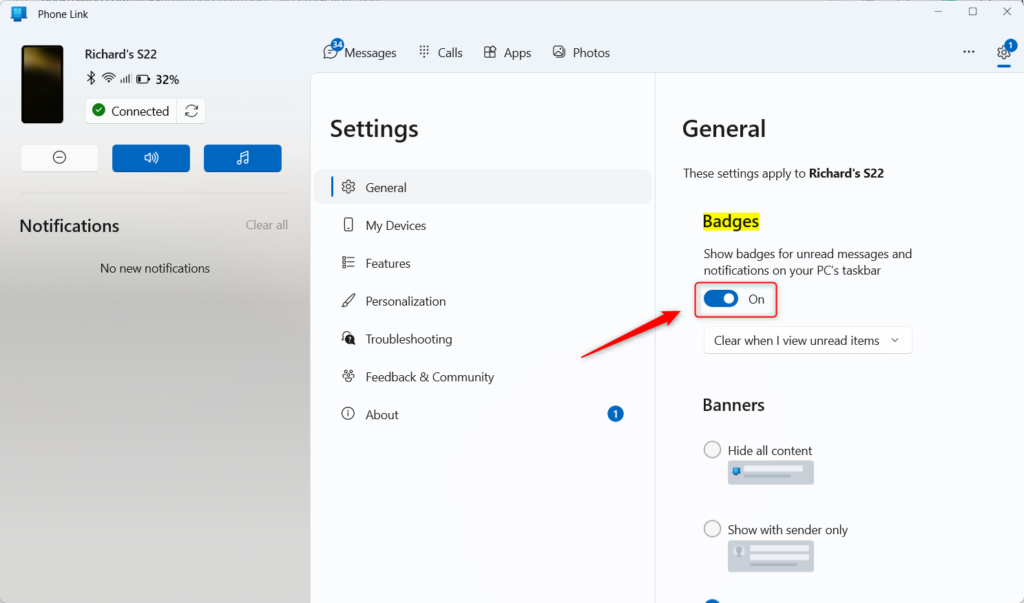
Step 7: Your changes save automatically. You can now close the app.
Troubleshooting Missing Notifications
If your Windows 11 taskbar notifications aren’t showing up, first check if Do Not Disturb mode is on in the notification center.
How to restart Windows Explorer:
Step 1: Press Ctrl + Shift + Esc to open Task Manager.
Step 2: Find Windows Explorer in the list of processes.
Step 3: Right-click it and select Restart. This refreshes your taskbar and system tray icons.
Customizing Your Taskbar Behavior
Customizing your Windows 11 taskbar behavior involves simple adjustments like hiding it automatically or changing its alignment through the Taskbar settings.
Summary
Keeping your Windows 11 taskbar notifications tidy involves adjusting badge settings and troubleshooting common issues to ensure a clean and productive desktop.
Why are my 🪟 Windows 11 taskbar notifications not showing up?
Windows 11 taskbar notifications may not show up if Focus Assist or Do Not Disturb mode is enabled, or if the Windows Explorer process needs to be restarted.
How do I stop taskbar icons from flashing in 🪟 Windows 11?
To stop taskbar icons from flashing in Windows 11, you usually need to address the pending action or notification within the specific app causing the flash.
What is the difference between notification badges and toast notifications?
Notification badges are the small numbers or dots that appear on top of an app icon in the taskbar to indicate unread items. Toast notifications are the pop-up banners that show up in the corner of your screen with alerts and info from your apps or the system.
Was this guide helpful?

About the Author
Richard
Tech Writer, IT Professional
Richard, a writer for Geek Rewind, is a tech enthusiast who loves breaking down complex IT topics into simple, easy-to-understand ideas. With years of hands-on experience in system administration and enterprise IT operations, he’s developed a knack for offering practical tips and solutions. Richard aims to make technology more accessible and actionable. He's deeply committed to the Geek Rewind community, always ready to answer questions and engage in discussions.



No comments yet — be the first to share your thoughts!