How to Send and Receive Text Messages on Windows 11

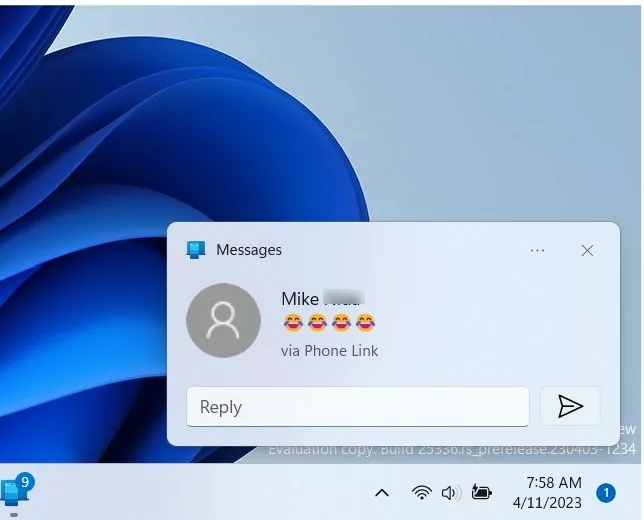
You send and receive text messages on Windows 11 directly from your PC using the Phone Link app.
Phone Link acts as a bridge, connecting your Android or iPhone to your Windows 11 computer. This allows you to manage SMS (short message service) and MMS (multimedia messaging service) conversations without needing to touch your phone.
You simply need to link your smartphone to your PC, and you can start texting from your desktop. This integration means you can quickly reply to messages, like confirming meeting details, without interrupting your workflow on your computer.
Send and receive texts on Windows 11 with the Phone Link app. Open Phone Link on your PC, link your Android or iPhone by following on-screen prompts, and grant permissions on your phone. You can then view, reply to, and send SMS/MMS messages directly from your computer.
Why use Phone Link for text messages?
Using Phone Link for text messages on Windows 11 keeps your computer work flowing smoothly.
System Requirements and Compatibility
To use these features, you’ll need a PC running Windows 11 and an Android device with the Link to Windows app installed. Make sure both devices are connected to the same Wi-Fi network. You’ll also need Bluetooth enabled on both devices for a stable sync connection.
Setting Up Link to Windows
You can send and receive text messages on Windows 11 by setting up the Link to Windows feature, which connects your phone to your PC.
- Open the Phone Link app on your PC.
- Follow the on-screen instructions to sign in with your Microsoft Account.
- On your Android phone, open the Link to Windows app and scan the QR code displayed on your PC screen.
- Grant the necessary permissions on your phone to allow message syncing.
Managing Messages and Media
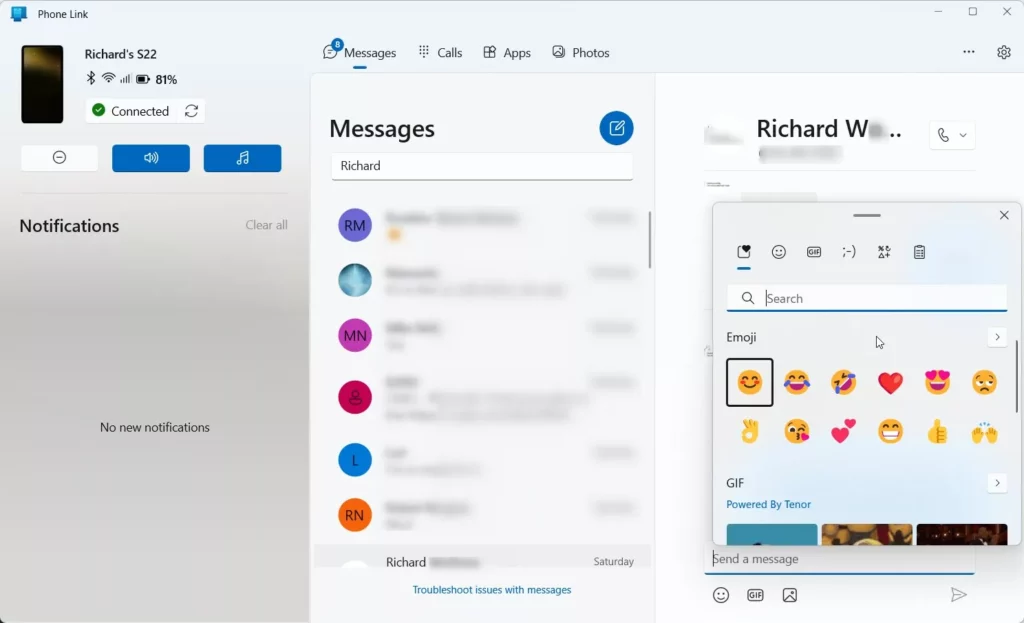
Phone Link supports MMS, meaning you can send and receive photos, GIFs, and emojis. You can also participate in group messaging directly from your desktop. Click the Messages tab to view your conversation history.
Troubleshooting: Why are my text messages not syncing?
If your messages aren’t syncing, try these common fixes:
- Ensure your PC and phone are on the same Wi-Fi network.
- Check that Focus Assist is not blocking notifications.
- Verify that your Microsoft Account is signed in on both devices.
- Restart the Phone Link app on your PC.
Keyboard Shortcuts for Efficiency
Use these shortcuts to manage your messages faster:
- Ctrl+N: Start a new message.
- Ctrl+F: Search through your messages.
- Enter: Send your typed message.
Summary
By linking your phone to Windows 11, you can easily manage SMS and MMS messages, view media, and reply to contacts using your keyboard. This setup improves productivity by keeping your digital life organized. For more details, visit the official Microsoft support page.
Can I delete messages from my PC?
Yes, you can delete individual messages or entire conversation threads directly from the Phone Link app. Deleting a message on your PC will also remove it from your connected phone, keeping your devices perfectly in sync at all times.
How many messages can I view in Phone Link?
Phone Link typically displays the most recent text messages sent and received within the last 30 days. This limit helps maintain app performance and ensures that your message history loads quickly every time you open the application on your Windows 11 desktop.
Was this guide helpful?

About the Author
Richard
Tech Writer, IT Professional
Richard, a writer for Geek Rewind, is a tech enthusiast who loves breaking down complex IT topics into simple, easy-to-understand ideas. With years of hands-on experience in system administration and enterprise IT operations, he’s developed a knack for offering practical tips and solutions. Richard aims to make technology more accessible and actionable. He's deeply committed to the Geek Rewind community, always ready to answer questions and engage in discussions.



[…] can quickly use the settings on this page to send and receive text messages, view your photos on your mobile devices, control apps on your mobile devices, and […]
[…] or off, unlink your phone from Windows, enable or disable auto startup for the phone link app, send and receive text messages from the app, add or remove Phone Link on the widgets board, turn dark mode on or off, open your phone screen […]