How to Access the Windows 11 Notification Center

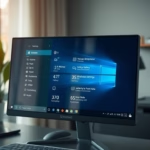
You access the Windows 11 Notification Center by clicking the date and time displayed in the taskbar.
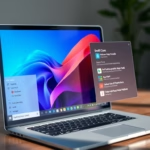
The Notification Center is a consolidated area for all your system alerts, app notifications, and quick settings. It’s designed to give you a centralized, manageable view of important information without constant pop-ups.
This feature consolidates alerts, offering a cleaner desktop experience than older Windows versions. It acts as your central hub for everything from Windows updates to calendar reminders, streamlining how you stay informed.
Gaining quick access to the Notification Center puts you in immediate control of your digital interruptions. You can efficiently review, dismiss, or take action on notifications, ensuring you never miss critical updates.
Click the date and time on the taskbar or press Windows logo key + N. This opens the Notification Center, which displays all your app alerts and system notifications in one place.
How to Open Quick Settings
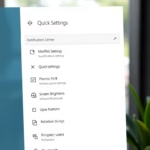
Quick Settings lets you change things like your volume or internet connection quickly. To open this menu, you can do any of the following:
- Click on the battery, network, or volume icon on the right side of the Taskbar.
- Press the Windows logo key + A on your keyboard.
How to Open the Notification Center
The Notification Center holds all your pending alerts. To open it, try one of these methods:
- Click the date and time display on your Taskbar.
- If you have a touchscreen, swipe in from the right edge of your screen.
- Press the Windows logo key + N on your keyboard.
Managing Your Notifications
Once the window is open, you can click on any alert to read more. To tidy up your list, click the X next to any alert you want to remove. To remove everything at once, click the Clear all button.
Using Focus Sessions and Do Not Disturb
Focus Sessions help you work without interruptions. Go to Settings > System > Focus to toggle this. You can set a timer to silence notifications automatically. For a quick toggle, use the “Do Not Disturb” button in the Notification Center to stop all incoming banners immediately.
Administrative Control: Registry and Group Policy
IT admins can control access to the Windows 11 Notification Center for many computers at once using the Registry Editor or Group Policy.
Navigate to: 🗝️HKEY_CURRENT_USER\Software\Policies\Microsoft\Windows\Explorer
Create a new DWORD value named DisableNotificationCenter, setting its value to 1. Alternatively, you can use the Group Policy Editor (gpedit.msc) by going to User Configuration > Administrative Templates > Start Menu and Taskbar.
Summary
You can easily open the Windows 11 Notification Center by clicking the date and time on your taskbar or by pressing the Windows logo key and the ‘N’ key together. This central hub helps you manage alerts and quick settings, keeping your computer organized.
How do I disable notification sounds in 🪟 Windows 11?
To disable notification sounds in Windows 11, go to Settings, then System, and click on Notifications. Scroll down to find the app you want to silence and turn off the ‘Play a sound when a notification arrives’ option, stopping the audio alert.
Why are my notifications not appearing in the Notification Center?
If notifications are missing, check if “Do Not Disturb” mode is enabled, as this silences all alerts. Also, verify that your app-specific notification settings are turned on in the System menu. If the issue persists, ensure your Windows 11 system is fully updated to the latest version.
How to clear all notifications at once in 🪟 Windows 11?
Open the Notification Center by pressing Windows logo key + N. Look for the “Clear all notifications” button located at the top right corner of the notification list. Clicking this button will instantly remove every pending alert from your view, leaving the Notification Center completely empty and organized.
Was this guide helpful?

About the Author
Richard
Tech Writer, IT Professional
Richard, a writer for Geek Rewind, is a tech enthusiast who loves breaking down complex IT topics into simple, easy-to-understand ideas. With years of hands-on experience in system administration and enterprise IT operations, he’s developed a knack for offering practical tips and solutions. Richard aims to make technology more accessible and actionable. He's deeply committed to the Geek Rewind community, always ready to answer questions and engage in discussions.
No comments yet — be the first to share your thoughts!