How to Reset Quick Settings in Windows 11

You can reset Windows 11 Quick Settings by deleting a specific registry key.
Quick Settings, which used to be called the Action Center, is a handy menu for getting to common toggles and settings in Windows 11. Resetting it puts the panel back to how it was set up by default. This can fix problems like it not opening at all or if you’ve ended up with a custom layout you don’t like.
This process targets your Quick Settings configuration file, which is stored within the Windows Registry (a database for Windows settings). Resetting Quick Settings doesn’t require any special software, only administrative access.
Reset Quick Settings by opening Command Prompt as an administrator. Delete the registry key using `REG DELETE “HKCUControl PanelQuick Actions” /F`, then restart Explorer with `taskkill /f /im explorer.exe` and `start explorer.exe`. This restores the default layout.
What is Quick Settings?
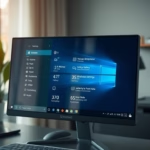
Quick Settings in Windows 11 is a handy panel that lets you quickly change common settings like volume, screen brightness, Wi-Fi, and Bluetooth right from your desktop.
- Notification Center (You can open it by pressing
Win + N) - Quick Settings (You can open it by pressing
Win + A)
Quick Settings is where you can quickly change common settings like:
- Volume
- Screen Brightness
- Wi-Fi
- Bluetooth
- Focus Assist (to reduce distractions)
When you’re playing music or videos in Microsoft Edge or apps like Spotify, you’ll also see media controls right above Quick Settings.
Why Reset Quick Settings?
If Quick Settings is acting strange, not opening, or you want to put all the buttons back to their default spots, resetting it will help.
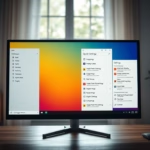
Example of Quick Settings in 🪟 Windows 11
How to Reset Quick Settings
Resetting Quick Settings in Windows 11 is straightforward and can fix issues if your settings panel isn’t behaving correctly.
- Press the Windows key + R on your keyboard to open the Run box.
- Type
cmdand press Ctrl+Shift+Enter to open the Command Prompt as an administrator. (You might see a prompt asking for permission — click Yes.) - In the Command Prompt window, carefully type or copy and paste the following commands one by one, pressing Enter after each:
REG DELETE "HKCUControl PanelQuick Actions" /F

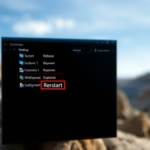
taskkill /f /im explorer.exe

start explorer.exe
What these commands do:
- Delete the settings that control your Quick Settings layout.
- Close the Windows Explorer (the part of Windows that shows your desktop and taskbar).
- Restart Windows Explorer to apply the changes.
After this, your Quick Settings should be back to the default layout and working properly.
Need More Help?
If you want to learn more about Quick Settings or Windows 11 tips, you can visit the official Microsoft support page here: Microsoft Windows Support
Was this guide helpful?

About the Author
Richard
Tech Writer, IT Professional
Richard, a writer for Geek Rewind, is a tech enthusiast who loves breaking down complex IT topics into simple, easy-to-understand ideas. With years of hands-on experience in system administration and enterprise IT operations, he’s developed a knack for offering practical tips and solutions. Richard aims to make technology more accessible and actionable. He's deeply committed to the Geek Rewind community, always ready to answer questions and engage in discussions.

No comments yet — be the first to share your thoughts!