How to Mirror Your Phone Screen with Phone Link in Windows 11

Here’s how to see and control your phone’s screen right from your Windows 11 computer using the Phone Link app.
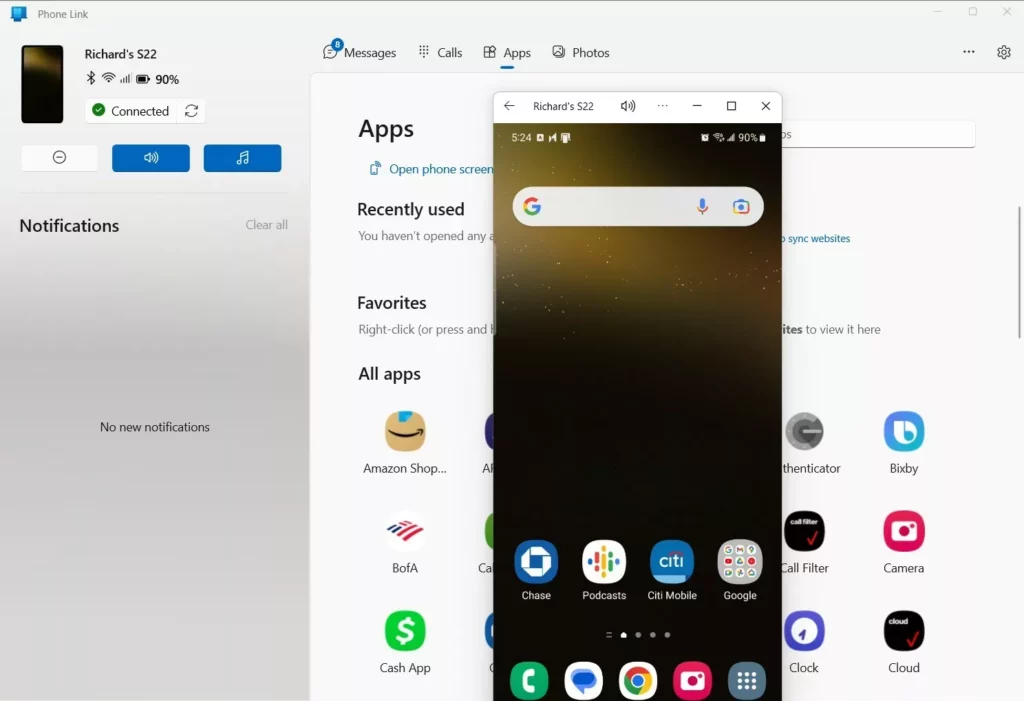
Open the Phone Link app, click Apps, and then select Open phone screen. Your phone’s display will appear in a window on your Windows 11 desktop, allowing you to control it with your mouse and keyboard.
Why mirror your phone screen?
Mirroring your screen lets you see your phone apps on a bigger display. This is handy for sharing photos, giving presentations, or even typing messages with your PC’s mouse and keyboard. You can keep your phone in your pocket while you work.
What happens when you are done?
When you close the window, the connection stops. Your phone goes back to normal. No data is lost, and your phone stays synced with your computer.
How to mirror your phone with Phone Link
Mirroring your phone screen on Windows 11 with the Phone Link app is simple, especially if you have a compatible Android phone.
- Open the Phone Link app on your computer.
- Click the Apps button in the menu.
- Select Open phone screen.
Your phone screen will appear in a window on your desktop. You can now click and type as if you were holding the phone.
Alternative Methods: Miracast and Wireless Display
If Phone Link isn’t working for you, try mirroring your phone screen in Windows 11 using the Wireless Display feature, which uses Miracast technology.
Note: You might need to install this feature yourself. Head to Settings > Apps > Optional features and search for Wireless Display. [Admin Privileges Required]
Checklist: Does your PC support Miracast?
To check if your PC supports this, open Command Prompt and type netsh wlan show drivers. Then, look for Wireless display supported. It needs to say Yes.
How do I fix lag when mirroring my screen?
Lag happens when your network is slow. Try these tips:
- Move your PC and phone closer to your Wi-Fi router.
- Use a 5GHz Wi-Fi band instead of 2.4GHz.
- Close background apps on your phone that use high data.
Summary
Mirroring your phone screen in Windows 11 helps you multitask better by letting you control your phone from your PC.
Can I mirror my iPhone to 🪟 Windows 11?
Yes, but with limits. Phone Link for iOS allows basic notifications and calls, but it does not support full screen mirroring like Android. To mirror an iPhone, you will need third-party software like AirServer or Reflector to act as an AirPlay receiver on your Windows PC.
Why is my phone not showing up in Phone Link?
Ensure both devices are on the same Wi-Fi network. Check that your phone is not in Battery Saver mode, as this can block the connection. Also, verify that your Windows 11 system is fully updated and that the Phone Link app is updated via the Microsoft Store.
What is the difference between casting and screen mirroring?
Casting sends specific media, like a YouTube video, to your screen while your phone stays free. Screen mirroring duplicates your entire phone display in real-time. Mirroring is better for controlling apps, while casting is better for watching media without draining your phone battery.
Was this guide helpful?

About the Author
Richard
Tech Writer, IT Professional
Richard, a writer for Geek Rewind, is a tech enthusiast who loves breaking down complex IT topics into simple, easy-to-understand ideas. With years of hands-on experience in system administration and enterprise IT operations, he’s developed a knack for offering practical tips and solutions. Richard aims to make technology more accessible and actionable. He's deeply committed to the Geek Rewind community, always ready to answer questions and engage in discussions.


[…] the app, add or remove Phone Link on the widgets board, turn dark mode on or off, open your phone screen in the app, turn show notifications for all my apps on or off, show notifications in the Phone Link […]
[…] open your phone screen using the Phone Link […]
[…] article explains how to connect your iPhone device using the Phone Link app in Windows […]
[…] messages from the app, add or remove Phone Link on the widgets board, turn dark mode on or off, open your phone screen in the app, turn show notifications for all my apps on or off, show notifications in the Phone Link feature […]