How to Drag and Drop Files Between Phone and Windows 11

You can easily drag and drop files between your phone and Windows 11 using the Phone Link app.
Phone Link allows you to wirelessly transfer photos, documents, and other files directly from your phone to your PC, or vice-versa, without needing cables.
This method is perfect for quick transfers, letting you move files with simple click-and-drag actions. You can transfer up to 100 individual files at once, as long as each file is under 512 MB; folders cannot be transferred this way.
The app connects your devices via Wi-Fi or Bluetooth, creating a seamless bridge for managing your phone’s content directly on your Windows 11 computer.
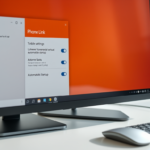
Use the Phone Link app to drag and drop files between your phone and Windows 11. Open Phone Link, then drag files from File Explorer to your phone window, or drag from your phone window to your desktop.
Troubleshooting Drag and Drop in 🪟 Windows 11
Sometimes, drag and drop features stop working due to temporary issues with Windows 11’s interface or conflicts with other program extensions. If you experience drag and drop not working in Windows 11, try restarting the Windows Explorer process via the Task Manager.
Registry Tweak for Drag and Drop Issues
Sometimes, drag and drop files Windows 11 might not work right because of a setting in the Windows Registry. If you’re having trouble moving files this way, you might need to check this specific setting, but it’s important to be careful when making changes.
If drag and drop isn’t working, you might need to check your registry settings. You’ll need administrator privileges for this.
HKEY_CURRENT_USER\Control Panel\Desktop
Look for the values named DragHeight and DragWidth. Make sure they’re set to a small number, like 4. If these numbers are too high, your computer might not register drag movements.
Summary
Using the Phone Link app is the easiest way to drag and drop files between your phone and Windows 11. This app lets you move individual files directly from your phone to your computer, or vice versa, making file sharing simple.- The Phone Link app connects your phone to Windows for easy file sharing.
- You can drag and drop individual files, but not folders.
- There is a 512 MB size limit per transfer.
- If drag and drop fails, check your registry settings or restart File Explorer.
- OneDrive is a great backup alternative if you need to move folders or larger amounts of data.
Why can’t I drag and drop files into the 🪟 Windows 11 address bar?
The Windows 11 address bar is designed for navigation, not as a drop target. Unlike previous versions, Microsoft has restricted this area to prevent accidental file moves. Use the main folder area or the navigation pane to move your files instead.
Does 🪟 Windows 11 support drag and drop to the taskbar?
Yes, recent Windows 11 builds have restored support for dragging files onto taskbar icons. If it is not working, ensure your Windows 11 build version is updated to the latest release via Windows Update. You can check your version by typing ‘winver’ in the search bar.
Was this guide helpful?

About the Author
Richard
Tech Writer, IT Professional
Richard, a writer for Geek Rewind, is a tech enthusiast who loves breaking down complex IT topics into simple, easy-to-understand ideas. With years of hands-on experience in system administration and enterprise IT operations, he’s developed a knack for offering practical tips and solutions. Richard aims to make technology more accessible and actionable. He's deeply committed to the Geek Rewind community, always ready to answer questions and engage in discussions.



No comments yet — be the first to share your thoughts!