How to Set Up OneDrive on Windows 11

You set up OneDrive on Windows 11 by signing into your Microsoft account within the operating system.
OneDrive is Microsoft’s cloud storage service, integrated directly into Windows 11 to link your PC’s files with cloud storage.
This integration automatically backs up your important data, including documents and photos, making them accessible from any device.
You can select specific folders, such as Desktop or Documents, to sync, ensuring they are safe and updated across up to five devices associated with your Microsoft account.
Sign in with your Microsoft account via the OneDrive app on your taskbar. Choose your preferred folder location and configure Files On-Demand settings. Click through the final screens to complete the setup and open your OneDrive folder.
How to set up OneDrive on 🪟 Windows 11
You can find the app in a few different ways.
1Check if OneDrive is Running
To check if OneDrive is running on your Windows 11 PC, first look for the cloud icon in the bottom right corner of your screen, near the clock.

2Sign In
Enter your Microsoft email address and password. If you do not have one, you can create one here: How to create a Microsoft account.

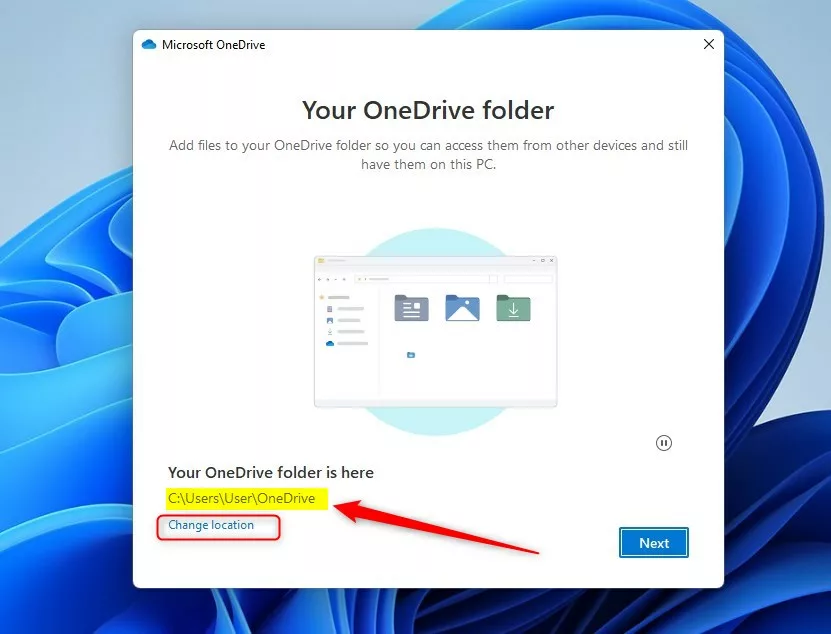
3Choose Your Folder
You’ll see a screen asking where you want to keep your OneDrive files. Usually, you can click Next. If you want to put the folder somewhere else, like a different drive, click Change location.
4Files On-Demand
Next, you’ll see a screen about ‘Files On-Demand.’ This is a great feature. It lets you see all your files without downloading them to your computer’s storage. This saves a lot of space on your computer.

5Finish Up
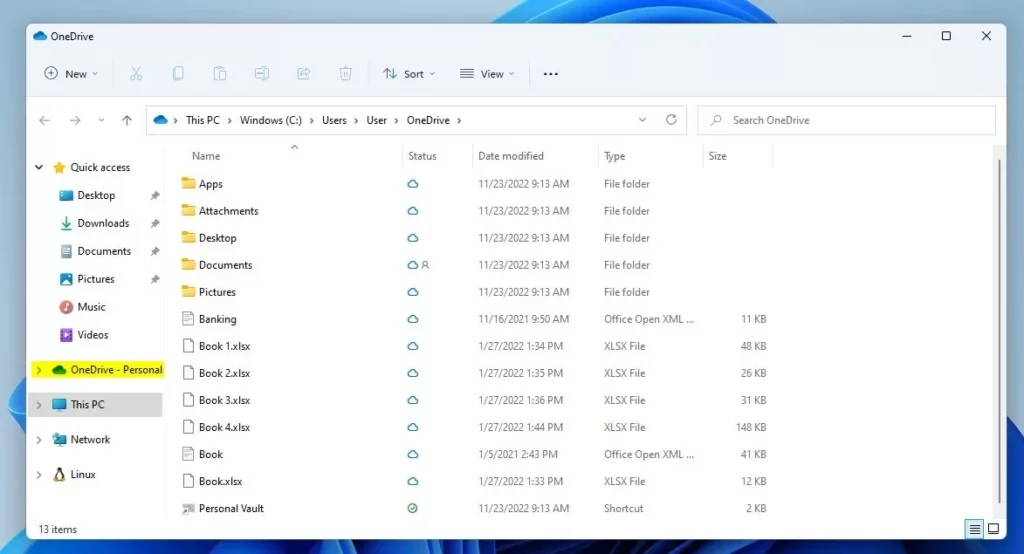
Click Next on the final screens. You can then click the button to open your OneDrive folder in File Explorer (Windows’ file management tool).

Managing Your OneDrive Experience
Once set up, you can manage your storage limit and backup settings. Right-click the cloud icon in your taskbar and select Settings to open the OneDrive menu. Here, you can toggle AutoSave for your Desktop, Documents, and Pictures folders to make sure they are always backed up.
Understanding Sync Icons
When you set up OneDrive on Windows 11, you’ll see small icons next to your files in File Explorer that tell you their sync status.
OneDrive Personal Vault
The Personal Vault is a protected area in your OneDrive that requires a second verification step. It is perfect for storing sensitive documents like passports or tax forms. You can access it directly from your OneDrive folder.
Troubleshooting and Sync Errors
If you encounter sync errors with OneDrive on Windows 11, like a red ‘X’ on the icon, you can often fix them by checking the file name or resetting the app.
Reference: Microsoft.com
Summary
Setting up OneDrive on Windows 11 gives you a great way to store files online, keep them synced across devices, and back them up automatically.
How do I stop OneDrive from syncing specific folders?
You can stop OneDrive from syncing specific folders on Windows 11 by going into its settings and choosing which folders you want to keep synced.
What is the difference between ‘Free up space’ and ‘Always keep on this device’?
Free up space removes the local copy of the file from your computer’s storage while keeping it in the cloud, saving space. Always keep on this device downloads the file to your computer permanently, allowing you to open it even when you are completely offline without an internet connection.
How do I uninstall or disable OneDrive on 🪟 Windows 11?
To disable it , right-click the cloud icon, go to Settings, and turn off ‘Start OneDrive automatically when I sign in to Windows.’ To uninstall, open Settings, go to Apps, find Microsoft OneDrive, and select Uninstall. You’ll need administrator privileges to remove the software from your system files.
Was this guide helpful?

About the Author
Richard
Tech Writer, IT Professional
Richard, a writer for Geek Rewind, is a tech enthusiast who loves breaking down complex IT topics into simple, easy-to-understand ideas. With years of hands-on experience in system administration and enterprise IT operations, he’s developed a knack for offering practical tips and solutions. Richard aims to make technology more accessible and actionable. He's deeply committed to the Geek Rewind community, always ready to answer questions and engage in discussions.



[…] The OneDrive app lets you sync files and folders on your computer with Microsoft Cloud. It allows you to access them anywhere on your mobile devices and other computers using the service. […]
[…] The OneDrive app lets you sync files and folders on your computer with Microsoft Cloud. It allows you to access them anywhere on your mobile devices and other computers using the service. […]
[…] The OneDrive app lets you sync files and folders on your computer with Microsoft Cloud. It allows you to access them anywhere on your mobile devices and other computers using the service. […]
[…] This post shows students and new users steps to turn on or offOOneDrive files on-demand when using Windows 11. Files On-Demand is a feature that works with all the apps from the Windows Store, including OneDrive. […]
[…] The OneDrive app lets you sync files and folders on your computer with Microsoft Cloud. It allows you to access them anywhere on your mobile devices and other computers using the service. […]
[…] The OneDrive app lets you sync files and folders on your computer with Microsoft Cloud, allowing you to access them anywhere on your mobile devices and other computers using the service. […]
[…] The OneDrive app lets you sync files and folders on your computer with Microsoft cloud, allowing you to access them anywhere on your mobile devices and other computers using the service. […]
[…] The OneDrive app lets you sync files and folders on your computer with Microsoft cloud, allowing you to access them anywhere on your mobile devices and other computers using the service. […]
[…] The OneDrive app lets you sync files and folders on your computer with Microsoft cloud, allowing you to access them anywhere on your mobile devices and other computers using the service. […]
[…] steps to enable or disable “Save photos and videos from devices to OneDrive” in the OneDrive app in Windows […]
[…] article describes steps to enable or disable “Notify me when syncing is paused” in the OneDrive app in Windows […]
[…] OneDrive app lets you sync files and folders on your computer with Microsoft Cloud. It allows you to access them […]
[…] article describes the steps to enable or disable the OneDrive folder on the File Explorer navigation pane in Windows […]
This setup assumes that I have sufficient space on my computer hard drive to store all the files that I may want to put into OneDrive. In my case, before even starting, I know that I do not have sufficient space on any of my physical hard drives. Yet Windows keeps prompting me to finish the setup when I can’t do that.
[…] install and set up OneDrive on both your Windows and phone. Then, use OneDrive to back up and restore files and folders on your […]
[…] The OneDrive app lets you sync files and folders on your computer with Microsoft Cloud. It allows you to access them anywhere on your mobile devices and other computers using the service. […]
[…] The OneDrive app lets you sync files and folders on your computer with Microsoft Cloud. It allows you to access them anywhere on your mobile devices and other computers using the service. […]
[…] The OneDrive app lets you sync files and folders on your computer with Microsoft Cloud. It allows you to access them anywhere on your mobile devices and other computers using the service. […]
[…] The OneDrive app lets you sync files and folders on your computer with Microsoft Cloud. It allows you to access them anywhere on your mobile devices and other computers using the service. […]
[…] OneDrive app helps you sync your files and folders to the Microsoft Cloud. This lets you reach your files from […]
[…] OneDrive app lets you sync files and folders on your computer with Microsoft Cloud. It allows you to access them […]
[…] is a tool that OneDrive app syncs your files and folders to the cloud. This lets you reach your documents from any device. You […]
[…] OneDrive app is a tool that keeps your files in the cloud. It lets you see your files on any device. You can […]
[…] OneDrive app service helps you keep your files synced between your computer and the cloud. It lets you reach […]
[…] is a tool that OneDrive app saves your files to the internet. This lets you reach your documents from any device. You can also […]