How to Enable or Disable OneDrive On This Day Notifications

You can enable or disable OneDrive’s ‘On This Day’ photo notifications through the OneDrive desktop app settings.
‘On This Day’ notifications are automated reminders from OneDrive that resurface photos from the same date in past years, using AI to curate these memories.
These alerts appear on your PC or phone, bringing forgotten moments back into view.
For instance, OneDrive might show you pictures taken on October 26, 2018, on October 26, 2023.
Managing these alerts helps you control your notification feed and your digital memories.
Navigate to OneDrive Settings, click Notifications, and toggle off ‘Notify me when On this day memories are available.’ You can also manage this in the mobile app or via the OneDrive web settings.
Change settings in the OneDrive app
You can turn OneDrive On This Day notifications on or off directly from the OneDrive app on your Windows 11 computer.
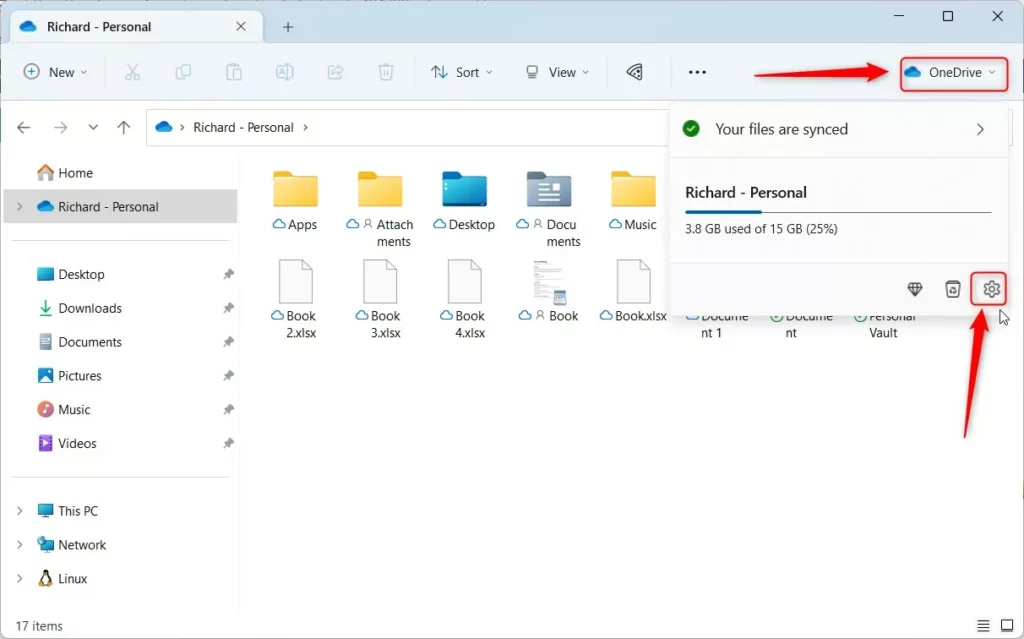
- Click the OneDrive icon in your Taskbar.
- Select the gear icon and choose Settings.
Alternatively, open your OneDrive folder in File Explorer, click the OneDrive button at the top, and select the gear icon.
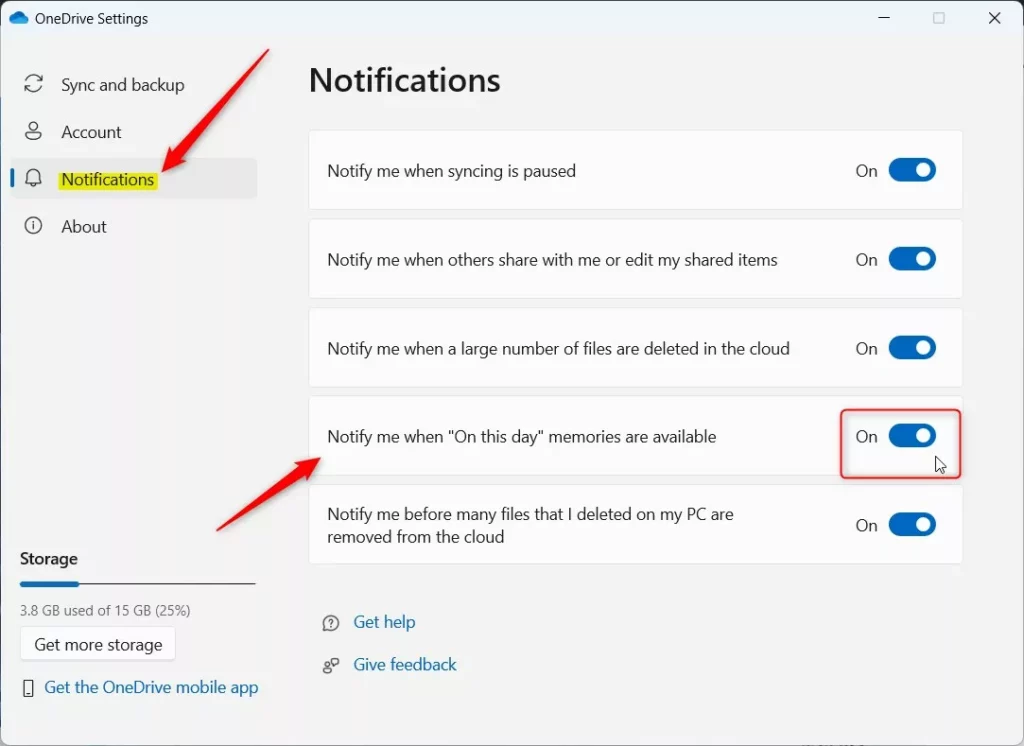
- In the Settings window, click Notifications on the left side.
- Find the switch for ‘Notify me when On this day memories are available.’
- Toggle this to On or Off based on your preference.
Manage OneDrive Memories on Mobile
If you use OneDrive on your phone, you can manage its ‘On This Day’ memory alerts directly within the mobile app.
- Open the OneDrive app on your mobile device.
- Tap your profile icon or the Me tab.
- Go to Settings.
- Tap Notifications.
- Toggle off On This Day memories.
Disable via OneDrive Web Settings
You can also manage your photo preferences directly through the browser. Visit the OneDrive web settings page to toggle your memory preferences globally.
Change settings using the Registry (Admin Required)
Advanced users can change OneDrive On This Day notification settings using the Windows Registry Editor, but you’ll need administrator permission first.
- Open the Windows Registry.
- Go to this path:
HKEY_CURRENT_USER\Software\Microsoft\OneDrive\Accounts\Personal
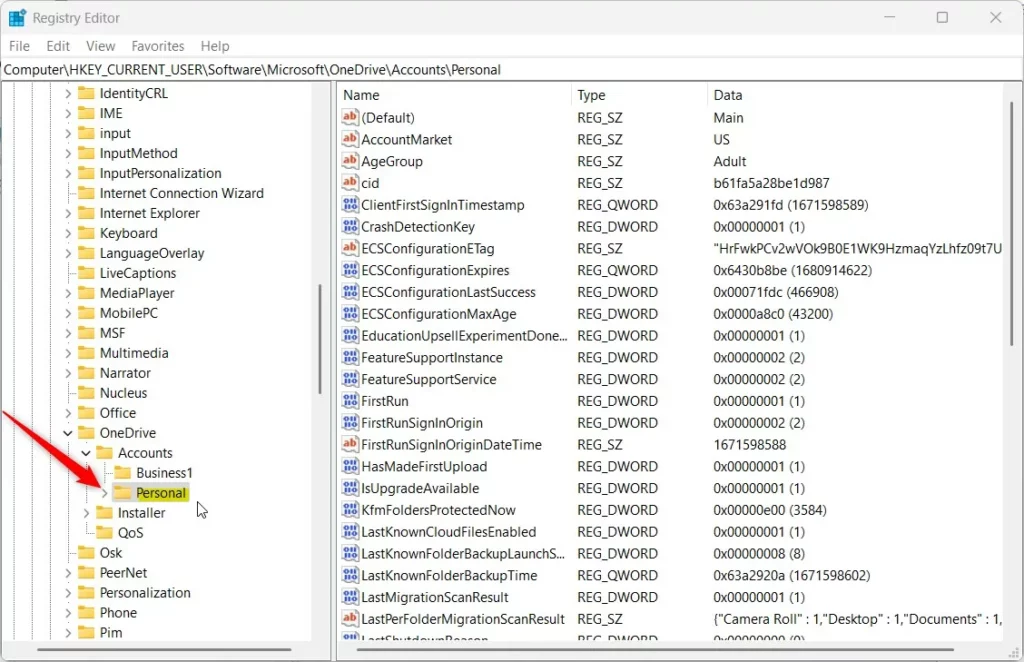
If you don’t see the Personal folder, right-click the Accounts key and create it.
- Right-click in the empty space on the right side and select New > DWORD (32-bit) Value.
- Name the new item
OnThisDayPhotoNotificationDisabled. - Double-click this item, set the Base to Decimal, and enter
1to disable or0to enable.
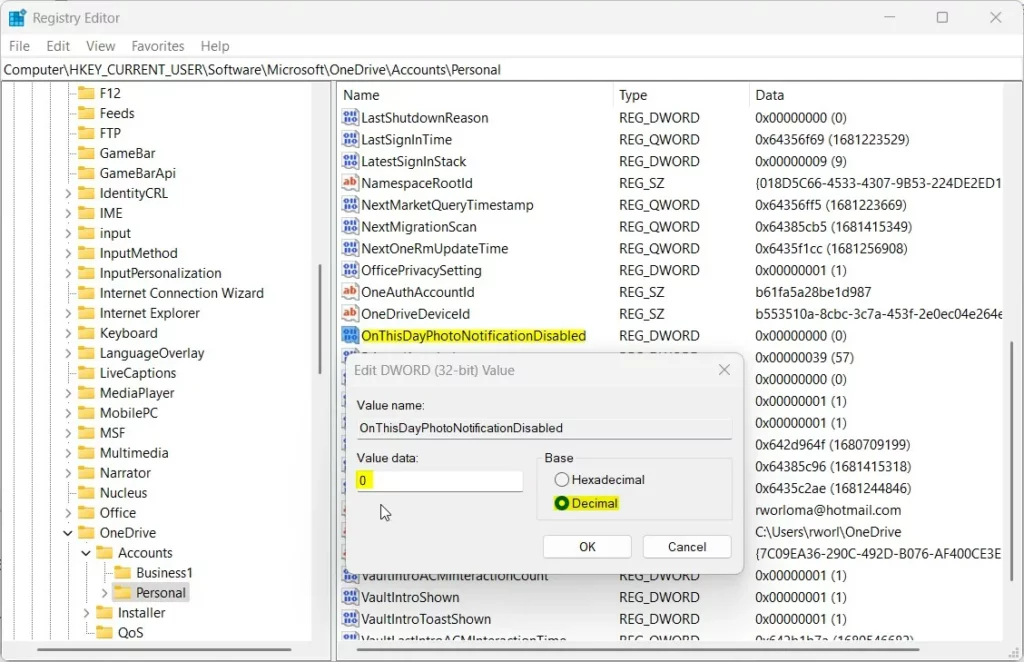
Restart your computer to apply the changes.
Summary
OneDrive uses your photos to send ‘On this day’ memory notifications, which you can control through the app, mobile settings, or the Windows Registry.
Will disabling notifications delete my photos?
No, disabling ‘On This Day’ notifications will not delete your photos. This setting only stops the automated alerts and pop-ups that suggest memories. Your files remain safely stored in your OneDrive cloud account and can be accessed at any time through your file explorer or the web interface.
Can I re-enable notifications later?
Yes, you can re-enable these notifications at any time. Simply follow the same steps used to disable them and toggle the switch back to the On position. Once enabled, OneDrive will resume scanning your photo library and sending you memory alerts based on the dates of your saved images.
Why am I receiving these emails if I don’t use OneDrive?
You might be getting OneDrive ‘On This Day’ emails even if you don’t actively use the app because your Microsoft account may automatically save photos from other services.
Was this guide helpful?

About the Author
Richard
Tech Writer, IT Professional
Richard, a writer for Geek Rewind, is a tech enthusiast who loves breaking down complex IT topics into simple, easy-to-understand ideas. With years of hands-on experience in system administration and enterprise IT operations, he’s developed a knack for offering practical tips and solutions. Richard aims to make technology more accessible and actionable. He's deeply committed to the Geek Rewind community, always ready to answer questions and engage in discussions.


No comments yet — be the first to share your thoughts!