How to Manage OneDrive Photos in Microsoft Photos App

You manage OneDrive photos in the Microsoft Photos app by controlling which folders sync to your PC.
The Microsoft Photos app integrates directly with OneDrive, allowing you to display and organize cloud-stored images alongside your local files. This means you can view, edit, and manage pictures from your OneDrive without needing to download them all to your computer.
For instance, you can easily hide specific OneDrive folders, such as your ‘Screenshots’ folder, directly within the Photos app to keep your library clean. This handy feature works across Windows 11 and older versions of Windows.
This gives you precise control over your digital photo collection, ensuring only the images you choose appear in your library. Your original files remain securely stored in OneDrive.
Open the Photos app, go to Settings, and toggle your OneDrive account to On in the OneDrive Accounts section. This links your cloud photos to the app for viewing and management.
System Requirements for Integration
To successfully sync your photos, ensure you meet these requirements:
- A valid Microsoft 365 Personal or Family subscription (or a free Microsoft account).
- The latest version of the Microsoft Photos app installed from the Microsoft Store.
- An active internet connection for cloud synchronization.
- Sufficient cloud storage quota available in your OneDrive account.
How to link OneDrive to Microsoft Photos
Follow these steps to connect your account:
- Open the Photos app from your Start menu.
Microsoft Photos app on the All apps list - Click the Settings (gear) icon at the top right of the window.
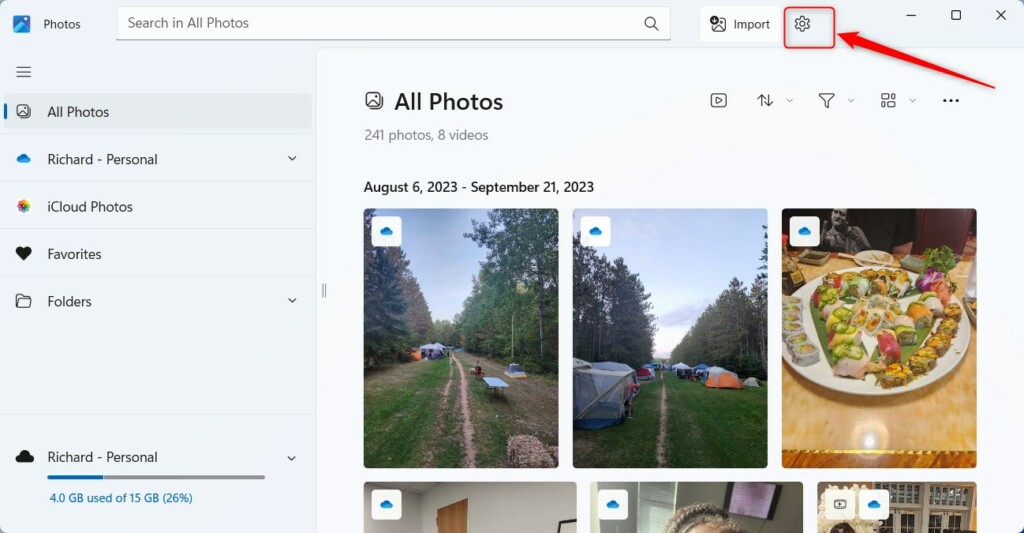
Windows Photos app settings button - Navigate to the OneDrive Accounts section.
- Select your account tile and toggle the switch to On.
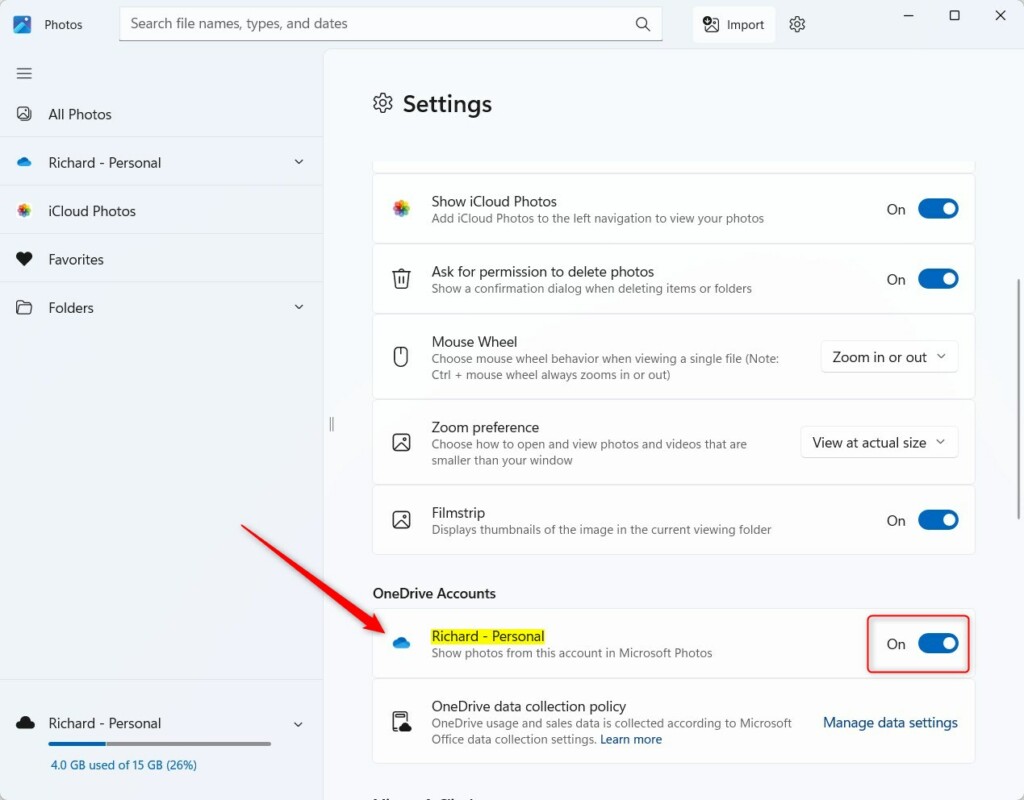
Microsoft Photos OneDrive account button
Note: This process does not require administrator privileges.
Syncing and Backup Settings
The Microsoft Photos app relies on the OneDrive desktop client to sync files. Ensure your auto-backup settings are enabled in the OneDrive app to keep your camera roll updated. You can verify your sync status by checking the OneDrive icon in your system tray. If you encounter issues, you may need to check your file paths, such as 📁C:\Users\Username\OneDrive\Pictures, to ensure the folder is included in your sync list.
Cross-Device Accessibility
By using Microsoft 365 integration, your photos are accessible on your PC, tablet, and phone. Any edits made in the Photos app are saved back to the cloud, ensuring your metadata and tags remain consistent across all platforms. This makes it easy to manage your digital memories from anywhere.
Managing Storage Space
If you are running low on space, check your OneDrive storage quota. You can move large files or clear out old backups to free up room. Remember that the Personal Vault feature provides extra security for sensitive documents, though these are typically managed separately from your standard photo library.
Summary
The Microsoft Photos app is the best way to view your OneDrive photos. By linking your account, you enable automatic backup and cross-device syncing. You can easily toggle these settings to manage your privacy and storage. This process is simple and does not require administrator privileges. For more help, visit the Microsoft Support page.
Does deleting a photo in the Photos app delete it from OneDrive?
Yes. Because the Photos app is directly linked to your OneDrive cloud storage, deleting a photo within the app will remove the file from your OneDrive account as well. Always check your files before deleting to avoid losing important memories permanently.
Can I view OneDrive photos offline in the Microsoft Photos app?
You can view photos that have been downloaded to your local device. If a photo is stored only in the cloud, you will need an active internet connection to download and view it. You can mark specific folders to always keep on your device via OneDrive settings.
Was this guide helpful?

About the Author
Richard
Tech Writer, IT Professional
Richard, a writer for Geek Rewind, is a tech enthusiast who loves breaking down complex IT topics into simple, easy-to-understand ideas. With years of hands-on experience in system administration and enterprise IT operations, he’s developed a knack for offering practical tips and solutions. Richard aims to make technology more accessible and actionable. He's deeply committed to the Geek Rewind community, always ready to answer questions and engage in discussions.




[…] that allows users to view, edit, and organize their photos and images. You can include and display your photos stored on OneDrive within the […]
[…] that allows users to view, edit, and organize their photos and images. You can include and display your photos stored on OneDrive within the […]
HEllo, Windows 11 has changed the options and you cannot stop the Microsoft photos widget from randomly displaying your personal photos. Please help! The Settings/One Drive Accounts/Personal section no longer has a toggle switch but rather only two available options: “Account Settings” OR “Remove Onedrive Albums…”. I looked under both sections and there is no place to toggle off “show photos from Onedrive” Can someone please assist me? Thank you!
[…] editor that allows users to view, edit, and organize their photos and images. You can include and display your photos stored on OneDrive within the […]
[…] your photos here. It also lets you edit pictures and even connect to online photo storage like OneDrive or […]
[…] can also sync your OneDrive storage to see your files on any […]