How to Import Photos and Videos in Windows 11

You import photos and videos into Windows 11 primarily using the built-in Photos app, File Explorer, or cloud synchronization services.
Importing means copying your pictures and videos from a device like your phone, camera, or external drive directly onto your Windows 11 computer.
This process ensures your precious memories are safely stored on your PC, making them easily accessible for organization and editing with Windows 11’s included Photos app.
For instance, you can transfer a large collection of hundreds of photos from your smartphone to your PC in a matter of minutes.
Once imported, your media resides in a dedicated folder on your computer, ready for you to view, edit, and back up whenever you choose.
Import photos and videos into Windows 11 using the Photos app, File Explorer, or cloud services. Connect your device via USB, then use the Photos app’s Import button or File Explorer’s copy/paste function to transfer files. Cloud services like OneDrive offer automatic syncing.
Comparison of Import Methods
| Method | Speed | Convenience |
|---|---|---|
| USB Cable | Fast | Medium |
| OneDrive/Cloud | Depends on Internet | High |
| File Explorer (Copy/Paste) | Fast | High |
How to Import Using the Photos App
The Microsoft Photos app is the easiest way to manage your collection.
- Open the Photos app from the Start menu.
Microsoft Photos app on the All apps list - Connect your phone or camera using a USB cable.
- Click Import at the top of the app.
- Select your device from the list.
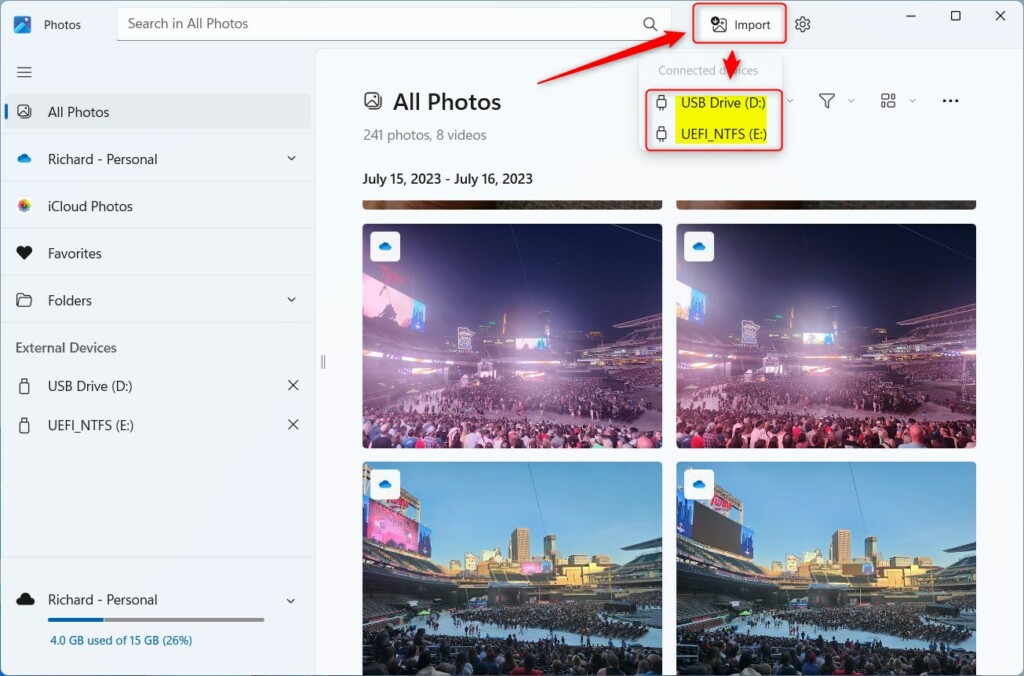
Windows 11 import photos and videos into photos app - Choose the photos you want to move.
- Pick a folder to save them in.
- Select Delete items after import if you want to clear space on your phone.
Note: If you are saving to a system folder like 📁C:\Users\GenericUser\Pictures, you might need admin privileges to complete the task.
Importing via File Explorer
If you prefer manual control, use File Explorer to move files directly from your device’s DCIM folder.
- Connect your device via USB.
- Open File Explorer (Windows key + E).
- Find your device in the left sidebar.
- Open the DCIM folder.
- Select your files, right-click, and choose Copy.
- Navigate to your desired folder on your PC and Paste.
Cloud Integration: OneDrive and iCloud
You can sync your OneDrive storage to see your files on any device. For iPhone users, installing iCloud for Windows allows your photos to sync automatically to your PC without cables.
Troubleshooting Common Issues
If your PC does not see your device, try these steps:
- Use a different USB cable.
- Ensure your phone is unlocked.
- Check your phone settings to ensure it is in File Transfer mode.
- Update your drivers via Device Manager.
Summary
Importing your media into the Photos app keeps your files organized in one place. Whether you use a USB cable for speed or cloud services for convenience, your photos will be ready for viewing and editing. Remember to check your device settings if you run into connection issues.
Why is my 🪟 Windows 11 PC not detecting my phone?
This often happens because the USB cable is for charging only or the phone is locked. Ensure you are using a data-capable cable, unlock your phone screen, and select the ‘File Transfer’ or ‘MTP’ option on your phone’s notification menu when prompted.
How do I change the default import folder in 🪟 Windows 11?
In the Photos app, go to Settings. Look for the ‘Sources’ section. Here you can add or remove folders that the app monitors. You can also change the default save location in your system settings under Storage or by right-clicking your Pictures folder and selecting Properties.
Was this guide helpful?

About the Author
Richard
Tech Writer, IT Professional
Richard, a writer for Geek Rewind, is a tech enthusiast who loves breaking down complex IT topics into simple, easy-to-understand ideas. With years of hands-on experience in system administration and enterprise IT operations, he’s developed a knack for offering practical tips and solutions. Richard aims to make technology more accessible and actionable. He's deeply committed to the Geek Rewind community, always ready to answer questions and engage in discussions.




[…] can use the Photos app to replace an image background, remove an image background, import photos and videos, show iCloud in the app, change mouse wheel behavior, and […]