How to Import Photos and Videos in Windows 11

This guide shows you how to move your photos and videos into the Microsoft Photos app on Windows 11. The Microsoft Photos app is a built-in tool. It lets you view, edit, and organize your pictures. You can include and display your photos stored on OneDrive within the app.
Why do this? Importing your media into one central app makes it much easier to find your files. It also gives you access to simple editing tools like cropping, rotating, and filters.
What happens when done? Your photos and videos will be saved in your chosen folder on your PC. You will be able to see and edit them anytime using the Photos app.
You can import files from an SD card, a USB drive, or a phone. If using a phone, make sure your USB settings are set to transfer files.
You can also sync your OneDrive storage to see your files on any device.
How to import your photos
Follow these steps to bring your media into the app:
- Open the Photos app from the Start menu or your All apps list.

- Use a USB cable to plug your device into your computer.
- Select Import from the top bar in the Photos app. Your device will appear under Connected devices.
- Click on your device in the list.
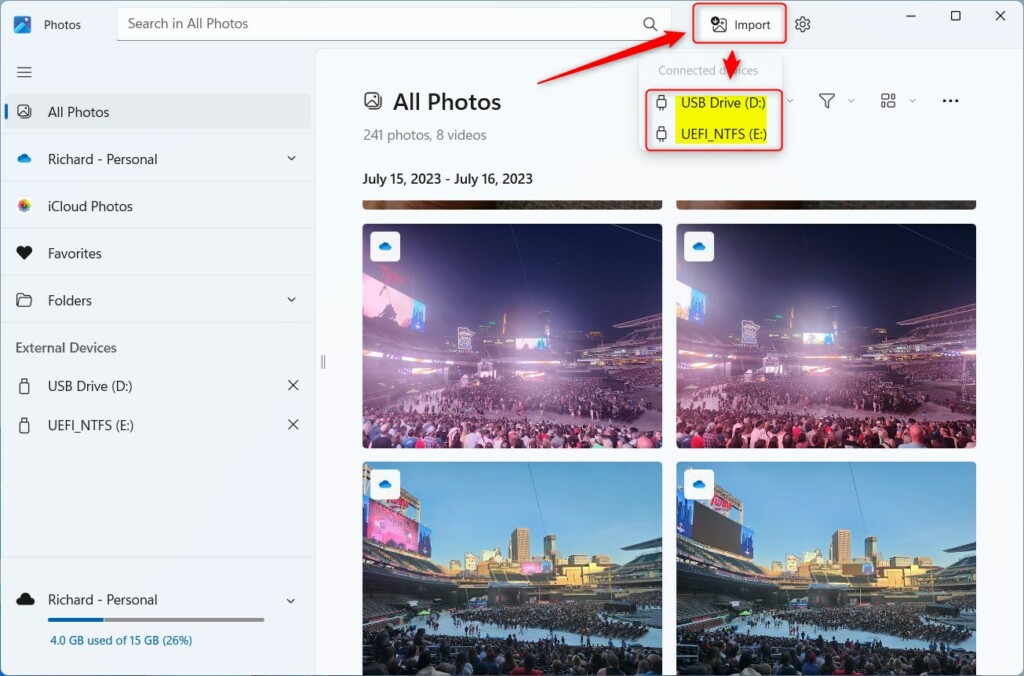
- Pick the photos and videos you want to move.
- Choose the folder on your computer where you want the files saved.
- Decide if you want to delete the files from your original device by checking or unchecking the Delete items after import box.
Note: If you need to manage system-level media folders, you may occasionally need admin privileges to write files to protected directories like C:\Users\GenericUser\Pictures.
That is all there is to it!
Reference: Microsoft
Summary
Importing your media into the Photos app keeps your files organized in one place. You can easily edit your images and sync them to the cloud for access on any device.
Was this guide helpful?




[…] can use the Photos app to replace an image background, remove an image background, import photos and videos, show iCloud in the app, change mouse wheel behavior, and […]