How to Easily Transfer Photos to Windows 11

You transfer photos to Windows 11 using a USB cable, cloud storage, or wireless tools like Microsoft’s Phone Link app.
Transferring photos and videos from your phone to your Windows 11 PC is essential for backing up your precious memories and freeing up storage space on your mobile device.
This process ensures your photos are safe on your computer, ready for editing, viewing, or sharing on a larger screen.
Once you transfer your pictures, they are readily accessible within Windows 11 for use with the built-in Photos app or any other program you prefer.
Connect your phone to your PC with a USB cable and use the Photos app to import. You can also use the Phone Link app for wireless transfers or OneDrive for automatic cloud syncing.
Quick Summary Table
| Method | Best For | Speed |
|---|---|---|
| USB-C Cable | Large batches | Fast |
| Phone Link | Quick access | Medium |
| OneDrive | Automatic sync | Automatic |
Transferring Photos via USB-C Cable
You can transfer photos to Windows 11 quickly and without losing quality by using a USB-C cable to connect your phone directly to your PC.
- Connect your phone to your PC using a high-quality USB-C cable.
- Unlock your phone screen.
- If using an iPhone, tap Trust when the prompt appears.
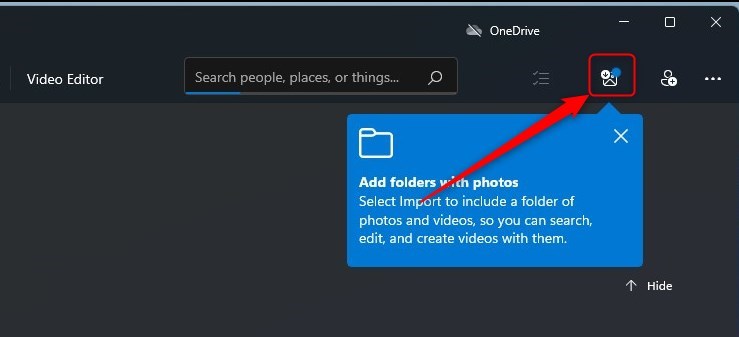
- Open the Windows Photos app on your PC.
- Click the Import button in the top right.
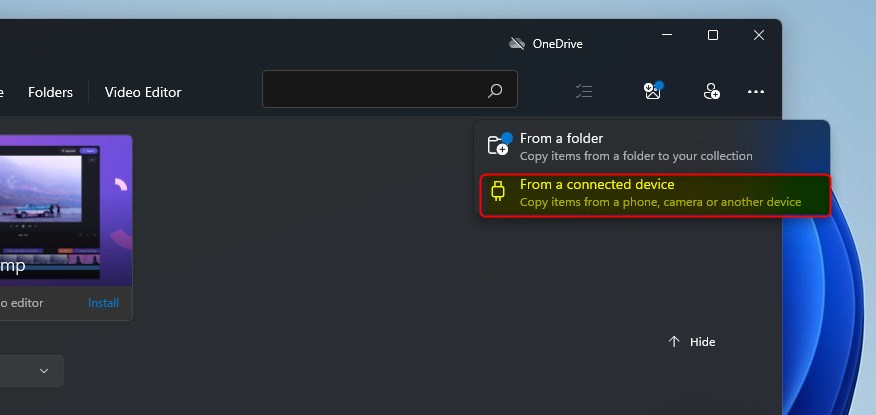
- Select From a connected device.
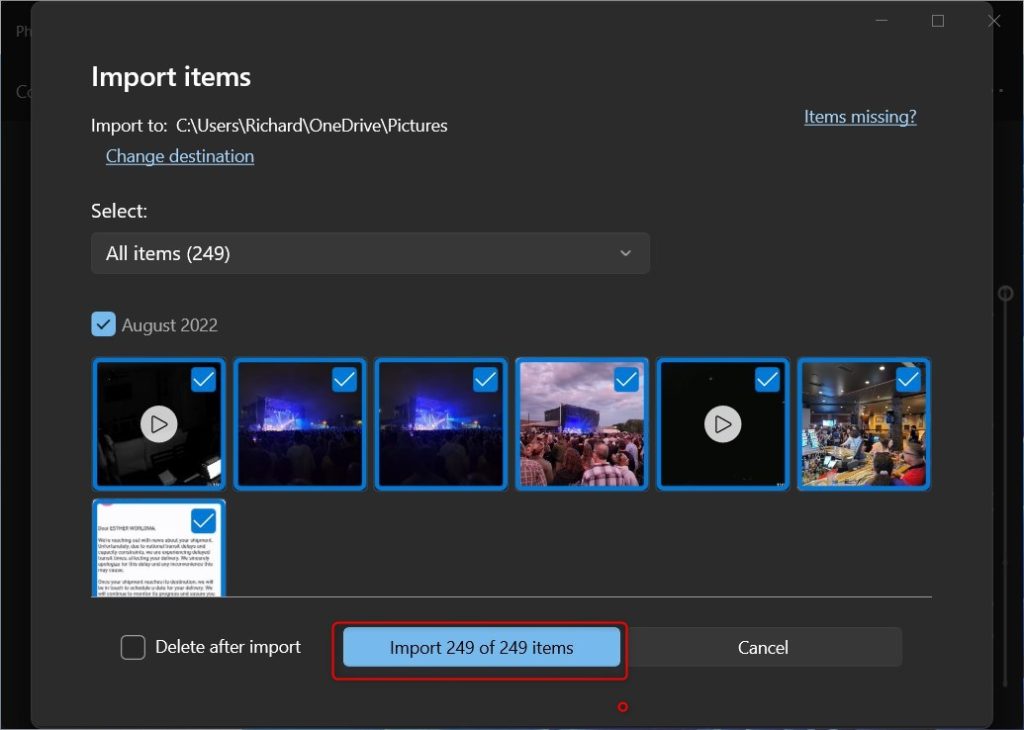
- Choose the photos you want and click Import Items.
Note: If your PC doesn’t see your phone, double-check your cable connection or try a different USB port. Admin Privilege Note: You might need to update your device drivers (small software programs that help your computer talk to hardware) in Device Manager if your phone isn’t recognized.
Using Phone Link for Wireless Transfer
Transferring photos to Windows 11 wirelessly is simple with the Phone Link app, letting you grab pictures from your Android phone without any cables.
- Open Phone Link on your PC.
- Follow the setup steps to pair your phone.
- Click the Photos tab in the app.
- Right-click a photo and select Save as to move it to your computer.
Cloud Syncing with OneDrive
You can use OneDrive to sync photos automatically. This works for both iPhone and Android.
- Install the OneDrive app on your phone.
- Turn on Camera Upload in the app settings.
- Your photos will appear in the OneDrive folder on your PC at 📁C:\Users\Username\OneDrive\Pictures.
Fixing Connection Issues
If Windows 11 does not detect your phone, try these steps:
- Ensure your phone is unlocked.
- Try a different USB cable.
- Check if your phone is set to File Transfer mode in the USB settings menu.
- Restart both your phone and your PC.
Handling HEIC Files
iPhones often save photos as HEIC files. Windows 11 might need the HEIF Image Extensions from the Microsoft Store to open these files. You can also change your iPhone settings to Most Compatible to save files as JPEG automatically.
Summary
Transferring photos to Windows 11 is easy with multiple options, including USB cables for large amounts of pictures, the Phone Link app for wireless transfers, and cloud services like OneDrive for automatic syncing.
How do I transfer photos from iPhone to 🪟 Windows 11 without iTunes?
You can transfer photos from an iPhone to Windows 11 by connecting it via a USB cable and using the Windows Photos app. Simply select the device, choose your photos, and click import. This method bypasses iTunes entirely and works for most standard photo formats.
Does transferring photos via USB-C affect image quality?
No, transferring photos via a USB-C cable does not affect image quality. The process creates a direct digital copy of the original file from your phone to your computer. This ensures your photos remain in their original resolution and format, making it the best method for high-quality backups.
Was this guide helpful?

About the Author
Richard
Tech Writer, IT Professional
Richard, a writer for Geek Rewind, is a tech enthusiast who loves breaking down complex IT topics into simple, easy-to-understand ideas. With years of hands-on experience in system administration and enterprise IT operations, he’s developed a knack for offering practical tips and solutions. Richard aims to make technology more accessible and actionable. He's deeply committed to the Geek Rewind community, always ready to answer questions and engage in discussions.


No comments yet — be the first to share your thoughts!