Phone Link App: Enable Cross-Device Copying on Windows 11

You enable cross-device copying and pasting on Windows 11 with the Phone Link app.
This feature creates a universal clipboard, allowing you to seamlessly transfer text, links, and images between your Android phone and PC. Think of it as a shared digital notepad connecting your devices.
For instance, you can copy a URL on your phone and paste it directly into a browser on your Windows 11 computer, or grab a phone number from a text and paste it into a dialer app on your PC.
Once configured, anything you copy on your compatible Android device will appear on your Windows 11 PC, and vice-versa. This synchronization happens over your local network.
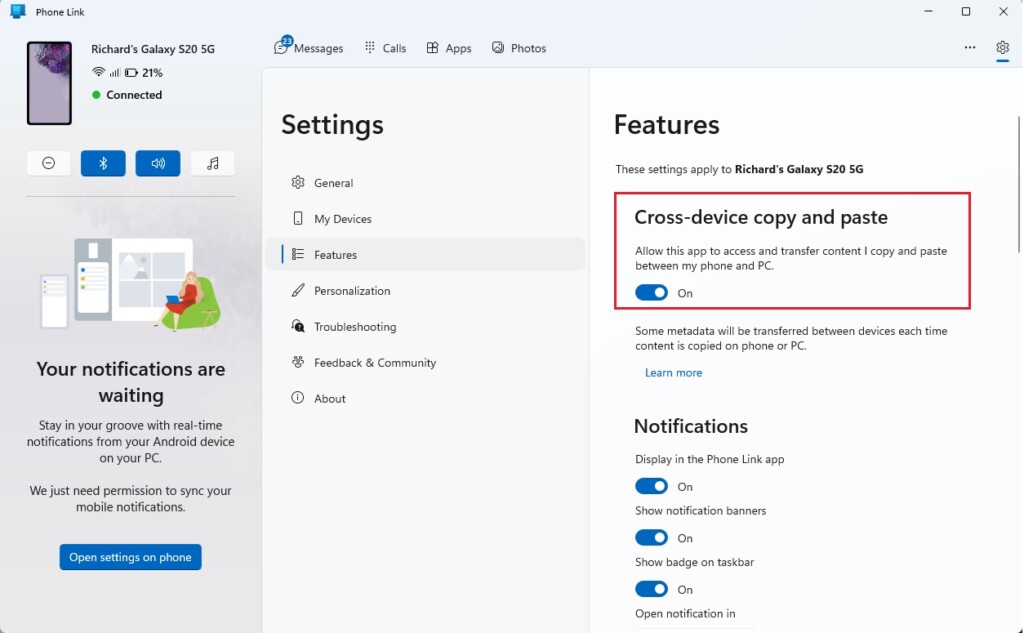
Open the Phone Link app on your Windows 11 PC, go to Settings, select Features, and toggle “Cross-device copy and paste” to On. This enables seamless text, link, and image transfer between your devices over Wi-Fi.
Device Compatibility and Requirements
Not all phones support this feature. It works best on Surface Duo and certain Samsung devices running One UI version 2.1 or newer. You’ll need both devices connected to the same Wi-Fi network, with Bluetooth enabled for them to pair correctly.
Supported File Types
- Text: Plain text and some rich text formats.
- Images: Single images copied from your gallery or web browser.
- Links: URLs copied from your mobile browser.
How to enable or disable cross-device copy and paste
Turning cross-device copy paste on or off in the Phone Link app is simple and done right in the app’s settings.
- Open the Phone Link app on your Windows 11 PC.
- Click the Settings (gear icon) located at the top right corner.
- Select Features from the menu.
On the Features screen, look for Cross-device copy and paste. Toggle the switch to On. Note: Administrative privileges are not required to change these settings within the app.
Privacy and Security
Your clipboard content stays private. The data is protected with end-to-end encryption during transfer, meaning only you can access the synced information.
Troubleshooting Common Issues
If your cross-device copy paste isn’t syncing between your phone and PC, don’t worry. Let’s try a few easy checks to get it working again.
- Ensure both devices are on the same Wi-Fi network.
- Check if Bluetooth is enabled on both devices.
- Restart the Phone Link app on your PC and the Link to Windows service on your phone.
- Verify that your clipboard history settings in Windows (Settings > System > Clipboard) are enabled.
Summary
The Phone Link app makes it simple to copy and paste between your phone and Windows 11 PC, helping you get things done faster.
Related posts:
- How to link an Android phone to Windows 11
- How to turn on or off phone link app notification banners in Windows 11
Does cross-device copy and paste use mobile data?
No, the feature primarily relies on your local Wi-Fi network and Bluetooth connection to sync data between devices. It does not consume your mobile data plan for standard clipboard transfers, ensuring your data usage remains low while you work across your phone and computer.
Why does my copied text lose formatting?
The Phone Link app is optimized for plain text transfer to ensure compatibility across different operating systems. When you copy rich text, the system often strips complex formatting to prevent errors during the paste process, resulting in standard text that is easier for the receiving application to process.
Do I need to be on the same Wi-Fi network?
Yes, for the best performance and lowest latency, both your Android phone and your Windows 11 PC should be connected to the same local Wi-Fi network. This allows the devices to communicate directly and securely, ensuring that your copied content transfers almost instantly without delays.
Was this guide helpful?

About the Author
Richard
Tech Writer, IT Professional
Richard, a writer for Geek Rewind, is a tech enthusiast who loves breaking down complex IT topics into simple, easy-to-understand ideas. With years of hands-on experience in system administration and enterprise IT operations, he’s developed a knack for offering practical tips and solutions. Richard aims to make technology more accessible and actionable. He's deeply committed to the Geek Rewind community, always ready to answer questions and engage in discussions.

No comments yet — be the first to share your thoughts!