How to Enable Sync Over Mobile Data in Phone Link for Windows 11

You enable sync over mobile data in Phone Link for Windows 11 to allow your PC to access your phone’s content, such as photos and messages, using your cellular connection. This bypasses the need for a Wi-Fi network, keeping you connected to your device’s data from virtually any location with a mobile signal.
By default, Phone Link prioritizes Wi-Fi to conserve your mobile data allowance. However, you can easily switch this setting on Windows 11, specifically for version 22H2 and newer, to ensure continuous synchronization.
Open Phone Link on your PC, go to Settings (gear icon), select General, and toggle “Allow my app to sync over mobile data” to On. Ensure “Allow background data usage” is enabled for Link to Windows on your phone.
Why use this feature?
Why would you use this feature? Imagine you’re at a park or traveling, and there’s no reliable Wi-Fi. This setting keeps your messages, photos, and apps synced between your devices. That way, you won’t miss an important notification while you’re working on your PC.
What happens when done?
Your PC will start using your phone’s cellular data to keep the connection alive. This is really convenient, but it will use up your monthly mobile data. You should monitor your usage to avoid extra charges from your mobile carrier.
How to sync over mobile data on your PC
- Open the Phone Link app on your computer.
- Click the Settings button (the gear icon) in the top right corner.
- Select the General tab.
- Look for Connection optimization.
- Toggle the switch for “Allow my app to sync over mobile data when I’m not connected to Wi-Fi” to On.
How to sync over mobile data on your phone
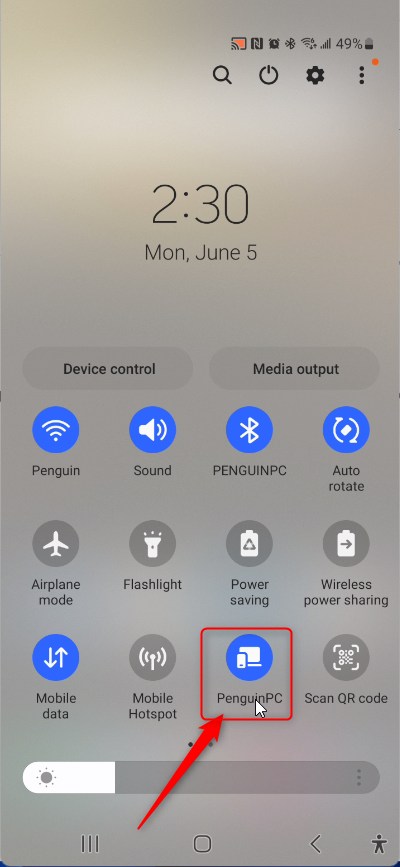
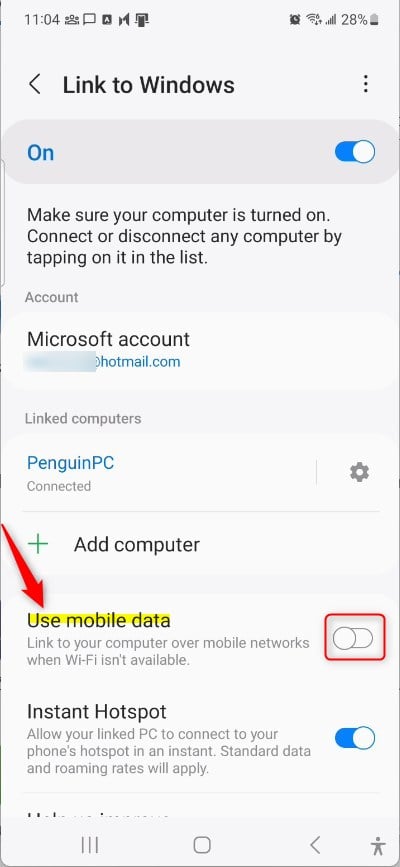
You also need to make sure the Link to Windows app has permission to use data:
- Open the Settings menu on your Android device.
- Search for Apps or Application Manager.
- Find and tap on Link to Windows.
- Tap on Mobile data.
- Ensure Allow background data usage is toggled On.
Data Usage Comparison Table
| Feature | Estimated Data Impact |
|---|---|
| Text Messaging | Very Low |
| Viewing Photos | Moderate |
| Screen Mirroring | High |
Troubleshooting Phone Link Connectivity Issues
If your Phone Link mobile data sync isn’t working, start by checking a few common settings on both your phone and computer.
- Battery Optimization: Go to your phone settings and set Link to Windows to “Unrestricted” battery usage.
- Microsoft Account: Ensure you are signed into the same account on both devices.
- Permissions: Verify that the app has permission to access photos and contacts.
For more in-depth help, visit the official Microsoft Support Link to Windows page.
Administrative Privileges Note
Note: Changing network adapter settings or modifying system-wide background data policies may require administrative privileges on your Windows PC. If you are on a work computer, contact your IT department.
Summary
Enabling Phone Link mobile data sync is a great way to stay connected. Manage your background data settings and battery preferences for a smooth experience. Always keep an eye on your data usage to avoid unexpected costs. Then, you can enjoy your phone apps on your PC screen.
Does syncing Phone Link over mobile data consume a lot of battery?
Yes, keeping a constant connection over cellular data requires more power than Wi-Fi. Your phone may drain faster because it must maintain a steady signal to the cellular tower while syncing data to your PC. We recommend keeping a charger nearby if you plan to sync for long periods.
Why is my Phone Link not syncing photos over cellular data?
This is usually caused by background data restrictions. Check your phone’s app settings to ensure “Allow background data usage” is enabled for the Link to Windows app. Also, verify that your mobile data plan is active and not currently in a low-data state or restricted by your carrier.
Does Phone Link use mobile data?
Yes, Phone Link can use your mobile data to connect your phone and computer, especially if you’re not on Wi-Fi.
How to force Phone Link to sync?
Open the the Link to Windows app. Select Settings . Select Sync over mobile data. Turn this option On.
How to sync two phones data?
1. Using Google Account. If both smartphones are linked to the same Google account, you can sync data between them. To do this, you need to enable data syncing on both devices by going to Settings > Accounts > Google, and then selecting the data types you want to sync.
Was this guide helpful?



[…] can choose how to display notifications, choose to hear audio from the PC or phone, turn allow the phone link app to sync over mobile without Wi-Fi on or off, unlink your phone from Windows, enable or disable auto startup for the phone link […]