Enable Photos Access in Phone Link for Windows 11

You enable Photos access in Phone Link for Windows 11 by granting the app permission to view your device’s gallery.
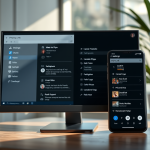
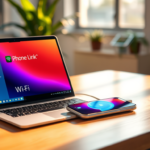
Phone Link is a Microsoft utility that links your Android or iPhone to your Windows PC, allowing you to access certain phone features directly from your desktop.
Once enabled, you can view, download, and share up to 2,000 of your most recent photos and screenshots from your phone onto your Windows 11 computer.
This feature streamlines photo management, eliminating the need for cables or cloud uploads for quick access.
Open the Phone Link app, go to Settings, select Features, and toggle the Photos switch to On. This allows your PC to display up to 2,000 recent photos and screenshots from your linked phone.
How to access photos through Phone Link?
To do this, open the Phone Link , go to Settings > Features > Photos and turn on the toggle for Allow this app to show photos from my phone.
Where are Phone Link photos stored?
For Phone Link app, the files you receive on your PC may be stored under the path "Downloads\Phone Link".
How do I download pictures from my Phone Link?
In Phone Link on the PC, go to Photos. For each photo: Drag the photo from Phone Link to the desktop to quickly save a copy there, or. Right-click (or long-press) the photo and select Save as, then choose a folder and select Save.
Was this guide helpful?

About the Author
Richard
Tech Writer, IT Professional
Richard, a writer for Geek Rewind, is a tech enthusiast who loves breaking down complex IT topics into simple, easy-to-understand ideas. With years of hands-on experience in system administration and enterprise IT operations, he’s developed a knack for offering practical tips and solutions. Richard aims to make technology more accessible and actionable. He's deeply committed to the Geek Rewind community, always ready to answer questions and engage in discussions.


No comments yet — be the first to share your thoughts!