How to Enable or Disable Phone Link in Windows 11

You enable or disable Phone Link in Windows 11 through the app’s settings or Windows Settings.
Phone Link, formerly known as Your Phone, is a Microsoft application that seamlessly connects your Android smartphone to your Windows PC. It allows you to access your phone’s photos, messages, calls, and notifications directly from your computer.
For example, you can check your latest text messages or transfer photos from your phone to your PC in just a few clicks. You’ll need a compatible Android device and Windows 11 to use this feature.
This guide shows you precisely how to toggle this useful feature on or off, giving you complete control over your phone-PC integration.
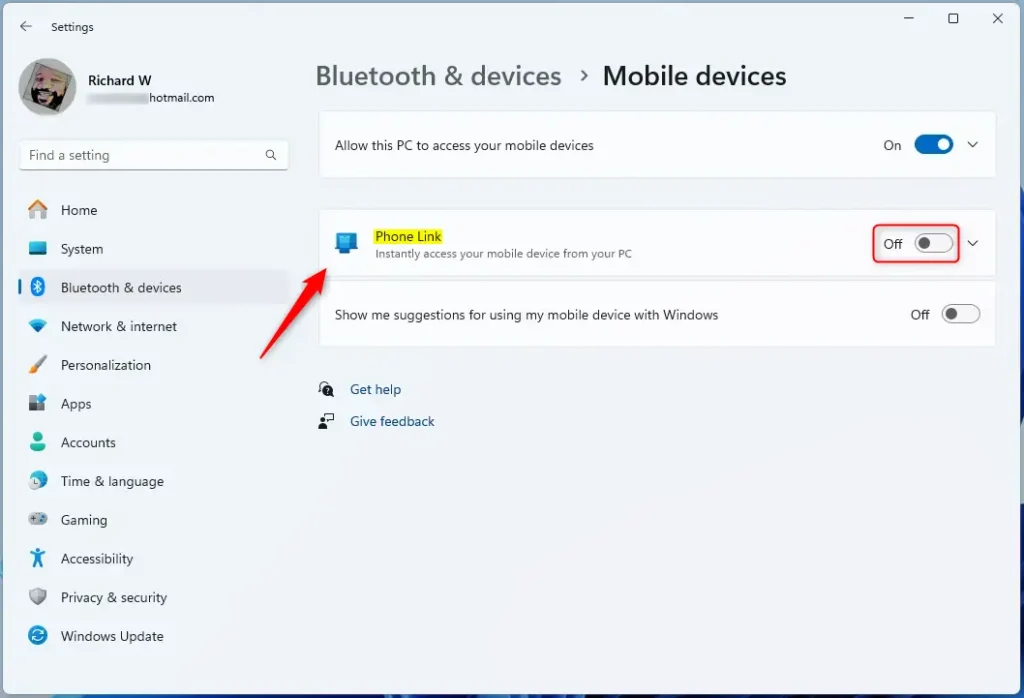
Open Windows Settings, go to Bluetooth & devices, then Mobile devices. Select the Phone Link tile and use the switch to turn it On or Off.
Prerequisites for Phone Link
Before you start, ensure your devices meet these requirements:
- A PC running Windows 11.
- An Android device running Android 9.0 or later.
- The Link to Windows app installed on your phone.
- Both devices must be connected to the same Wi-Fi network.
- You must be signed into the same Microsoft Account on both devices.
How to Set Up Phone Link
Why do this? Connecting your devices allows for cross-device productivity, such as cross-device copy and paste and instant hotspot access.
What happens when done? Your phone and PC will pair, allowing you to see your messages, photos, and apps directly on your desktop.
- Open the Phone Link app on your PC.
- Select your device type (Android).
- Follow the on-screen instructions to scan the QR code pairing display with your phone.
- Grant the necessary permissions on your phone to allow the app to access your contacts, messages, and photos.
Enable or Disable Phone Link in Windows Settings
You can manage this feature easily through the Settings app.
- Open the Windows Settings app by pressing Windows key + I.
- Click on Bluetooth & devices on the left.
- Click the Mobile devices tile.
- Select the Phone Link tile and use the switch to turn it On or Off.


Troubleshooting Common Connection Issues
If your devices won’t connect, try these steps:
- Ensure Bluetooth is enabled on both devices.
- Check that ‘Focus Assist’ or ‘Do Not Disturb’ is not blocking notifications.
- Restart both your phone and your PC.
- Update the Link to Windows app from the Google Play Store.
Advanced Configuration (Admin Required)
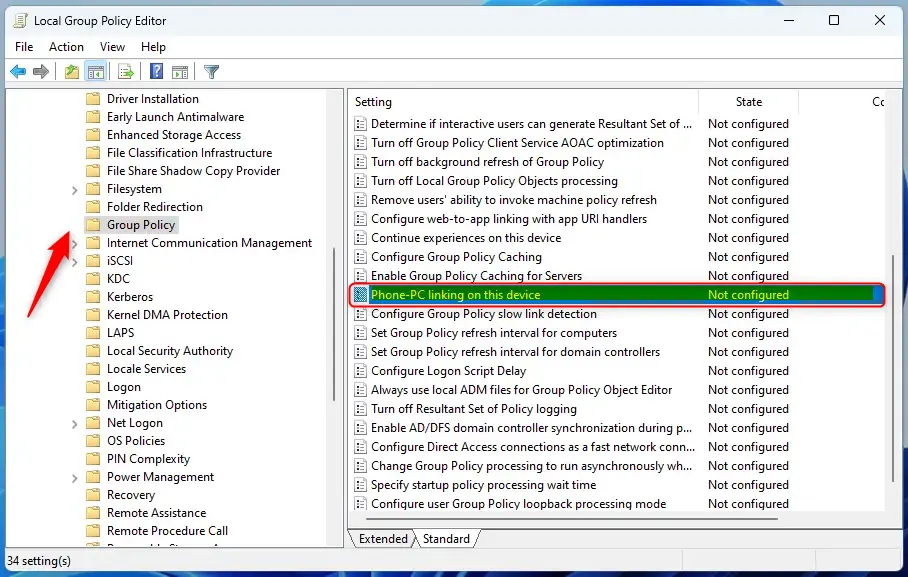
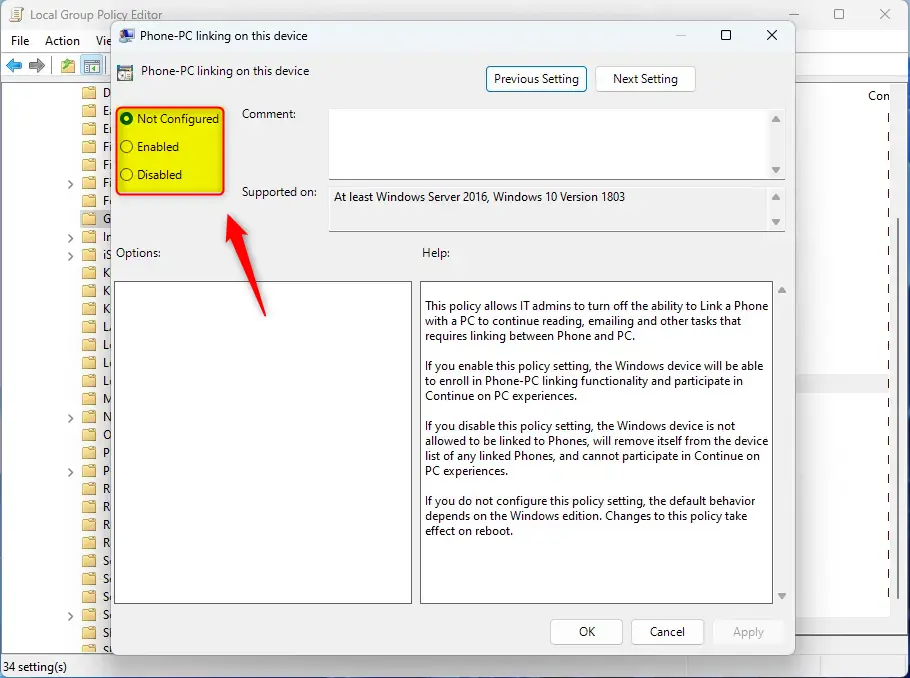
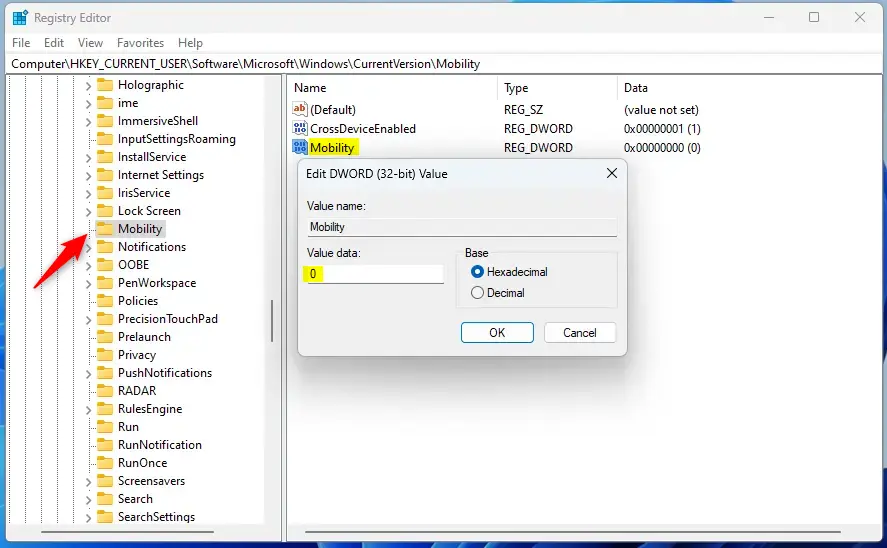
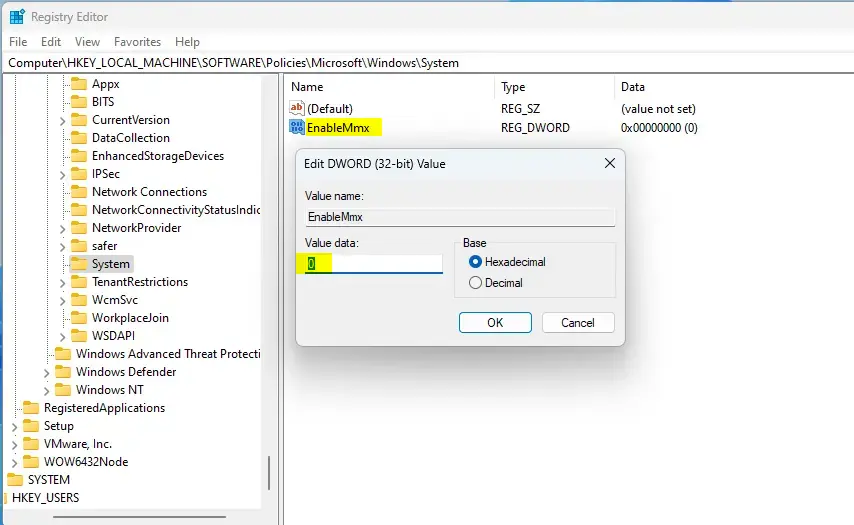
ADMIN PRIVILEGES REQUIRED: You can use the Local Group Policy Editor or Registry Editor to force these settings for all users.
Registry Path: 🗝️HKEY_CURRENT_USER\Software\Microsoft\Windows\CurrentVersion\Mobility
Summary
- What is it? A feature to sync your Android or iPhone with your PC.
- Why turn it off? To improve privacy or reduce distractions.
- What happens? Your PC stops syncing data and notifications from your mobile device.
- How to do it: Use the Settings app for a simple toggle, or use advanced editors for system-wide control.
Why do I need to grant permissions to Phone Link?
Granting permissions is necessary for the app to securely access your phone’s data. This includes your text messages, photo gallery, and notification stream. Without these permissions, the app cannot display your mobile content on your PC screen or allow you to interact with your phone’s apps remotely.
Does Phone Link work with iPhone?
Yes, Phone Link supports basic integration for iPhone. You can sync iMessage, calls, and notifications. However, the experience is more limited compared to Android, as features like app streaming and deep photo gallery integration are currently exclusive to specific Android devices and the Link to Windows app.
Can I use Phone Link on multiple PCs?
Yes, you can link your phone to multiple PCs using the same Microsoft Account. However, the phone can typically only maintain an active, real-time connection with one PC at a time. If you switch between computers, you may need to ensure the app is active on the device you are currently using.
Was this guide helpful?

About the Author
Richard
Tech Writer, IT Professional
Richard, a writer for Geek Rewind, is a tech enthusiast who loves breaking down complex IT topics into simple, easy-to-understand ideas. With years of hands-on experience in system administration and enterprise IT operations, he’s developed a knack for offering practical tips and solutions. Richard aims to make technology more accessible and actionable. He's deeply committed to the Geek Rewind community, always ready to answer questions and engage in discussions.



No comments yet — be the first to share your thoughts!