How to Allow Phone Link to Show Notification Banners in Windows 11

You allow Phone Link to show notification banners in Windows 11 by configuring Focus Assist and the Phone Link app’s notification settings.
Notification banners are those pop-up alerts that appear in the corner of your screen, informing you of incoming messages or app updates without interrupting your workflow.
Phone Link, formerly Your Phone, bridges your Android device and Windows 11 PC, enabling you to manage calls, texts, photos, and app notifications directly from your computer.
To ensure you never miss a critical alert, you must adjust Windows 11’s Focus Assist feature and the specific notification permissions for the Phone Link app itself.
Go to Settings > System > Notifications and toggle Phone Link to On. Then, open Phone Link, click the gear icon, select Features, and turn Show notification banners On. Ensure Focus Assist is off in your Action Center.
Why use Phone Link notification banners?
Phone Link notification banners let you see phone alerts like texts and app alerts right on your Windows 11 PC, saving you from constantly checking your phone.
How to enable or disable notification banners
Phone Link notification banners need to be turned on in both Windows 11 settings and the Phone Link app to show up on your PC.
- Click the Start button and open Settings.
- Go to System and then Notifications.
- Make sure the main Notifications toggle is set to On.
- Scroll down to the list of apps. Find Phone Link and toggle it to On.
Now, let’s adjust the settings inside the Phone Link app itself:
- Open the Phone Link app on your computer.
- Click the Settings (gear icon).
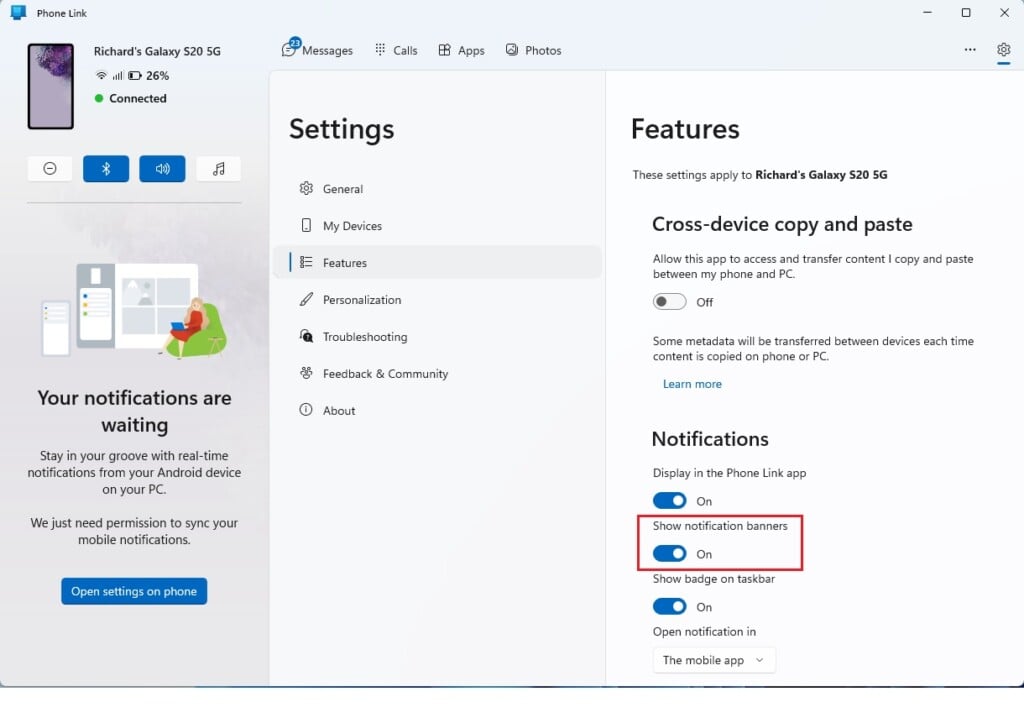
- Select Features.
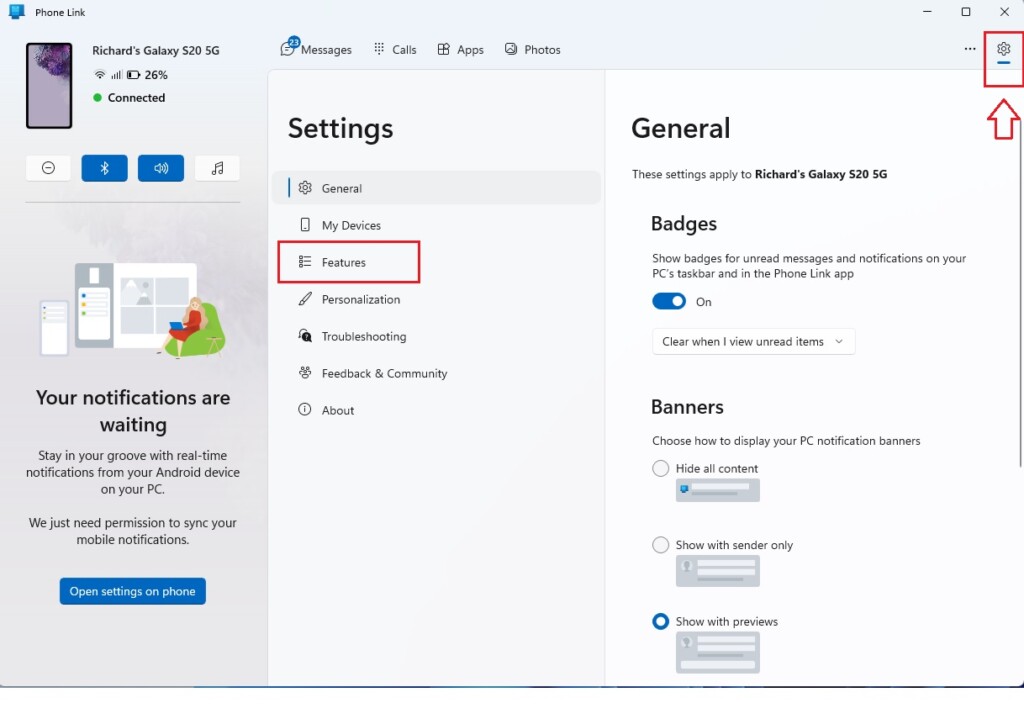
Under the Notifications section, use the toggle to turn Show notification banners to On or Off depending on your preference.
Troubleshooting: Why notifications are not showing
If your Phone Link notification banners aren’t showing up, the issue could be Focus Assist or how background apps are set up in Windows.
- Focus Assist/Do Not Disturb: If this mode is active, Windows hides notifications. Check your Action Center to ensure it is off.
- Background App Activity: Windows must allow Phone Link to run in the background. Go to Settings > Apps > Installed Apps > Phone Link > Advanced options and set Background apps permissions to Always.
- Android Permissions: On your phone, open the Link to Windows app. Ensure it has permission to access notifications.
- Battery Optimization: Android may kill the app to save power. Disable battery optimization for the Link to Windows app in your phone settings.
Checklist for Phone Link Success
- Ensure your PC and phone are on the same Wi-Fi network.
- Check that the Link to Windows app is updated on your Android device.
- Verify that your Windows 11 system is fully updated via Windows Update.
- Confirm that your Android device is not in Power Saving mode, which can block background syncing.
A successful Phone Link setup for notification banners relies on a few key checks, starting with making sure your PC and phone are on the same Wi-Fi network.
Summary
Getting Phone Link notification banners to show on Windows 11 means checking your system settings, turning off Focus Assist if it’s on, and making sure the app has permission to run.
Note: Some system-wide notification settings may require admin privileges to modify if you are on a managed work or school computer.
Related posts:
How to link Android phones to Windows 11
How to turn on or off a cross-device copy and paste with phone link app in Windows 11
Why are my Phone Link notifications synced but not showing banners?
Your Phone Link notifications might be synced but not showing banners because Focus Assist or Do Not Disturb mode is active on your PC, hiding alerts.
How do I reset the Phone Link app if notifications stop working?
If your Phone Link notifications stop working, you can reset the app through Windows settings to fix the issue and then re-link your phone.
Was this guide helpful?

About the Author
Richard
Tech Writer, IT Professional
Richard, a writer for Geek Rewind, is a tech enthusiast who loves breaking down complex IT topics into simple, easy-to-understand ideas. With years of hands-on experience in system administration and enterprise IT operations, he’s developed a knack for offering practical tips and solutions. Richard aims to make technology more accessible and actionable. He's deeply committed to the Geek Rewind community, always ready to answer questions and engage in discussions.


No comments yet — be the first to share your thoughts!