How to Switch Between Compact and Expanded View using Phone Link on Windows 11

Want to change how your Android apps look in Windows 11’s Phone Link? It’s as simple as resizing the app window on your PC.
This feature controls how your Android apps appear on your screen, offering either a streamlined compact layout or a more detailed expanded view (which shows more information at once).
For example, the expanded view is great when you need to see more information at once, while the compact view saves valuable screen real estate.
You can switch between these views by resizing the Phone Link window on your Windows 11 desktop.
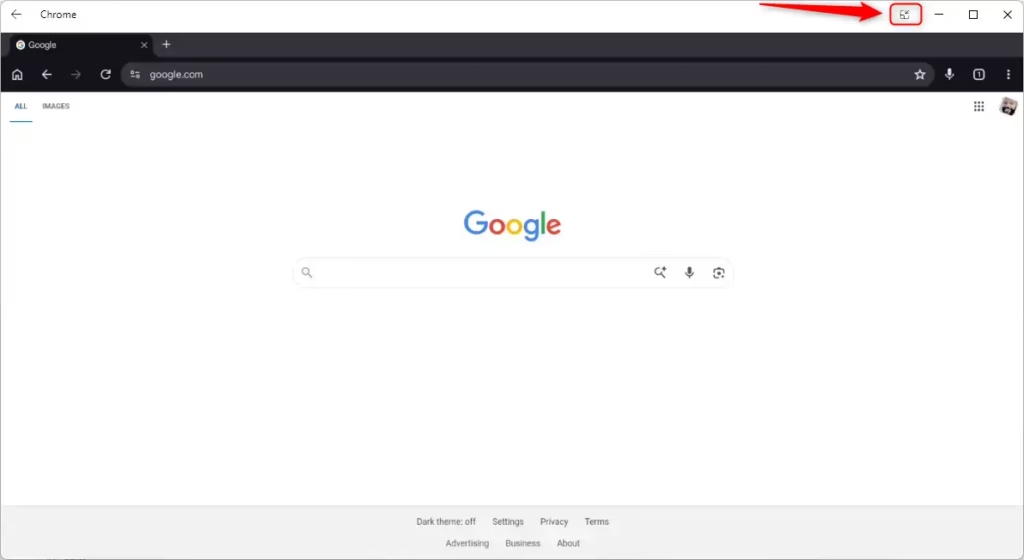
In the Phone Link app, click the “Expanded screen” button at the top right to see more detail. Click the “Compact screen” button to save screen space. You can also simply resize the app window.
Why use this feature?
Why bother with these views? Sometimes a small app window is tough to read, and other times you just want to save screen space. Switching layouts lets you decide the best way for your phone apps to fit on your computer desktop.
What happens when done?
Switching the Phone Link app between compact and expanded view changes how your Android apps appear on your Windows PC, resizing the window to take up more or less screen space.
With the Phone Link app on your PC linked to your phone, you can use your Android apps on your computer. This works over Wi-Fi and lets you chat, shop, and play using your big screen.
You need Phone Link version 1.25091.39.0 or higher to use these layout options.
How to change the view
- While in the Phone Link app on Windows PC, open an Android app. You can find these in your Start menu, taskbar, or the Phone Link app.
You can easily change how your Android apps look in the Phone Link app on your Windows PC by opening an app from your Start menu, taskbar, or the Phone Link app itself.
- Look at the top of the app window.
- Click the Expanded screen button on the right side.
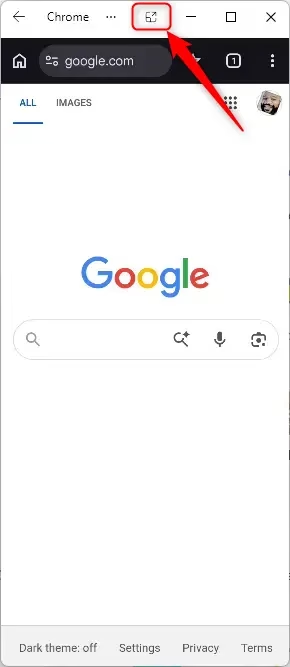
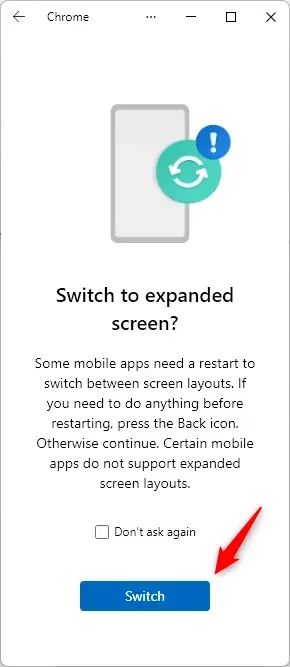
- If a box pops up, click Switch to confirm.
If a confirmation box appears, click ‘Switch.’ You can check ‘Don’t ask again’ if you prefer to skip this confirmation in the future. If you change your mind, click the Back button.
To use the Compact view:
- Look at the top of the app window.
- Click the Compact screen button on the right side.
- If a box pops up, click Switch to confirm.
Summary
You can switch between a small and larger window for your Android apps using the buttons in the app’s top bar. Pick the size that works best for your needs. No special admin rights are required to perform these steps.
How to use Phone Link to display phone screen?
To display your phone screen, open the Phone Link app on your Windows 11 PC and ensure your Android device is linked. Navigate to the Apps section within the app, select the mobile app you wish to open, and it will launch in a window directly on your computer desktop.
How to mirror phone screen with Phone Link?
Mirroring your phone screen with the Phone Link app on Windows 11 is straightforward; after connecting your devices, simply click the phone icon in the app’s menu to see a live view of your Android device.
How do I extend the screen on Windows to my phone?
Phone Link doesn’t let you extend your Windows computer screen to your phone. Instead, it focuses on letting you stream and control individual Android apps or your whole phone interface on your PC, with options to switch between compact and expanded views for better usability.
How to control phone screen with Phone Link?
You can control your phone screen using your PC’s mouse and keyboard once your Android device is connected through the Phone Link app. Just open the Phone Screen feature or launch specific apps from the Phone Link interface to start using your mobile content right on your Windows desktop.
Was this guide helpful?

About the Author
Richard
Tech Writer, IT Professional
Richard, a writer for Geek Rewind, is a tech enthusiast who loves breaking down complex IT topics into simple, easy-to-understand ideas. With years of hands-on experience in system administration and enterprise IT operations, he’s developed a knack for offering practical tips and solutions. Richard aims to make technology more accessible and actionable. He's deeply committed to the Geek Rewind community, always ready to answer questions and engage in discussions.



No comments yet — be the first to share your thoughts!