How to Change Location Services in Windows 11 Photos App

Want to control who sees where your photos were taken in Windows 11? This guide shows you how to manage location services in the Photos app.
Open the Photos app, click the Settings gear icon, then under Personalization, toggle “Enable Location Based Services” ON or OFF. This controls whether your photos are tagged with the location they were taken.
What is the Photos App?
The Microsoft Photos app is a program that comes built into Windows. It lets you view, edit, and organize your photos and images all in one place.
The Photos app lets you do a lot, like replace or remove backgrounds, import media, and even use features like iCloud integration and filmstrip.
Why Control Location Features?
When you use the Photos app, Windows can gather location information from your photos. These location-based features let you tag photos with the place they were taken. Turning them ON means the app automatically adds these tags, helping you organize and find images by location. Turning them OFF means your photos won’t get tagged, keeping your location information private.
How to Turn Location Features On or Off
- Open the Photos app on your computer.
- Click the Settings (gear) icon at the top of the screen. If you don’t see it, click the three dots menu and select Settings.
- Look for Personalization.
- Find the option that says “Enable Location Based Services”.
- Toggle it ON or OFF based on what you want.
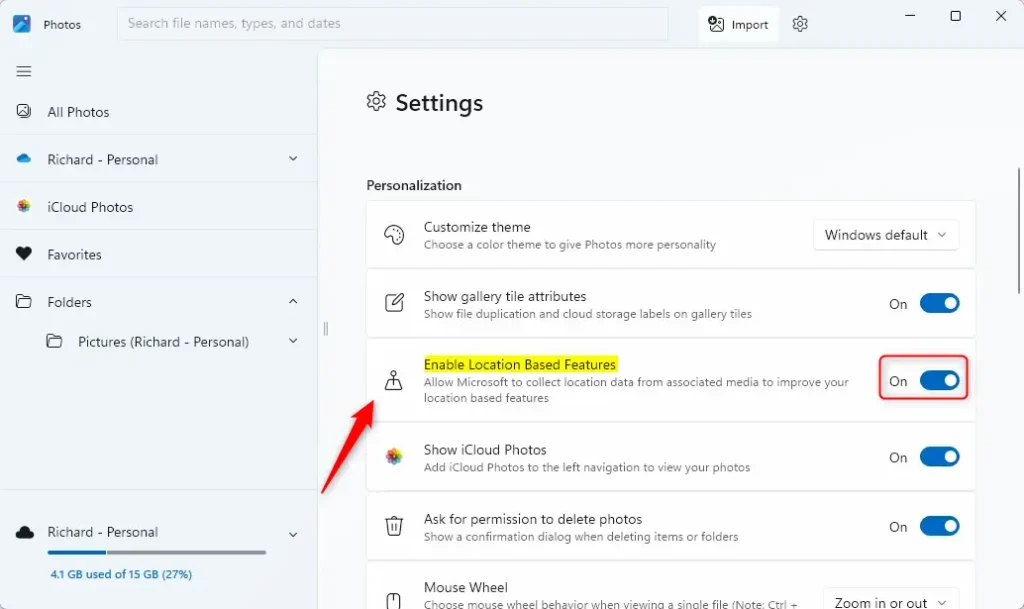
And that’s it!
Summary
Location features in the Photos app let Windows tag your photos with location information. This helps organize your photos, but it also shares your location data.
- Turn ON location features: Photos get tagged with location info. Easier to find and organize photos by where they were taken.
- Turn OFF location features: Photos don’t get location tags. Your location stays private.
Changing this setting only takes a few clicks in the Photos app Settings menu. Choose what works best for your privacy needs.
Was this guide helpful?

About the Author
Richard
Tech Writer, IT Professional
Richard, a writer for Geek Rewind, is a tech enthusiast who loves breaking down complex IT topics into simple, easy-to-understand ideas. With years of hands-on experience in system administration and enterprise IT operations, he’s developed a knack for offering practical tips and solutions. Richard aims to make technology more accessible and actionable. He's deeply committed to the Geek Rewind community, always ready to answer questions and engage in discussions.




No comments yet — be the first to share your thoughts!