How to Replace Image Background in Windows 11 Photos App

You can replace an image background in Windows 11 directly within the Photos app.
The Photos app in Windows 11 features a background replacement tool that lets you easily remove and swap out the background of your photos. This powerful, built-in feature helps you get creative by placing your subject onto entirely new scenes.
This means you can achieve professional-looking edits without needing to download complicated external software. It’s a straightforward way to enhance your images right on your PC.
Open your photo in the Photos app, click Edit image, then select the Background tab. Click Remove to make the background transparent or Replace to choose a new color. Click Apply and then Save a copy.
Why the Confusion? Desktop Wallpaper vs. Image Editing
Many users search for how to replace an image background in Windows 11, but they often mean changing their desktop wallpaper. These are two very different things. Changing your desktop wallpaper is a personalization setting for your screen. Editing an image background means using AI-powered tools to cut out a subject from a photo and place it on a new color or scene. The Windows 11 Photos app (version 2023.11050.2013.0 or newer) now includes advanced AI features to handle this image editing task directly.
Why Replace an Image Background?
You might want to remove a messy background to make your subject stand out. Perhaps you need a clean, solid color for a professional profile picture or a product listing. Once you’re done, you’ll have a polished, high-quality image. It’s perfect for social media or websites, and you won’t need expensive software like Photoshop.
How to Replace an Image Background Using the Photos App
The Photos app uses built-in AI to detect subjects. This feature is free for all Windows 11 users.
- Open your photo in the Photos app. Click the Edit image button or press Ctrl+E.
- Click the Background tab in the top toolbar.
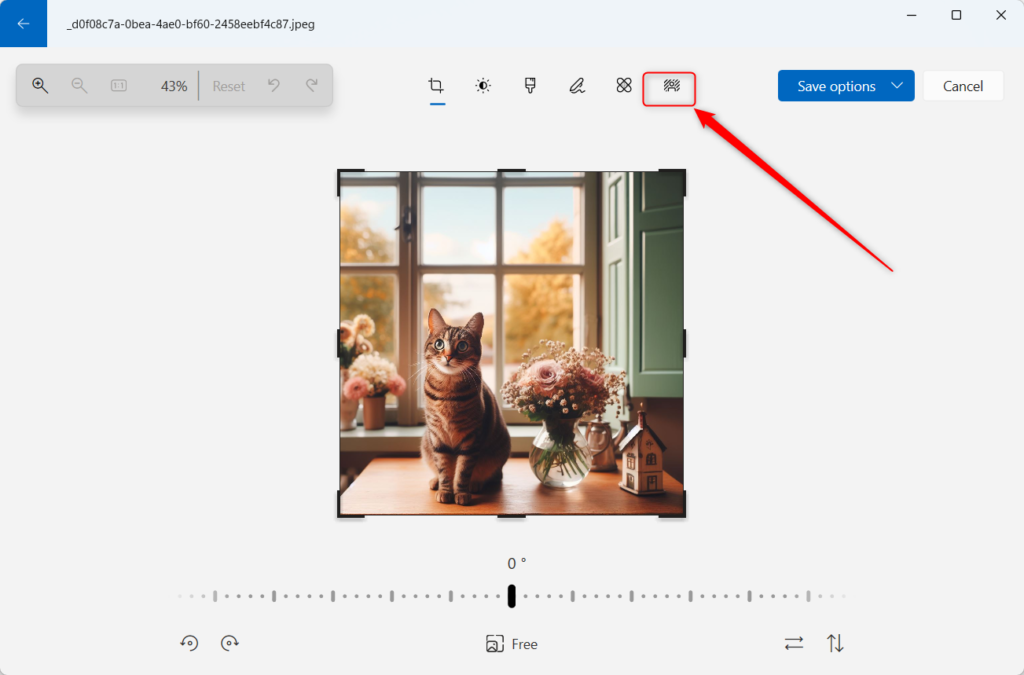
- The app will automatically identify the background. Click Remove to make it transparent, or Replace to select a new color.
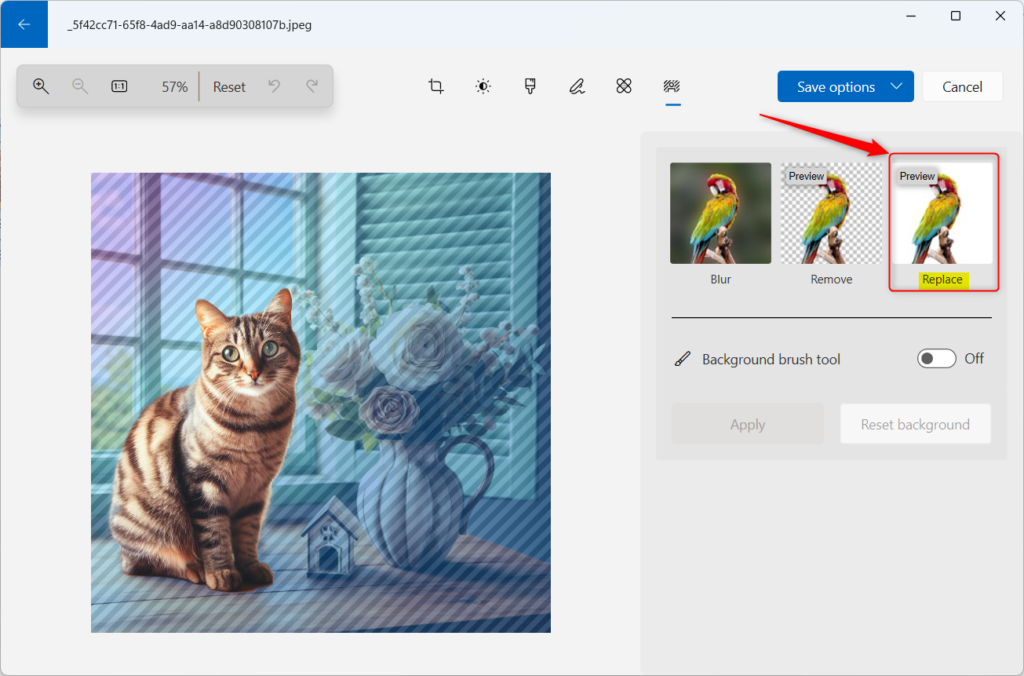
- Use the color picker to choose a new background. You can enter specific Hex or RGB codes for branding.
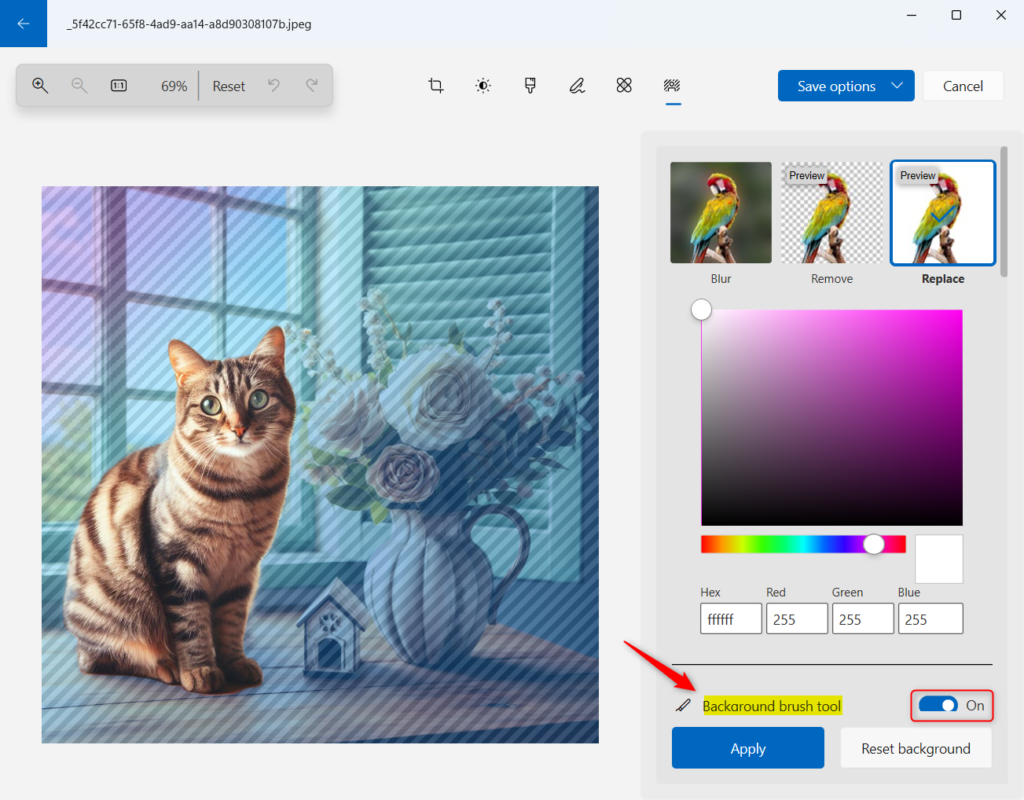
- If the AI misses a spot, use the Background brush tool. Adjust the Brush size and Softness to refine the edges.
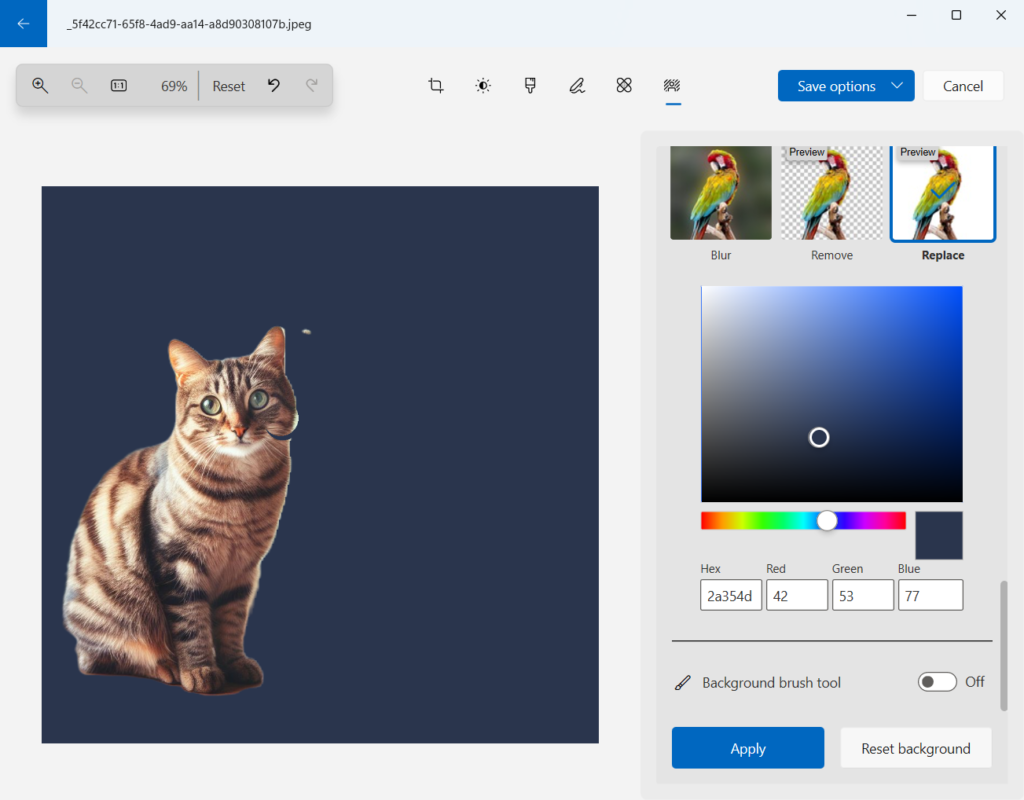
- Click Apply to finalize, then Save a copy to keep your original file safe.
Troubleshooting Common Issues
If the background tool is missing, ensure your app is updated via the Microsoft Store. If you encounter errors, check your file permissions. Keep in mind that you might need administrator rights if you’re trying to save files in protected system folders, like the Public folder (📁C:\Users\Public). Always save to your local Pictures folder first.
Summary
Replacing an image background in Windows 11 is a simple, free process using the built-in Photos app. By understanding the difference between desktop wallpaper and image editing, you can use the AI tool to remove backgrounds and create professional-looking images. Remember to save your work as a copy to preserve your original files.
Does the Windows Photos app support transparent backgrounds?
Yes, the Photos app allows you to remove a background entirely. When you choose the remove option, the app creates a transparent layer. You can then save this as a PNG file to maintain the transparency for use in other design projects or web graphics.
Is the background removal feature free in 🪟 Windows 11?
Yes, the background removal and replacement feature is completely free. It is built directly into the Microsoft Photos app for all Windows 11 users. You do not need a subscription or extra software to access these AI-powered editing tools.
Can I use the Photos app to replace backgrounds on batch images?
Currently, the Photos app does not support batch background replacement. You must open and process each image individually. This ensures the AI can accurately detect the subject in every unique photo, providing the best possible result for each specific image file.
Was this guide helpful?

About the Author
Richard
Tech Writer, IT Professional
Richard, a writer for Geek Rewind, is a tech enthusiast who loves breaking down complex IT topics into simple, easy-to-understand ideas. With years of hands-on experience in system administration and enterprise IT operations, he’s developed a knack for offering practical tips and solutions. Richard aims to make technology more accessible and actionable. He's deeply committed to the Geek Rewind community, always ready to answer questions and engage in discussions.



[…] can use the Photos app to replace an image background, remove an image background, import photos and videos, show iCloud in the app, change mouse wheel […]
[…] File Explorer is good, users can also use the Paint and Photos apps to rotate images in […]
[…] can use the Photos app to replace an image background, remove an image background, import photos and videos, show iCloud in the […]
[…] can use the Photos app to replace an image background, remove an image background, import photos and videos, show iCloud in the app, change mouse […]
[…] can use the Photos app to replace an image background, remove an image background, import photos and videos, show iCloud in the app, change mouse […]
[…] can do a lot with Photos, like change picture backgrounds, remove backgrounds, and […]