Show or Hide Gallery Title Attributes in Windows 11 Photos App

You can show or hide the title attributes in the Windows 11 Photos app to customize your gallery view, displaying or concealing the source location of your images.
Title attributes in the Photos app, such as “This PC” or “OneDrive,” reveal the exact storage path for each photo. Hiding these text labels declutters your thumbnail view, allowing you to concentrate solely on your pictures.
This straightforward setting lets you control the information displayed next to your photos. Turning off title attributes instantly removes the file path text from your photo thumbnails.
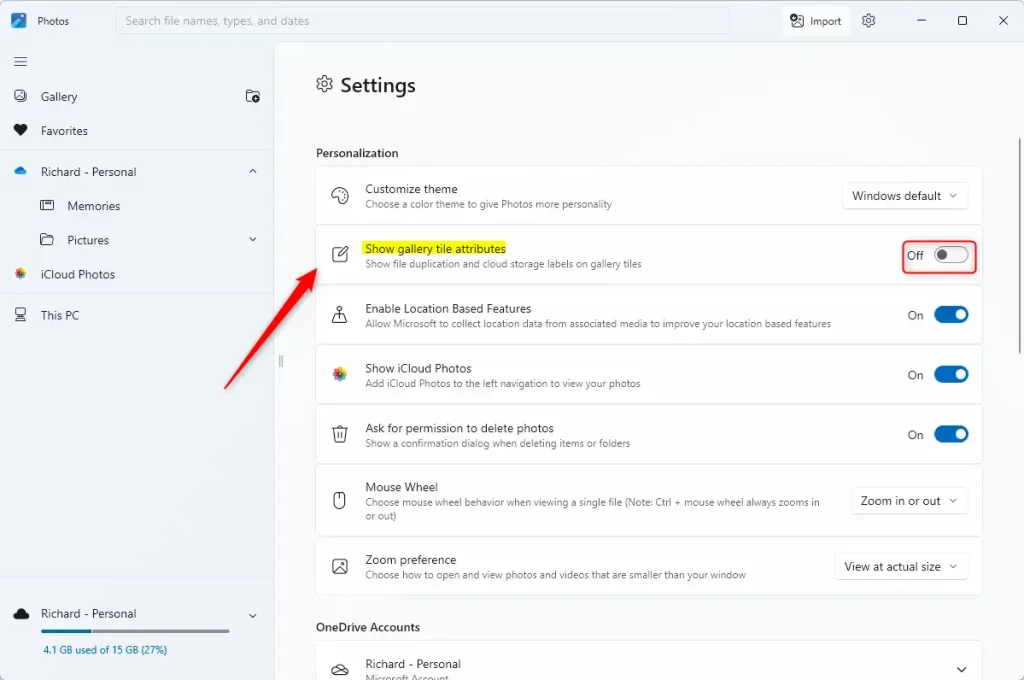
Open the Photos app, click the Settings gear icon, go to Personalization, and toggle “Show gallery title attributes” On or Off. This option controls whether file locations appear beneath your photo thumbnails.
How to show or hide gallery title attributes
Follow these steps to change your view settings:
- Open the Photos app from your Start menu.
- Click the Settings (gear icon) located at the top of the app window.

- Look for the Personalization section.
- Find the Show gallery title attributes option.
- Click the toggle switch to turn it On if you want to see the titles, or Off to hide them.
Summary
You can control the appearance of your photo gallery in Windows 11 by adjusting the settings in the Photos app. Hiding title attributes helps declutter your workspace, while showing them provides quick info about where your files are stored. You don’t need any special permissions for this, and you can always change it back.
Was this guide helpful?

About the Author
Richard
Tech Writer, IT Professional
Richard, a writer for Geek Rewind, is a tech enthusiast who loves breaking down complex IT topics into simple, easy-to-understand ideas. With years of hands-on experience in system administration and enterprise IT operations, he’s developed a knack for offering practical tips and solutions. Richard aims to make technology more accessible and actionable. He's deeply committed to the Geek Rewind community, always ready to answer questions and engage in discussions.




No comments yet — be the first to share your thoughts!