How to Remove Image Backgrounds in Windows 11 Paint

You can remove image backgrounds in Windows 11 using the built-in Paint app’s AI-powered background removal feature.
This tool automatically detects and removes the background from your photos, leaving your subject with a transparent background.
Introduced in late 2023 updates for Paint, this feature simplifies image editing, allowing you to create clean graphics without needing advanced software.
Simply open your image in Paint, select the Magic Wand tool, and click “Remove background.” You’ll get a transparent PNG ready for your projects in seconds.
Open your image in Paint, then click the “Remove background” button on the top ribbon. Paint uses AI to automatically detect and erase the background. Save your image as a PNG to preserve transparency.
How to remove an image background
Removing an image background in Windows 11 Paint is simple with the built-in ‘Remove background’ tool.
- Open the Paint app on your computer.
- Click on File and select Open. Choose your image file from File Explorer.
- Click the Remove background button on the top ribbon.
Paint will automatically detect and remove the background for you.
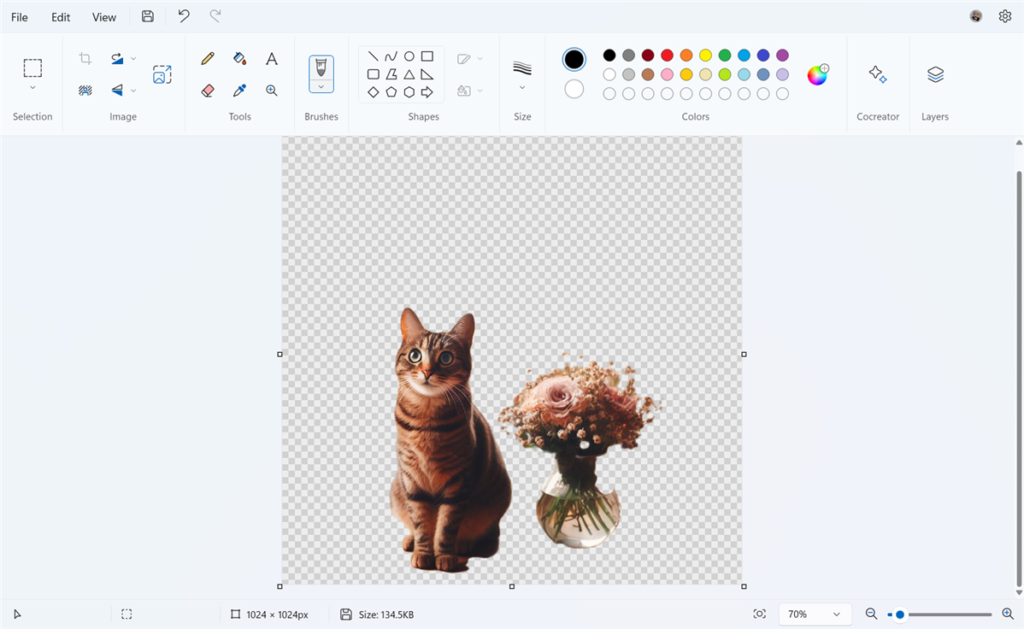
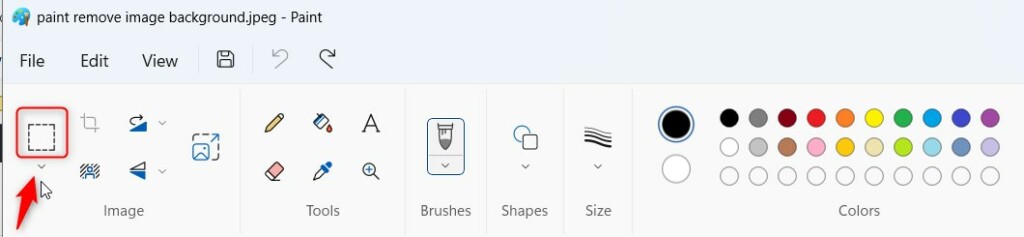
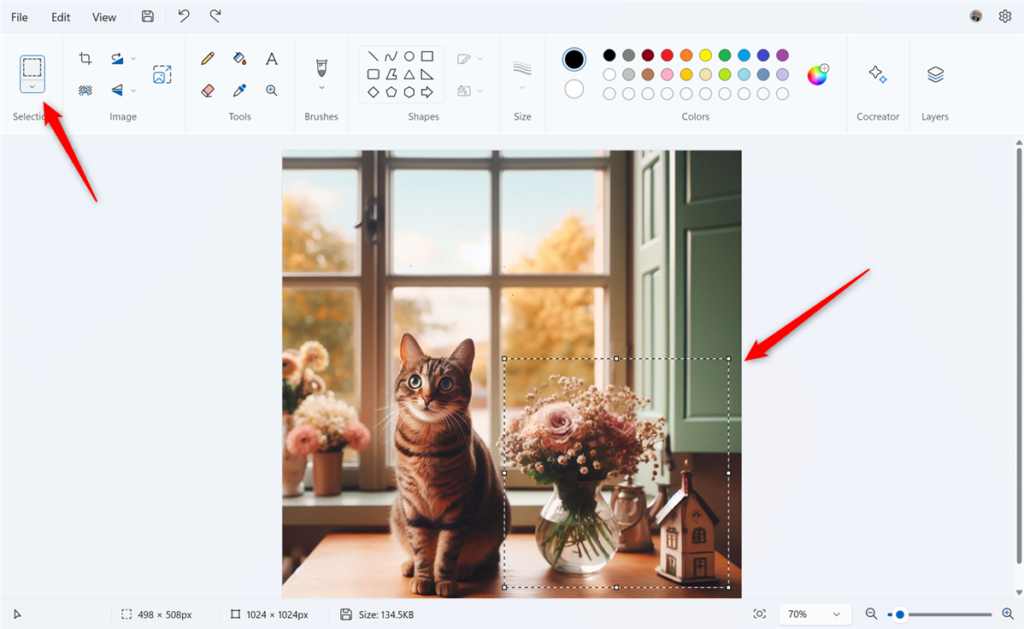
If you only want to remove the background from a specific part of the image, follow these steps:
- Click the Select button on the ribbon.
- Draw a box around the object you want to keep.
- Click the Remove background button again.
Pro-Tip: Use the Transparent Selection toggle under the Select menu to ensure your cutout remains clean when moving it across other layers.
Note: If you are performing system-wide updates to ensure your apps are current, you may need admin privileges to install the latest Windows updates.
Paint vs. Paint 3D and AI Tools
Windows 11’s Paint app offers a simple way to remove backgrounds, but Paint 3D has a Magic Select tool for more detailed work, and AI tools can help with image editing too.
Why PNG is Required for Transparency
Make sure you save your file as a PNG. JPG files can’t handle transparency, so saving as a JPG will turn your transparent background white. Always check your file format in the Save As menu.
Troubleshooting Common Errors
If the background removal button isn’t showing up in Paint, make sure your app is updated through the Microsoft Store, as this is the most common fix.
Summary
Removing backgrounds in Windows 11 Paint is a fast way to edit photos without expensive software. By using the Remove background button, you can cut out subjects instantly. Always save as a PNG to keep transparency. This feature makes creating professional graphics more accessible for every computer user.
Why does my transparent background turn white when saved?
This happens because you saved the file as a JPG. JPG files do not support an alpha channel for transparency. To keep the background transparent, you must select PNG as the file format when saving your image in Paint.
Does 🪟 Windows 11 Paint support AI background removal?
Yes, the latest version of Paint on Windows 11 uses built-in AI to detect the subject of your photo. It automatically identifies the foreground and removes the background with a single click, making it a free and efficient image editing software solution.
Was this guide helpful?

About the Author
Richard
Tech Writer, IT Professional
Richard, a writer for Geek Rewind, is a tech enthusiast who loves breaking down complex IT topics into simple, easy-to-understand ideas. With years of hands-on experience in system administration and enterprise IT operations, he’s developed a knack for offering practical tips and solutions. Richard aims to make technology more accessible and actionable. He's deeply committed to the Geek Rewind community, always ready to answer questions and engage in discussions.




No comments yet — be the first to share your thoughts!