How to Add a Color Profile in Windows 11

You add a color profile in Windows 11 by navigating to the “Calibrate display color” tool, which allows you to select and apply ICC profiles for precise color management.
A color profile, also known as an ICC profile, is a set of data that describes the color characteristics of a device, like your monitor. Applying a custom profile ensures that the colors you see on your screen are more accurate and consistent across different applications.
For instance, if you’re working with images or videos, using the correct color profile for your specific display, often a .icc or .icm file, can make a significant difference in how your content appears.
This is particularly useful if your monitor isn’t perfectly calibrated out-of-the-box, helping you achieve a more true-to-life color representation for your tasks.
Add a color profile in Windows 11 by going to Settings > System > Display, then clicking “Color profile”. Select your display, click “Add profile”, browse to your .icc or .icm file, and click “Set profile” to make it the default.
What is a Color Profile?
A color profile is like a set of instructions for your monitor that helps Windows show colors accurately.
Where to Find Color Profile Settings
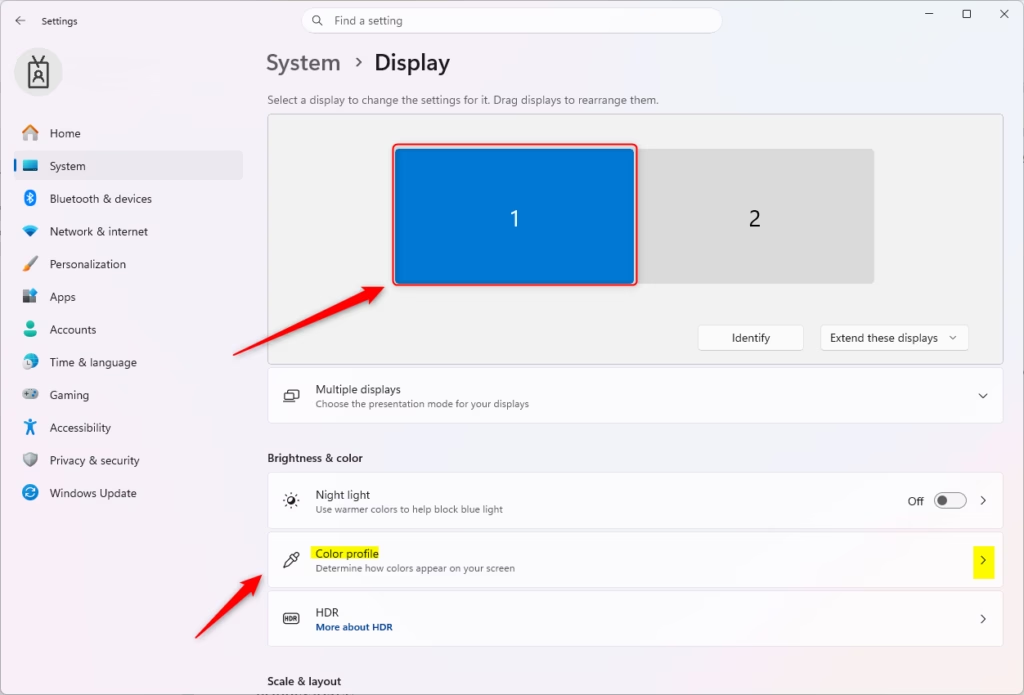
You can add a color profile in Windows 11 by opening the Settings app and going to System, then Display.
- Open Settings: Click the Start button, then click Settings. You can also press the
Windows key + Ikeys on your keyboard. - Go to Display: In the Settings window, click on System. Then, click on Display.
- Find Color Profile: Scroll down in the Display settings. You will see an option called Color profile. Click it.
This will open the Color management settings for your screen.
Adding a New Color Profile
Have a new color profile file? Perhaps it came with your monitor, or you downloaded it from a specific source. Here’s how to add it to Windows:
Step 1Choose Your Display
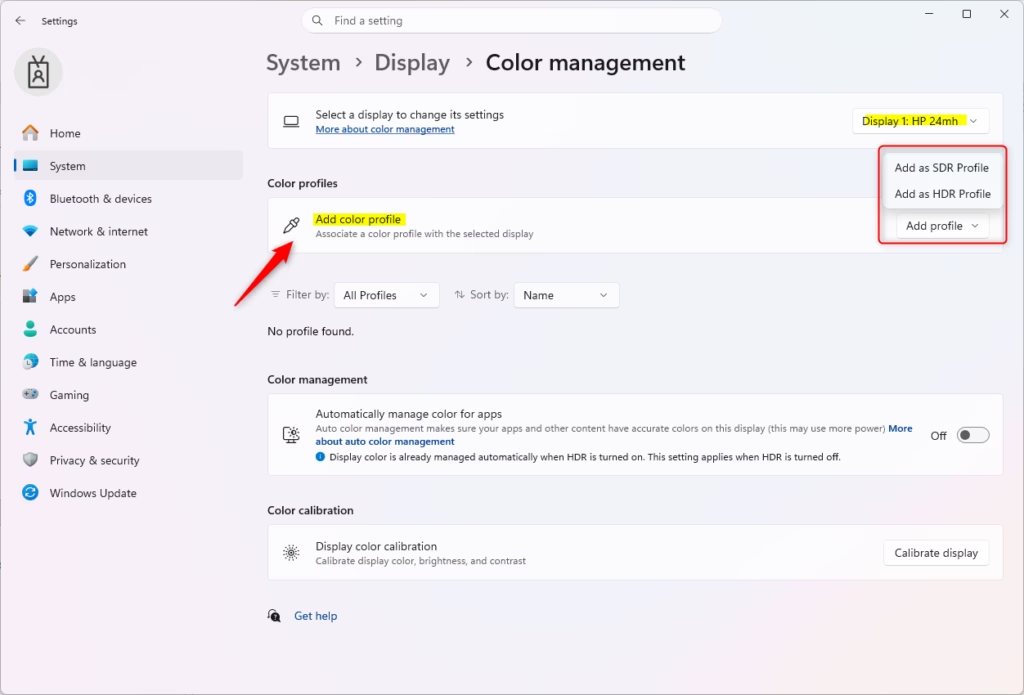
At the top of the Color management page, you will see a box that says “Select your display”. Pick the correct monitor if you have more than one.Step 2Add the Profile
To add a color profile in Windows 11, go to your display settings and click the ‘Add profile’ button found below the list of current profiles.Step 3Find Your Profile File
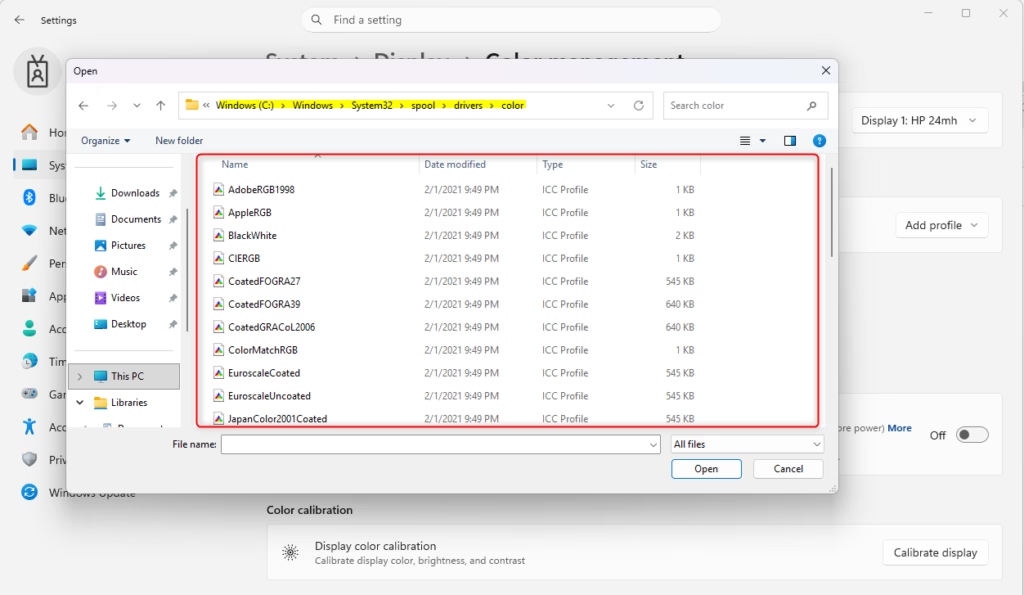
When prompted, find the color profile file you want to add; these files usually end with .icm or .icc, then select it and click ‘Add’ or ‘Open’.Step 4Set as Default (Good Idea)
After adding the profile, it will show up in the list for your display. To make sure Windows uses this new profile, you should set it as the default. Select the profile you just added. Then, click the Set profile button below the list.
After you add a color profile, it’ll appear in the list for your display, and you’ll want to set it as the default so Windows uses it.
Reference:
Summary
Adding a color profile in Windows 11 improves screen color accuracy by going to System > Display > Color profile, clicking ‘Add profile’, selecting your .icm or .icc file, and setting it as default.
How do I add a color profile to 🪟 Windows 11?
To add a color profile in Windows 11, open Settings, navigate to System > Display > Advanced display, click ‘Color profile’, and choose your desired profile from the dropdown.
What should my color profile be on a Mac?
For Macs, the standard sRGB IEC61966-2.1 profile is generally recommended for most users and web content. However, for professional color-critical work, using a custom profile generated by a hardware calibrator specific to your display is the best approach for optimal accuracy.
How do you enable color profile?
In Windows 11, color profiles are typically enabled by selecting them within the Advanced display settings. Navigate to Settings > System > Display > Advanced display, then under 'Color settings,' choose your desired color profile from the dropdown. This action applies the selected profile to your display.
Which sRGB color profile is best?
The 'sRGB IEC61966-2.1' profile is the universally accepted standard and generally the best choice for most users, especially for web browsing and general use. It ensures consistent color representation across different devices and applications that support sRGB.
Was this guide helpful?

About the Author
Richard
Tech Writer, IT Professional
Richard, a writer for Geek Rewind, is a tech enthusiast who loves breaking down complex IT topics into simple, easy-to-understand ideas. With years of hands-on experience in system administration and enterprise IT operations, he’s developed a knack for offering practical tips and solutions. Richard aims to make technology more accessible and actionable. He's deeply committed to the Geek Rewind community, always ready to answer questions and engage in discussions.



No comments yet — be the first to share your thoughts!