How to Automatically Change Desktop Wallpaper in Windows 11

You can automatically change your desktop wallpaper in Windows 11 to keep your PC looking fresh.
Windows 11 offers a built-in “Slideshow” feature that lets you cycle through a collection of images as your background. This feature allows you to select specific folders containing your preferred pictures or utilize curated collections provided by Microsoft, such as Windows Spotlight, which delivers stunning images daily.
To set this up, you navigate to Personalization settings and select “Background.” From there, you can choose the “Slideshow” option and pick the folders or collections you want to use. You can also adjust how frequently the wallpaper changes, from every minute to once a day.
Automatically change your Windows 11 wallpaper by going to Settings > Personalization > Background. Select either “Windows spotlight” for daily curated images or “Slideshow” to cycle through your own photos from a chosen folder.
Why change your wallpaper automatically?
Changing your background keeps your workspace feeling new and interesting. It also lets you display your favorite memories without having to manually update your settings. An automatic wallpaper change in Windows 11 helps reduce visual fatigue and keeps your desktop environment engaging.
What happens when you are done?
Once you follow these steps, your desktop will cycle through your chosen images at regular intervals. Your screen will look dynamic and personalized, and your Windows 11 personalization settings will be optimized to your preferences.
Option 1Use Windows Spotlight
If you don’t have your own photos, you can let Microsoft pick them for you. This feature pulls professional, high-quality images from the internet.
- Click the Start menu and open Settings app.
2. On the left side of the window, click on Personalization.
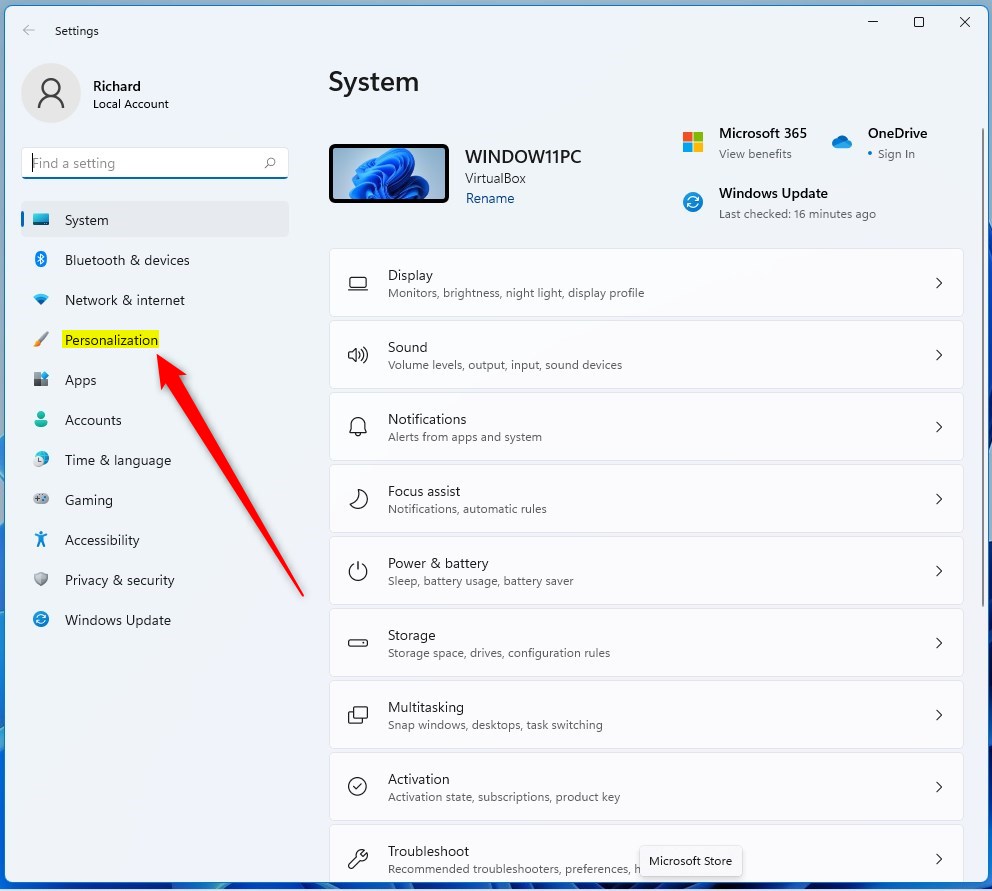
3. Select the Background tile on the right.
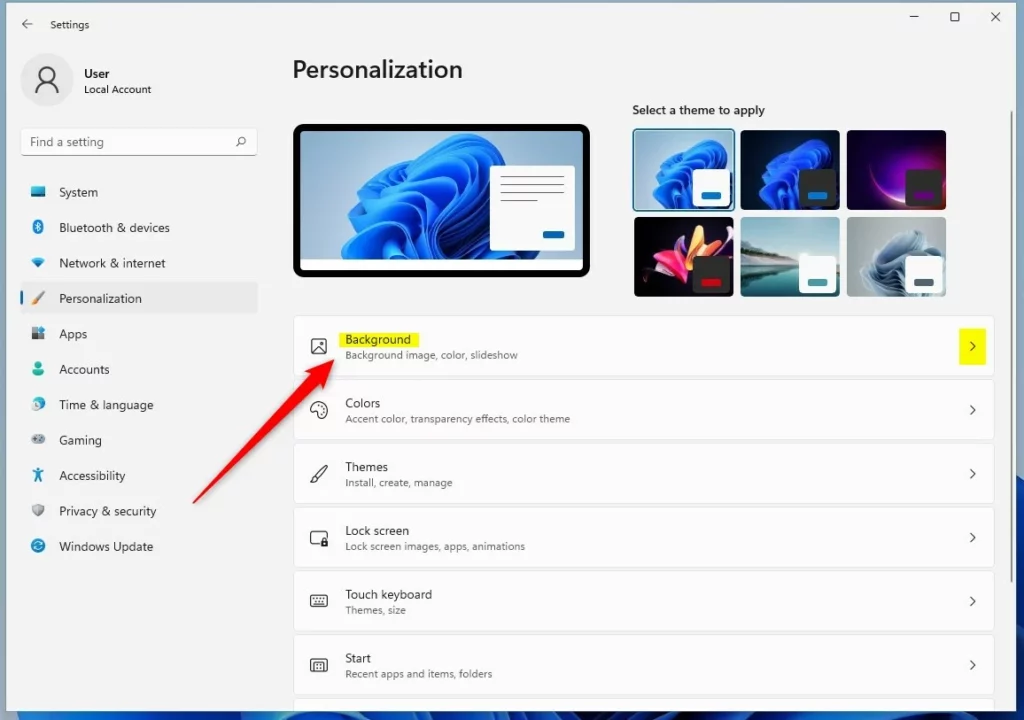
4. In the menu next to “Personalize your background,” select Windows spotlight.
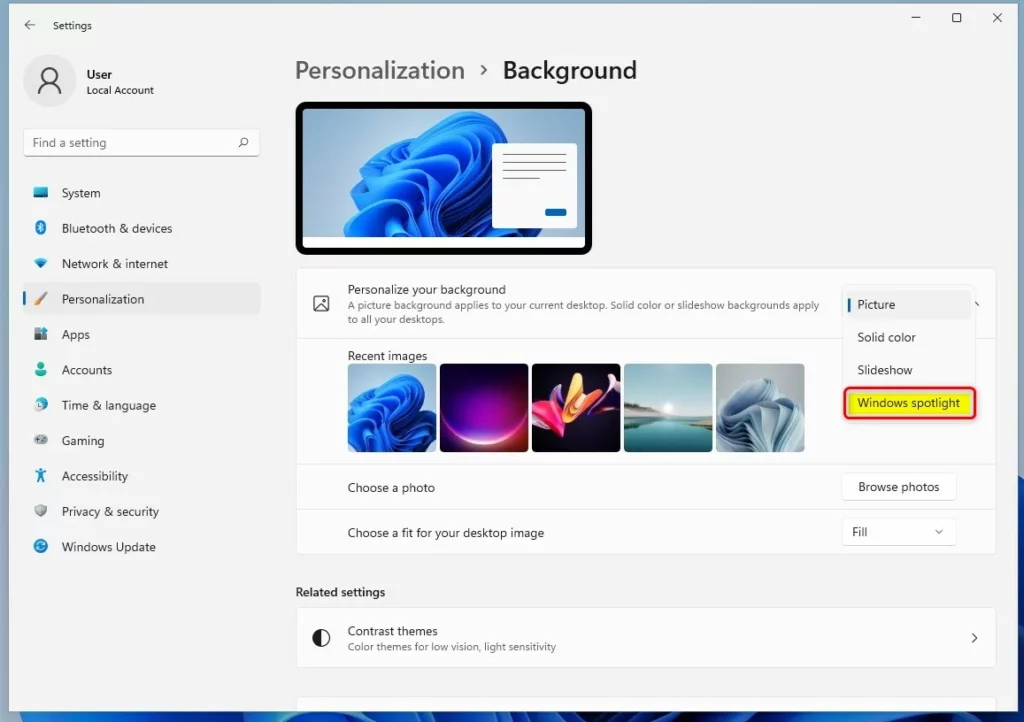
Windows will now automatically download and display new images throughout the day.
Option 2Use your own photos with Slideshow
If you prefer to see your own pictures, use the Slideshow feature. You will need a folder on your computer, such as 📁C:\Users\GenericUser\Pictures, that contains the images you want to use.
- Go to Start > Settings > Personalization > Background.
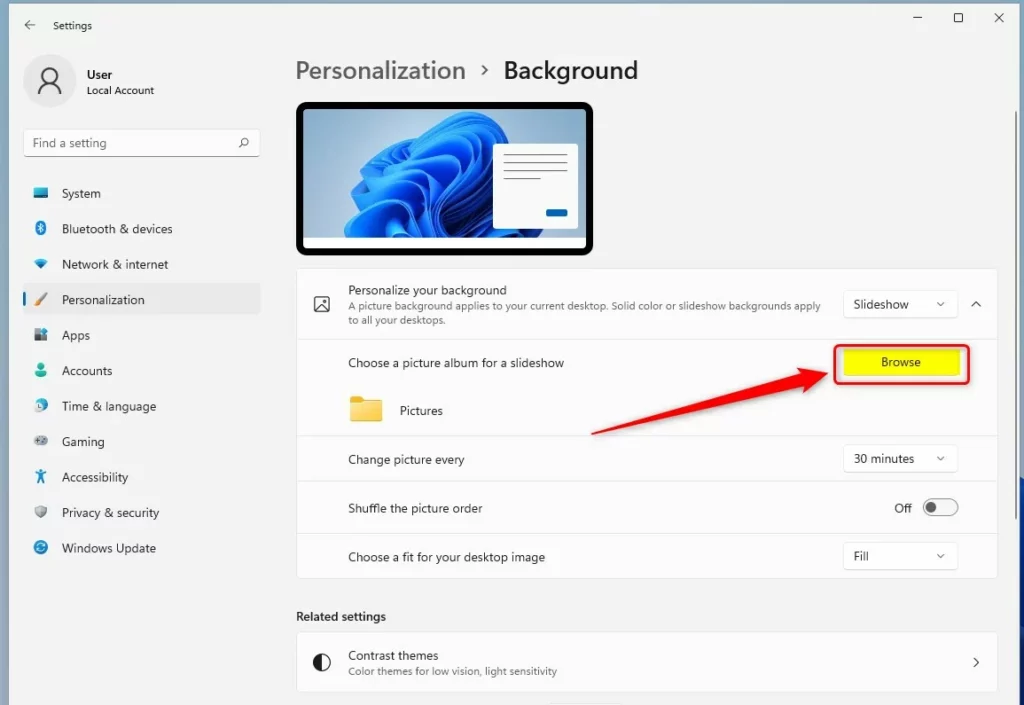
- In the “Personalize your background” menu, select Slideshow.
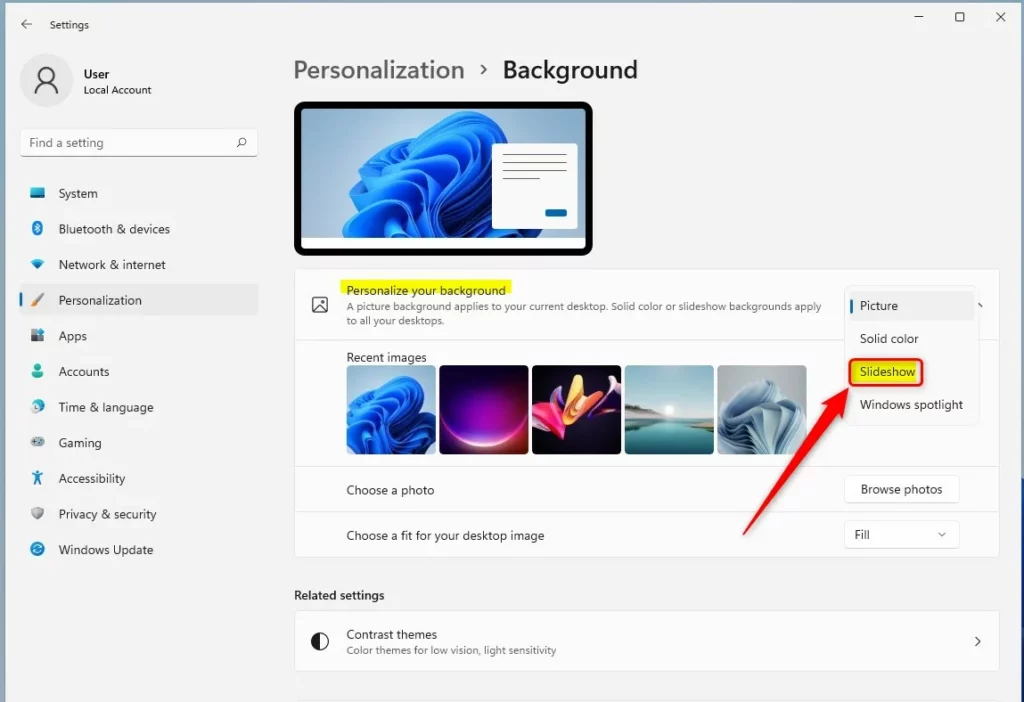
3. Click the Browse button to find the folder containing your photos pictures to change at intervals.
4. Select your folder. You can also turn on the Shuffle toggle if you want the images to appear in a random order.
Advanced Customization and Troubleshooting
If your wallpaper resets after a restart, check if your Windows 11 theme is set to sync across devices. You can also use the Registry Editor for advanced control. Warning: Modifying the registry can cause system issues. Requires Admin Privileges. Navigate to 🗝️HKEY_CURRENT_USER\ Control Panel\Desktop and ensure the ‘Wallpaper’ string is set correctly.
Multi-Monitor and Virtual Desktop Configuration
Windows 11 allows you to set different backgrounds for different virtual desktops. Right-click your desktop and select ‘Personalize’ to manage these settings individually for each workspace.
Third-Party Automation Tools
For more control, tools like ‘Wallpaper Engine’ or ‘Dynamic Theme’ offer advanced features like video backgrounds and weather-based image changes. These tools often provide better performance than the native slideshow feature for users with hundreds of high-resolution files.
Summary
You can keep your Windows 11 desktop looking great by using either Windows Spotlight Windows Spotlight or the Slideshow pictures to change at intervals feature. Spotlight provides a variety of global images, while Slideshow lets you rotate through your own personal photo collection. Both options are found in the Personalization settings menu.
How do I stop 🪟 Windows 11 from changing my wallpaper automatically?
To stop automatic changes, go to Settings > Personalization > Background. Change the ‘Personalize your background’ dropdown menu from ‘Slideshow’ or ‘Windows spotlight’ to ‘Picture’ or ‘Solid color’. This will lock your current background and prevent Windows from rotating images.
Does automatic wallpaper change affect battery life?
Yes, using a slideshow can slightly impact battery life because the system must periodically wake up to load and process new image files. For maximum battery efficiency on laptops, use a single static image or a solid color background instead of a high-frequency slideshow.
Why does my wallpaper reset after a restart?
This often happens if your Windows account is not synced correctly or if a third-party theme app is overriding your settings. Check your ‘Sync your settings’ options in the Accounts menu or disable any third-party personalization software to see if the issue persists after a reboot.
Was this guide helpful?

About the Author
Richard
Tech Writer, IT Professional
Richard, a writer for Geek Rewind, is a tech enthusiast who loves breaking down complex IT topics into simple, easy-to-understand ideas. With years of hands-on experience in system administration and enterprise IT operations, he’s developed a knack for offering practical tips and solutions. Richard aims to make technology more accessible and actionable. He's deeply committed to the Geek Rewind community, always ready to answer questions and engage in discussions.



[…] comes with a standard desktop background. Users can change or replace that background with a custom picture, slideshow, or Windows Spotlight […]
[…] Spotlight lets users set up their desktop background and lock screen to automatically connect to Microsoft servers to discover and download random […]
[…] default, your device’s essential folders (your Desktop, Documents, and Pictures) will automatically be backed up to Microsoft cloud […]
[…] default, your device’s essential folders (your Desktop, Documents, and Pictures folders) will automatically be backed up to Microsoft cloud […]
[…] default, your device’s essential folders (your Desktop, Documents, and Pictures folders) will automatically be backed up to Microsoft cloud […]
[…] Spotlight lets users set up their desktop background and lock screen to automatically connect to Microsoft servers to discover and […]