How to Downgrade from Windows 11 to Windows 10

You can downgrade from Windows 11 to Windows 10 within 10 days of your upgrade to easily revert your PC.
This 10-day rollback window allows you to return to Windows 10 without losing your applications or personal files.
After this 10-day period, you must perform a clean installation of Windows 10, which means you’ll need to back up your data first.
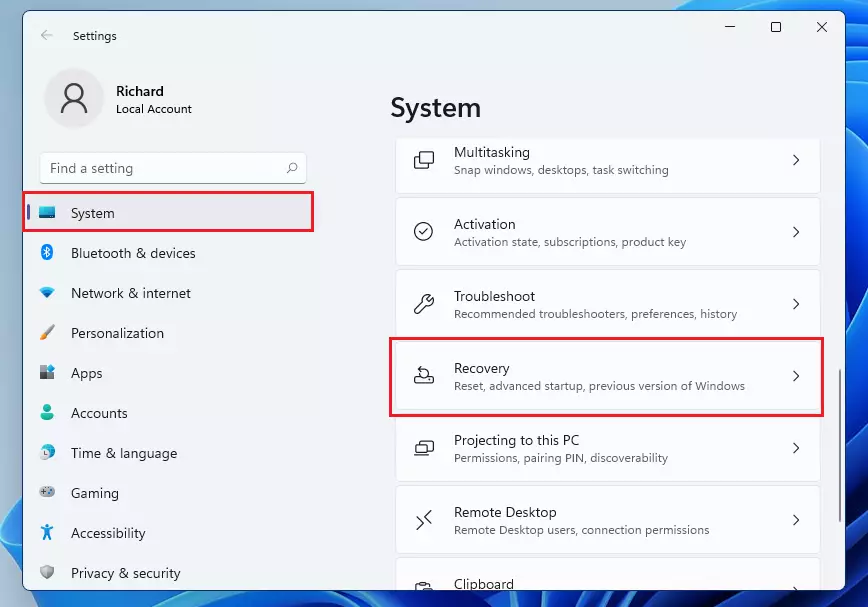
To downgrade from Windows 11 to Windows 10 within 10 days of upgrading, go to Settings > System > Recovery and click “Go back”. If the 10-day window has passed, a clean install of Windows 10 is required, which will erase your data.
Why downgrade 🪟 Windows 11?
You might want to return to Windows 10 if you experience performance issues, have hardware that doesn’t work correctly with the new system, or if you simply prefer the older interface. Some users find that specific apps are not yet optimized for the new operating system.
What happens when done?
Your computer will revert to the version of Windows 10 you had before the upgrade. You will keep your files, but you may need to reinstall some apps or adjust settings that were changed during the time you used Windows 11. Note: You must have administrative access to perform these steps.
Important: The 10-Day Limit and Windows.old
Windows stores your old system files in a folder named 📁C:\Windows.old. This folder is vital for the rollback process. After 10 days, Windows automatically deletes this folder to free up disk space. Once this happens, the ‘Go back’ option will disappear from your settings.
Data Backup Requirements
Before you begin, always back up your important files to an external drive or cloud storage. While the rollback process is designed to keep your data, technical errors can occur. Ensure you have your BitLocker recovery key saved if your drive is encrypted.
Step-by-step: How to go back
- Open your Settings menu. You can do this by pressing the Windows key + I on your keyboard or by clicking Start then Settings. %📂%LNK0%%
- In the System menu, look for the Recovery option on the right side of the screen. %📂%LNK1%%
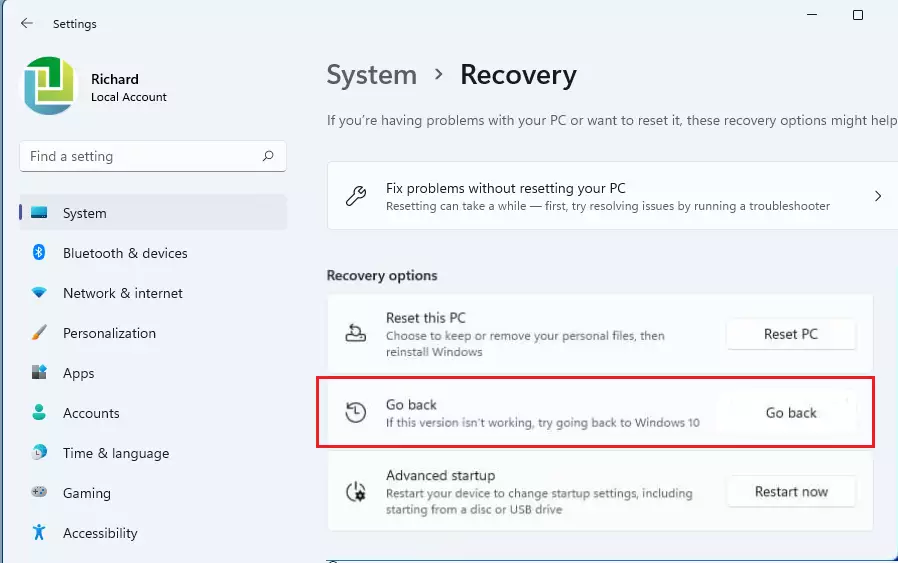
- Find the Recovery options section and click the Go back button.
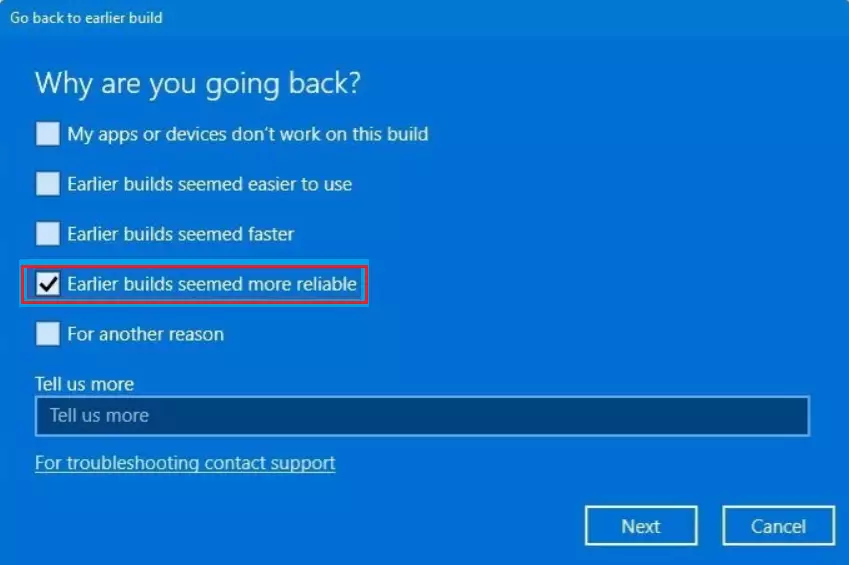
- A window will pop up asking why you are going back. Select the reason that fits best, such as “Earlier builds seemed more reliable,” then click Next.
- When asked to check for updates, choose No, thanks.
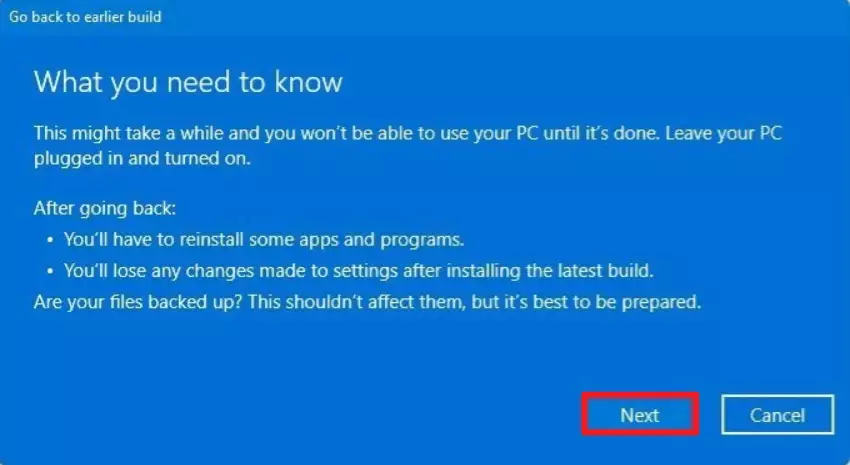
- Read through the information about the changes that will occur, then click Next.
- Finally, click the Go back to Windows 10 button.
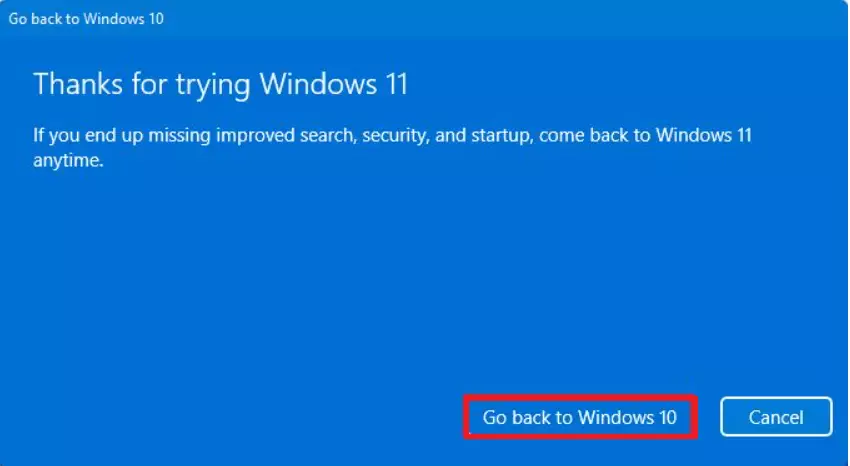
You can downgrade Windows 11 to Windows 10 easily if you’ve upgraded within the last 10 days using the built-in recovery tool.
What if the 10-day window has passed?
If it’s been longer than 10 days since you upgraded, the simple ‘Go back’ option won’t work to downgrade Windows 11 to Windows 10.
Summary
To downgrade Windows 11 to Windows 10, use the Recovery settings within 10 days of upgrading to keep your files. If you miss this 10-day window, a clean install is required, so back up everything first. Always make sure you have admin rights before you begin.
Will I lose my files if I downgrade?
If you use the built-in rollback feature within the 10-day window, your personal files will remain intact. However, it is always best practice to create a full system image backup before starting any major system changes to ensure your data is protected against unexpected errors during the process.
Can I downgrade without losing installed apps?
When you use the rollback feature, Windows attempts to restore your previous state, including most apps. However, any applications installed or updated after you upgraded to Windows 11 may be removed or require a fresh installation. Always keep your software installers and license keys handy just in case.
Does downgrading affect my Windows license key?
No, downgrading does not affect your Windows license key. Your digital license is tied to your hardware and Microsoft account. Once you revert to Windows 10, your system will automatically recognize your existing license, and you will remain fully activated without needing to re-enter any product keys.
Was this guide helpful?

About the Author
Richard
Tech Writer, IT Professional
Richard, a writer for Geek Rewind, is a tech enthusiast who loves breaking down complex IT topics into simple, easy-to-understand ideas. With years of hands-on experience in system administration and enterprise IT operations, he’s developed a knack for offering practical tips and solutions. Richard aims to make technology more accessible and actionable. He's deeply committed to the Geek Rewind community, always ready to answer questions and engage in discussions.

No comments yet — be the first to share your thoughts!