How to Create a Full System Backup in Windows 11

You create a full system backup in Windows 11 using the built-in System Image Backup tool to make an exact copy of your entire hard drive, including your operating system, installed programs, and personal data.
This system image acts as your ultimate disaster recovery solution, allowing you to restore your PC to a previous working state. It’s essential for recovering from hardware failures or serious malware attacks.
Unlike the newer Windows Backup which prioritizes cloud file syncing, a system image provides a complete snapshot for full system restoration. This process, which can take several hours depending on your storage, saves you from tedious reinstallation.
Create a system image backup in Windows 11 by going to Settings > System > Storage > Advanced storage settings > Backup options. Then click Backup and Restore (Windows 7) and select Create a system image.
The 3-2-1 Backup Strategy
The 3-2-1 backup strategy is a simple way to keep your important files safe by making sure you have three copies of your data stored on two different types of devices, with one copy kept off-site.
How to Create a System Image in 🪟 Windows 11
Creating a system image in Windows 11 makes a complete copy of your PC, including Windows, your settings, and all your programs and files, so you can bring your computer back to exactly how it was if something breaks.
To get to System Settings, you can use the Windows key + I shortcut or click on Start ==> Settings, which you’ll see in the image below:
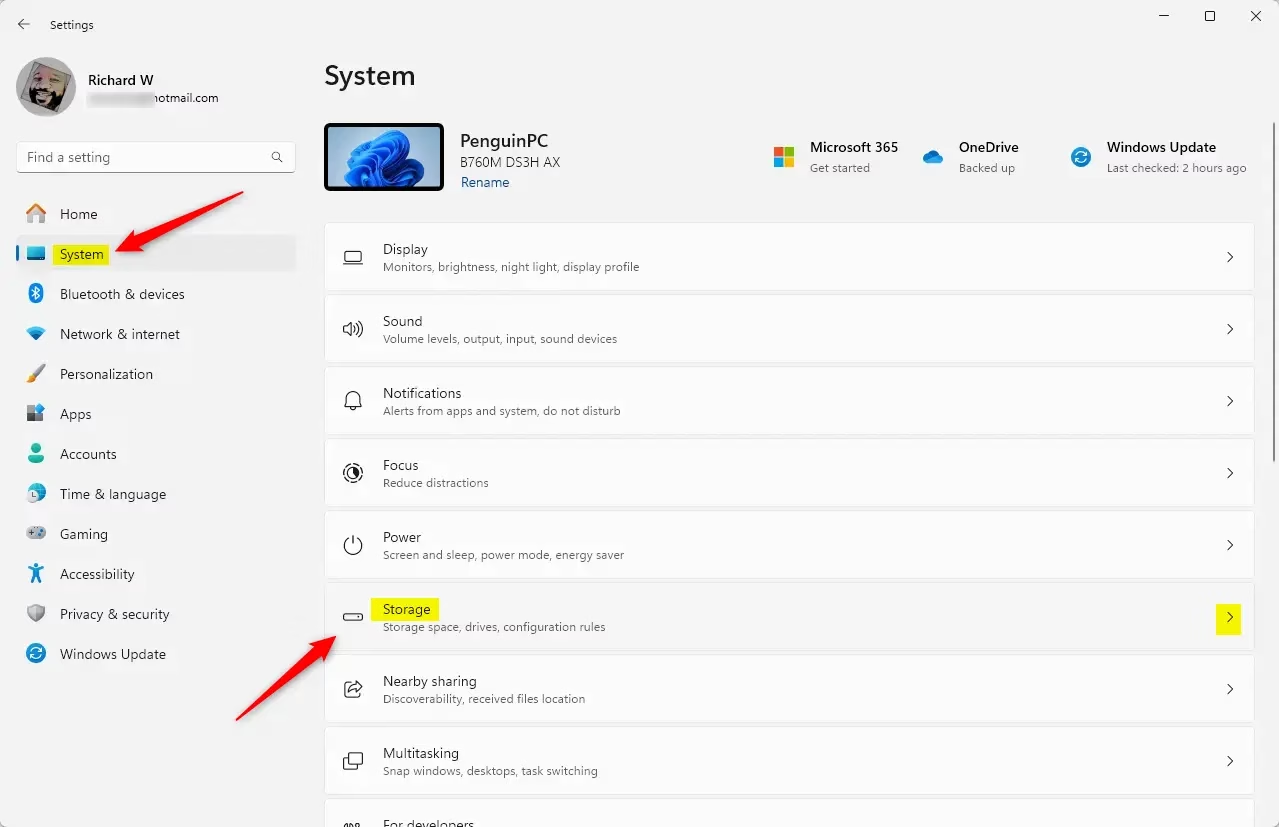
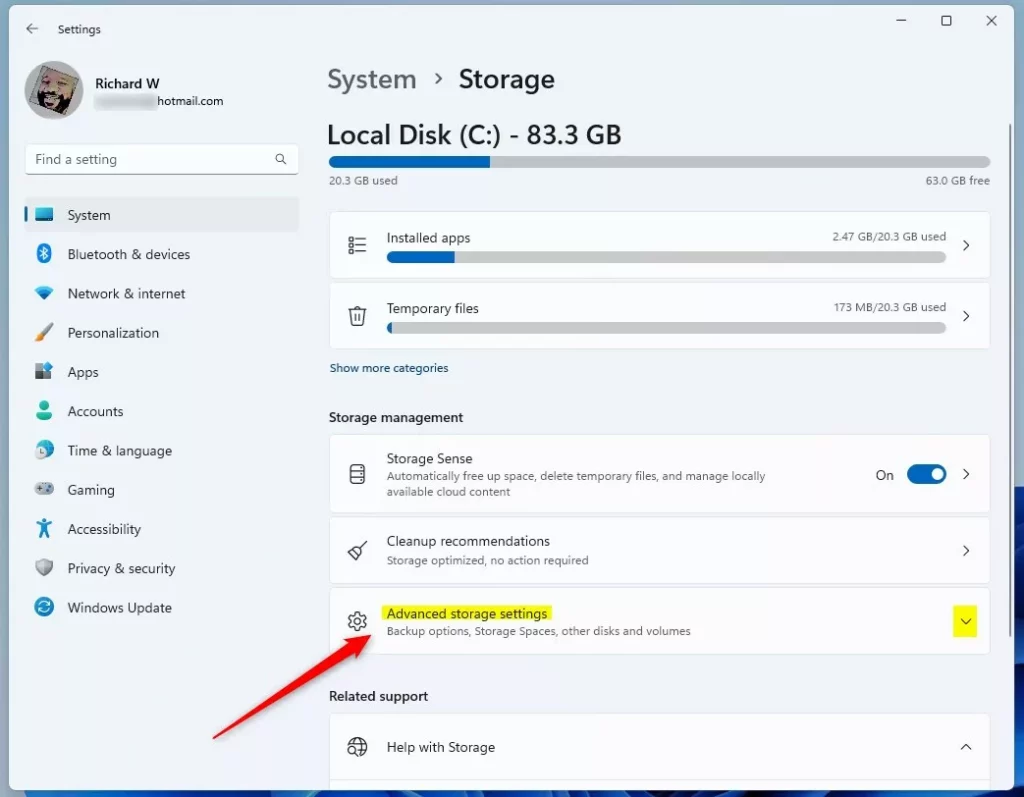
In Windows Settings, navigate to System and select Storage from the right pane. Then, under Storage Management, select Advanced storage settings to expand more options.
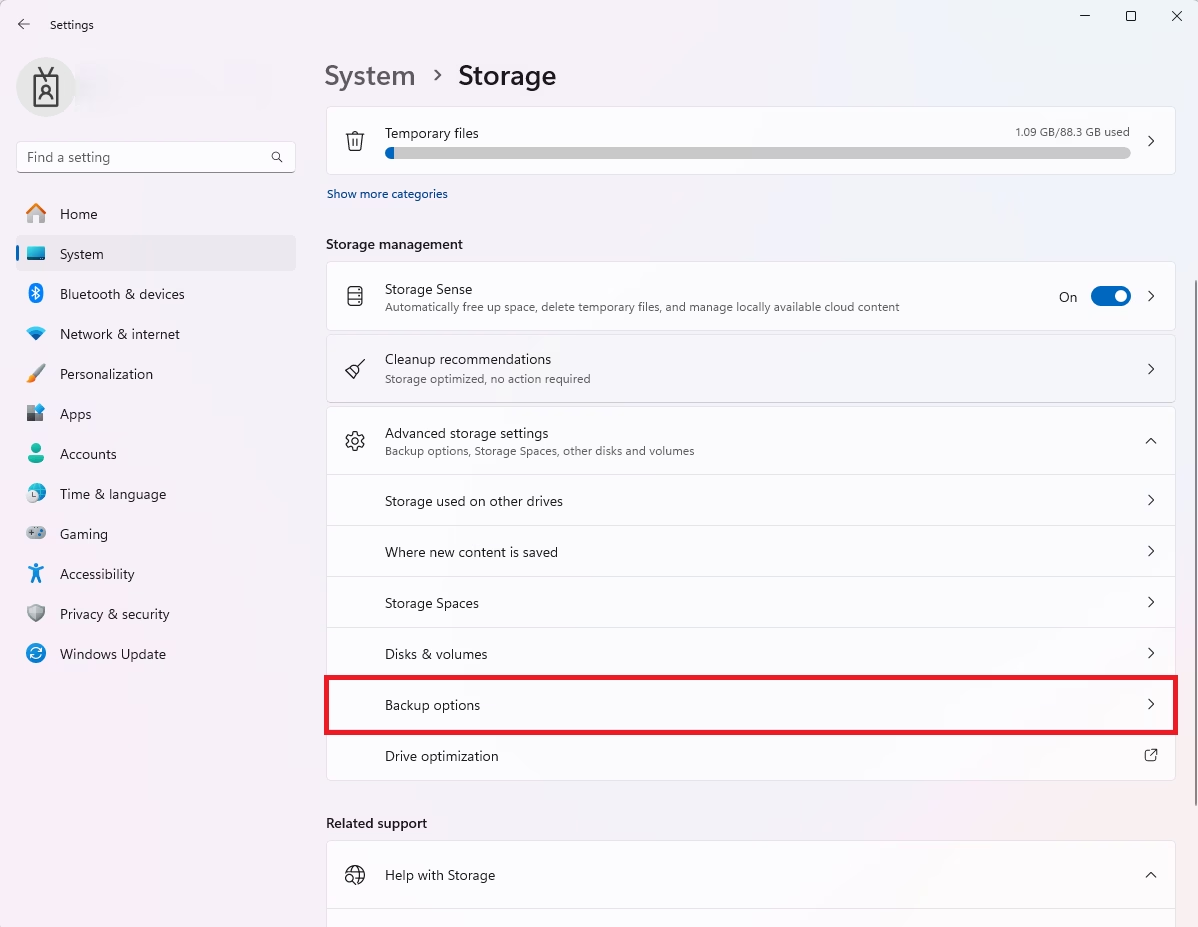
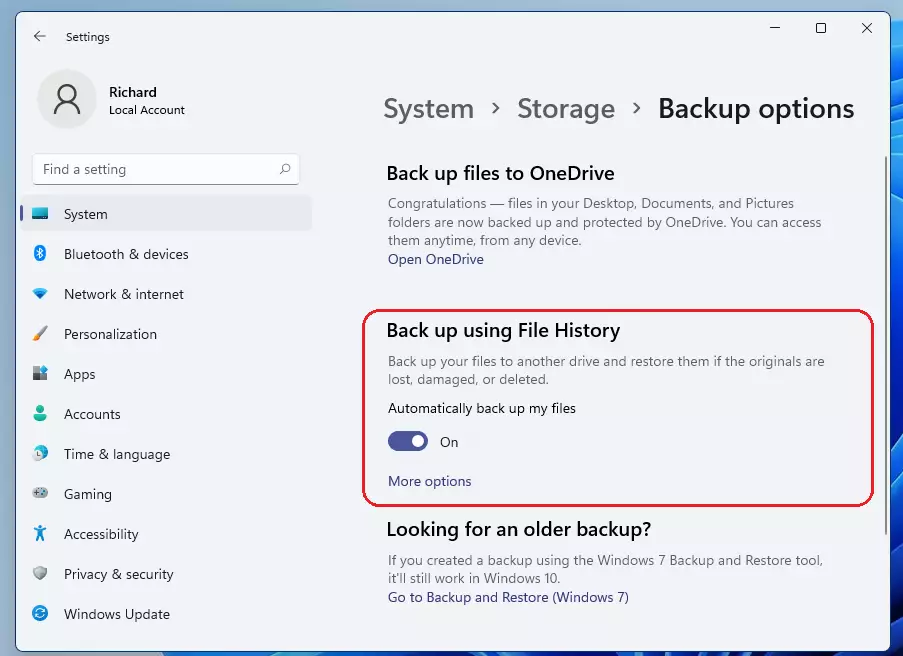
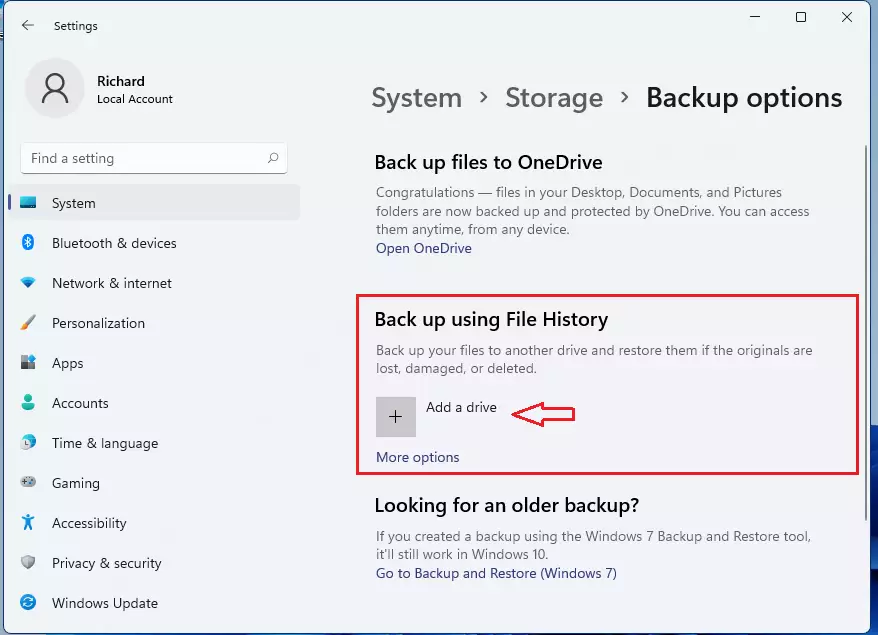
Next, select Backup options and click the link for Backup and Restore (Windows 7). This will open a classic Control Panel window.
Click the link for Backup and Restore (Windows 7). This opens a classic Control Panel window.
Click Add a Drive. You must save your system image to an external hard drive, a DVD, or a network location. Note: Admin privileges are required to configure these system-level storage settings.
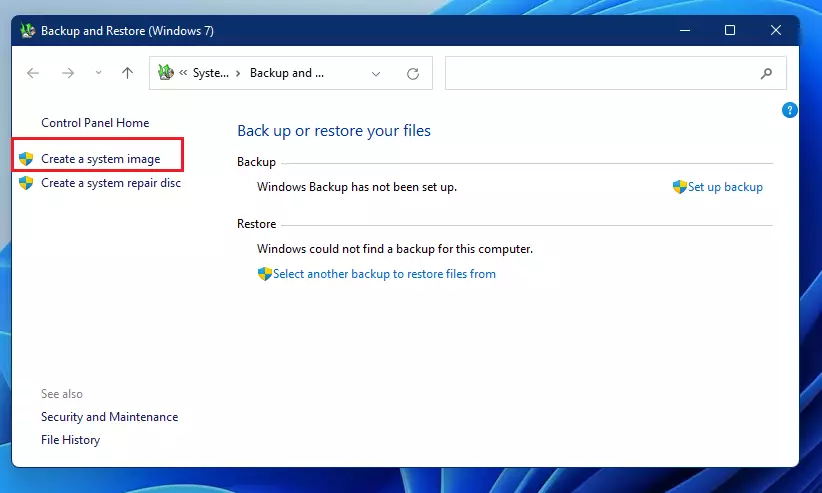
Click Create a system image on the left side of the window.
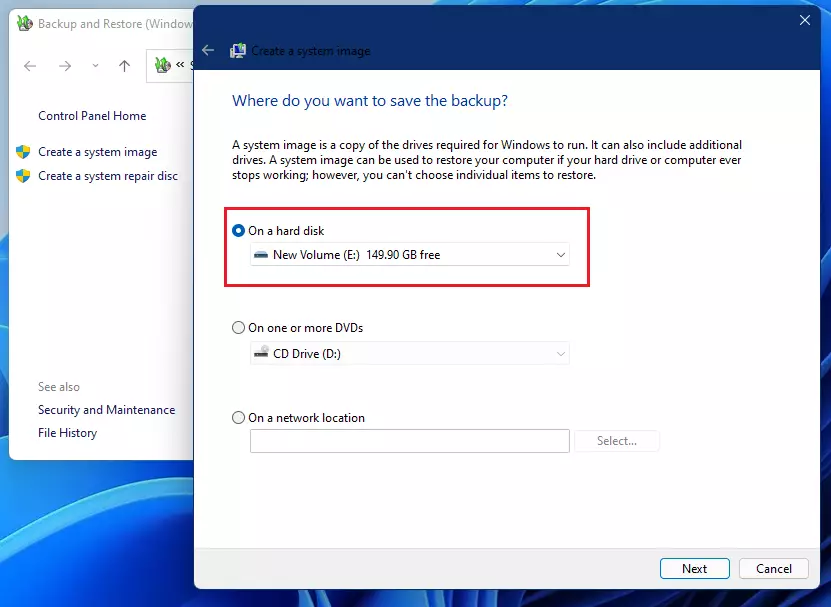
Choose where you want to save your backup. In this example, we are using an external hard disk.
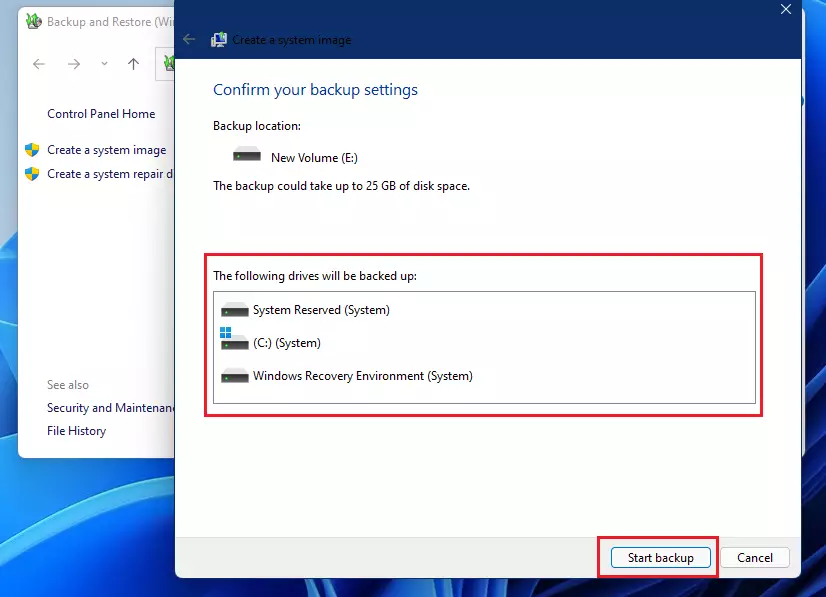
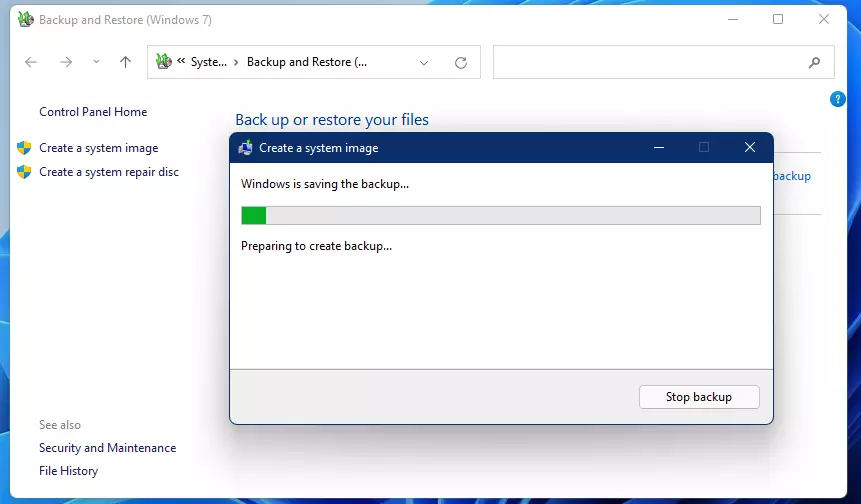
Click Start Backup to begin. Note: This process requires admin privileges to access system files.
Wait for the progress bar to finish. This can take a few hours depending on how much data is on your computer.
Once it finishes, unplug your external drive and keep it in a safe place.
Click the link to Backup and Restore (Windows 7). This opens the legacy tool.
Summary
A full system backup is the best way to protect your entire Windows 11 PC, especially when using the legacy System Image tool for complete drive protection and following the 3-2-1 backup rule.
Does 🪟 Windows 11 have a built-in full system image tool?
Yes, Windows 11 does have a built-in tool for creating a full system image, which is an older feature called Backup and Restore (Windows 7) found in the Control Panel.
Was this guide helpful?

About the Author
Richard
Tech Writer, IT Professional
Richard, a writer for Geek Rewind, is a tech enthusiast who loves breaking down complex IT topics into simple, easy-to-understand ideas. With years of hands-on experience in system administration and enterprise IT operations, he’s developed a knack for offering practical tips and solutions. Richard aims to make technology more accessible and actionable. He's deeply committed to the Geek Rewind community, always ready to answer questions and engage in discussions.




After the image showing file history, it is not clear where the link/tab is, to trigger the system image screen
[…] You can create a system image: How to create a system image […]
[…] You can read that post here. […]