How to Receive a File Using Bluetooth in Windows 11

You can receive files on your Windows 11 PC using Bluetooth by turning on Bluetooth and then starting a file transfer from the device that’s sending the file.
Bluetooth file transfer is a wireless technology that lets you send and receive data like photos, documents, and audio between devices that are close by. You don’t even need an internet connection for this. This method is especially useful for quick transfers when you have your laptop and phone or another PC close by.
Windows 11 makes receiving files a smooth process. Make sure your PC’s Bluetooth is turned on and discoverable, and then select the file from your other device to send it directly to your computer. The process usually involves a quick pairing or confirming the connection.
Ensure your PC’s Bluetooth is on and discoverable. Open Settings, navigate to Bluetooth & devices, then Devices. Click “Send or receive files via Bluetooth,” select “Receive files,” and wait for the transfer from the paired device.
Receive a File Using Bluetooth
Someone’s sending you a file through Bluetooth, and you need to get it onto your Windows 11 computer. It’s a process that’s pretty smooth once you get started. Here’s how to get ready to receive files:
Make Sure Your Devices Are Connected (Paired)
Your Windows 11 PC needs to know the device you’re sending files from before it can receive them via Bluetooth.
Good tip: Remember, the device sending the file doesn’t have to be another Windows computer! It could be your Android phone, an iPhone, or another laptop with a different operating system. As long as both devices have Bluetooth and are paired, you’re good to go.
Get Your PC Ready to Receive
To get your Windows 11 PC ready to receive Bluetooth files, you need to open the Bluetooth File Transfer tool.
- Click the Start menu button.
- Select Settings.
- In the Settings window, click on Bluetooth & devices in the left sidebar.
- Then, click on Devices.
Alternatively, you can use a quick shortcut:
- Click the Start menu.
- Type
fsquirt. - Select the matching result.
- From there, click Devices.
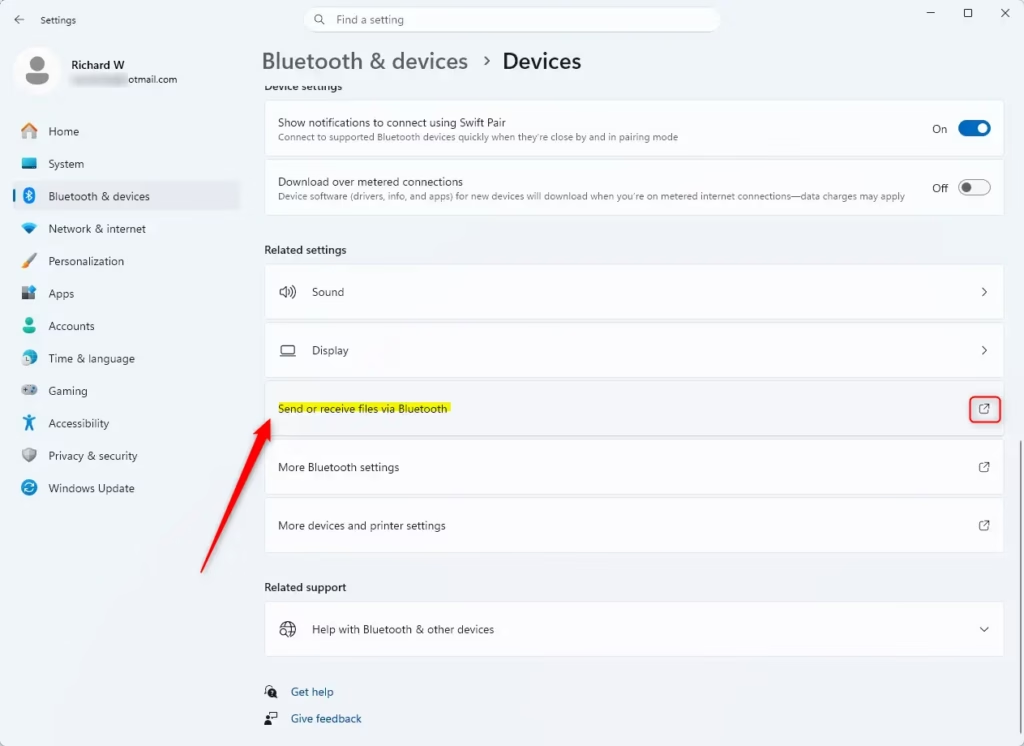
Warning: If you look in the “Related settings” section on the Bluetooth & devices screen and don’t see an option for “Send or receive files via Bluetooth,” your PC might not have Bluetooth, or it might be missing the necessary software. These software bits are often called drivers, and you might need to install the correct ones for your Bluetooth adapter.
Open the Bluetooth File Transfer Tool
Once you’re in the Bluetooth & devices section, scroll down to find “Related settings” and click on Send or receive files via Bluetooth. This will open a small window called “Bluetooth File Transfer.”
Tell Your PC You’re Waiting
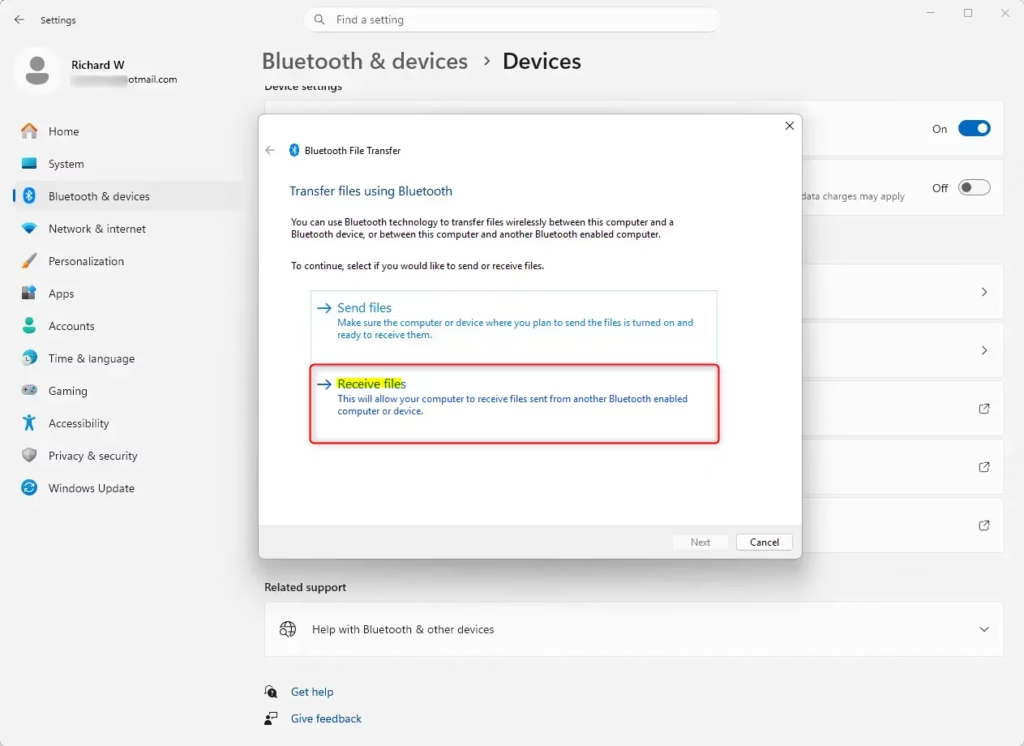
Once the Bluetooth File Transfer tool is open on your Windows 11 PC, select ‘Receive files’ to tell your computer you’re ready to get files.
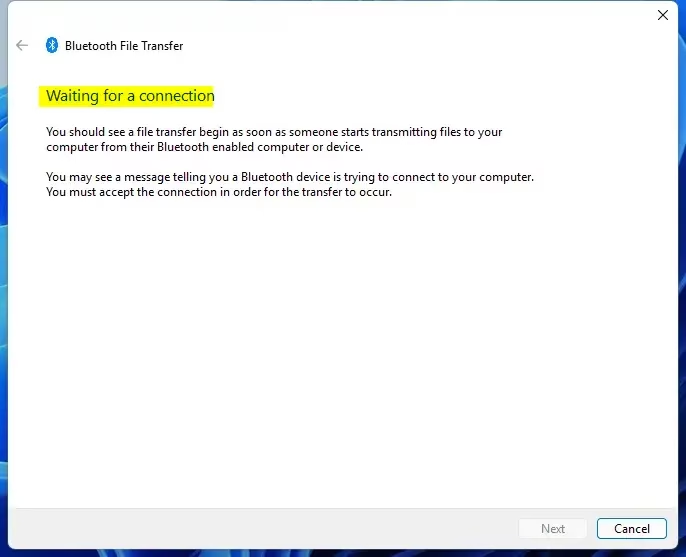
This screen means your computer is actively listening for a file transfer request from a paired Bluetooth device. It’s ready!
Start the Transfer from the Other Device
With your Windows 11 PC waiting, you need to start sending the file from the other device to receive it.
The exact steps for this depend on the other device. If it’s another Windows computer, you will follow the steps for sending a file via Bluetooth (we explain this elsewhere). If it’s a phone or another type of device, you will need to check its user manual or the manufacturer’s website for instructions on how to send files using Bluetooth.
The important thing is that the sending device must start the transfer *after* your Windows 11 PC is in “Waiting for a connection” mode.
Choose Where to Save Your New File
After your Windows 11 PC receives the Bluetooth file, you’ll be asked to pick a spot to save it.
If you prefer a different spot – perhaps a project folder or your “Documents” – click the Browse button. This lets you navigate your computer’s folders to pick any location for the file.
Important Note: Make sure you remember where you save the file! If you don’t pick a location and just click “Finish,” it will go to the default Downloads folder. You might need to search for it later if you forget.
All Done!
Once you select a save location and click ‘Finish’ in the Bluetooth File Transfer window, your file has been successfully received and saved on your Windows 11 PC.
Reference:
Summary
This guide explained how to receive files on your Windows 11 PC using Bluetooth. We covered pairing devices, opening the file transfer tool, setting your PC to receive, starting the transfer from the sender, and choosing where to save the file.
How to receive files over Bluetooth on 🪟 Windows 11?
To receive files over Bluetooth on Windows 11, ensure Bluetooth is enabled on your PC. The sending device must be paired with your PC. Once paired, initiate the file transfer from the sending device, and your Windows 11 PC will prompt you to accept the incoming file.
Where are Bluetooth received files saved in 🪟 Windows 11?
By default, Bluetooth received files in Windows 11 are saved in the ‘Bluetooth’ folder, typically located within your user profile’s ‘Documents’ folder. You can also choose a different save location when prompted during the file transfer process.
How to receive files using Bluetooth on PC?
To receive files using Bluetooth on a PC, first enable Bluetooth and make sure it’s discoverable. Pair the sending device with your PC. When a file transfer is initiated from the other device, your PC will display a prompt to accept or reject the file.
Why is my Bluetooth not receiving files?
Your Bluetooth might not be receiving files if it’s turned off, not discoverable, or if the devices are not properly paired. Ensure Bluetooth is active on both devices, they are within range, and that you’ve accepted the incoming file transfer prompt on your PC.
Was this guide helpful?

About the Author
Richard
Tech Writer, IT Professional
Richard, a writer for Geek Rewind, is a tech enthusiast who loves breaking down complex IT topics into simple, easy-to-understand ideas. With years of hands-on experience in system administration and enterprise IT operations, he’s developed a knack for offering practical tips and solutions. Richard aims to make technology more accessible and actionable. He's deeply committed to the Geek Rewind community, always ready to answer questions and engage in discussions.

No comments yet — be the first to share your thoughts!