How to Turn On or Off File History in Windows 11

How Does File History Work?
File History in Windows 11 automatically saves copies of your important files, like those in Documents and Desktop, to a separate drive you pick, such as a USB stick or network location.- It saves copies of files inside your user folder:
C:\Users\YourName. - It uses a special system called the change journal to track which files have changed. This makes backups quick and doesn’t slow down your PC.
- You need to choose where your backups will be saved. This can be an external USB drive or a network location (like a shared drive on your home network).
- If your backup drive isn’t connected (like if you unplug a USB drive), File History will save backups temporarily on your PC. It will copy them over once the drive is back.
Before You Start
Before you start, ensure these services are running on your computer for File History to work:
- File History Service
- Windows Search Service
Option 1Turn On or Off File History for Your Account (Using Control Panel)
- Open the Control Panel. You can find it by typing “Control Panel” in the Start menu search.
- Switch the view to Small icons or Large icons if it’s not already.
- Click on File History.
- Click Turn on to start backing up your files or Turn off to stop.
- Close the Control Panel when done.
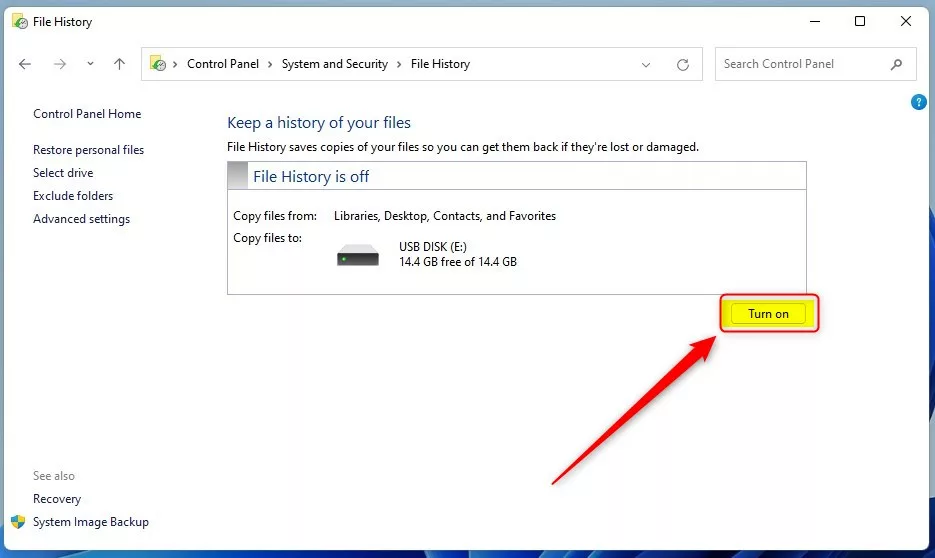
You can easily turn on or off File History for just your account using the Control Panel in Windows 11.
Option 2Enable or Disable File History for All Users (Using Local Group Policy Editor)
Windows 11 Pro, Enterprise, and Education users can turn File History on or off for everyone on the computer using the Local Group Policy Editor.
- Press ⊞ Win+R, type
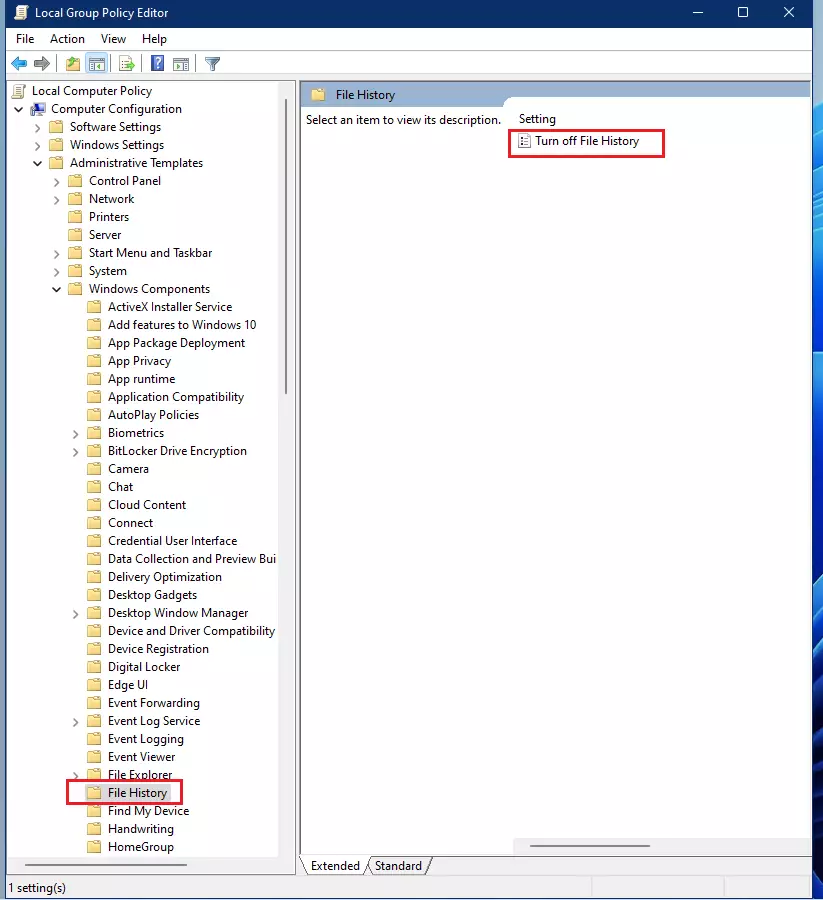
gpedit.msc, and press Enter to open the Local Group Policy Editor. - In the left panel, go to: Computer Configuration > Administrative Templates > Windows Components > File History
- In the right panel, double-click Turn off File History.
- Choose:
- Not configured or Disabled to allow File History (default setting).
- Enabled to turn off File History for all users.
- Click OK and close the editor.
Option 3Turn On or Off File History for All Users (Using Registry Editor)
You can turn File History on or off for all users in Windows 11 by editing the Registry, but this needs administrator permission and must be done carefully.
You need to be signed in as an administrator to do this.
To Turn On File History:
reg delete "HKEY_LOCAL_MACHINE\SOFTWARE\Policies\Microsoft\Windows\FileHistory" /v Disabled /fTo Turn Off File History:
reg add "HKEY_LOCAL_MACHINE\SOFTWARE\Policies\Microsoft\Windows\FileHistory" /v Disabled /t REG_DWORD /d 1 /fSummary
File History in Windows 11 is a handy tool that automatically backs up your important files to a place you choose, so you can get them back if something happens.- File History keeps your important files backed up automatically.
- It uses a smart system to back up only changed files, so it runs smoothly.
- You choose where your backups are saved — an external drive or network location works best.
- If your backup drive isn’t available, File History saves backups temporarily on your PC.
- Services like File History Service and Windows Search need to be running.
- You can control File History for just your user or for everyone on the PC.
- It’s easy to restore lost or earlier versions of your files when needed.
- By setting up File History, you’ll have peace of mind knowing your files are regularly saved and safe from accidental loss.
Open Control Panel, click File History, then select Turn on or Turn off . This feature automatically backs up your files to an external drive or network location.
What is File History?
File History in Windows 11 is a built-in tool that automatically saves copies of your important files, like documents and pictures, so you can get them back if they’re lost or damaged.
Learn more about backing up and restoring files on Microsoft Support
How Does File History Work?
File History in Windows 11 automatically saves copies of your important files, like those in Documents and Desktop, to a separate drive you pick, such as a USB stick or network location.- It saves copies of files inside your user folder:
C:\Users\YourName. - It uses a special system called the change journal to track which files have changed. This makes backups quick and doesn’t slow down your PC.
- You need to choose where your backups will be saved. This can be an external USB drive or a network location (like a shared drive on your home network).
- If your backup drive isn’t connected (like if you unplug a USB drive), File History will save backups temporarily on your PC. It will copy them over once the drive is back.
Before You Start
Before you start, ensure these services are running on your computer for File History to work:
- File History Service
- Windows Search Service
Option 1Turn On or Off File History for Your Account (Using Control Panel)
- Open the Control Panel. You can find it by typing “Control Panel” in the Start menu search.
- Switch the view to Small icons or Large icons if it’s not already.
- Click on File History.
- Click Turn on to start backing up your files or Turn off to stop.
- Close the Control Panel when done.
You can easily turn on or off File History for just your account using the Control Panel in Windows 11.
Option 2Enable or Disable File History for All Users (Using Local Group Policy Editor)
Windows 11 Pro, Enterprise, and Education users can turn File History on or off for everyone on the computer using the Local Group Policy Editor.
- Press ⊞ Win+R, type
gpedit.msc, and press Enter to open the Local Group Policy Editor. - In the left panel, go to: Computer Configuration > Administrative Templates > Windows Components > File History
- In the right panel, double-click Turn off File History.
- Choose:
- Not configured or Disabled to allow File History (default setting).
- Enabled to turn off File History for all users.
- Click OK and close the editor.
Option 3Turn On or Off File History for All Users (Using Registry Editor)
You can turn File History on or off for all users in Windows 11 by editing the Registry, but this needs administrator permission and must be done carefully.
You need to be signed in as an administrator to do this.
To Turn On File History:
reg delete "HKEY_LOCAL_MACHINE\SOFTWARE\Policies\Microsoft\Windows\FileHistory" /v Disabled /fTo Turn Off File History:
reg add "HKEY_LOCAL_MACHINE\SOFTWARE\Policies\Microsoft\Windows\FileHistory" /v Disabled /t REG_DWORD /d 1 /fSummary
File History in Windows 11 is a handy tool that automatically backs up your important files to a place you choose, so you can get them back if something happens.- File History keeps your important files backed up automatically.
- It uses a smart system to back up only changed files, so it runs smoothly.
- You choose where your backups are saved — an external drive or network location works best.
- If your backup drive isn’t available, File History saves backups temporarily on your PC.
- Services like File History Service and Windows Search need to be running.
- You can control File History for just your user or for everyone on the PC.
- It’s easy to restore lost or earlier versions of your files when needed.
- By setting up File History, you’ll have peace of mind knowing your files are regularly saved and safe from accidental loss.
Was this guide helpful?

About the Author
Richard
Tech Writer, IT Professional
Richard, a writer for Geek Rewind, is a tech enthusiast who loves breaking down complex IT topics into simple, easy-to-understand ideas. With years of hands-on experience in system administration and enterprise IT operations, he’s developed a knack for offering practical tips and solutions. Richard aims to make technology more accessible and actionable. He's deeply committed to the Geek Rewind community, always ready to answer questions and engage in discussions.




No comments yet — be the first to share your thoughts!