How to Change Removal Policy for USB and External Drives in Windows 11

You can change the removal policy for USB and external drives in Windows 11. This controls how your operating system handles connected storage devices, specifically concerning write caching (a way to temporarily store data before writing it to the drive) and quick removal options.
This policy decides if Windows favors performance with write caching or safety by letting you unplug immediately without using “Safely Remove Hardware.”
For example, Windows 11 usually defaults to “Quick removal” for most USB drives. This setting turns off write caching, which helps keep your data safe when you disconnect the drive right away.
You can switch this to “Better performance” if you frequently transfer large files and want faster write speeds. Just remember to use the “Safely Remove Hardware” icon before unplugging to prevent data corruption.
You can change the removal policy in Windows 11 via Settings, Disk Management, or Device Manager. Navigate to System > Storage > Advanced storage settings > Disks & volumes, select your drive’s properties, and choose “Quick removal” or “Better performance.
What Are Removal Policies?
The USB removal policy in Windows 11 decides if you can just pull out your drive or if you need to safely eject it first, balancing convenience with how fast your computer works.
- Quick removal (default): You can unplug your device anytime without clicking “Safely Remove Hardware.” Your computer might run a tiny bit slower though.
- Better performance: Your computer runs faster with the device plugged in. But you must click “Safely Remove Hardware” before unplugging to protect your data.
Choose the setting that best fits how you use your device.
⚠️ Admin Privileges Required: You need to be signed in as an administrator on your PC to change these settings.
Three Easy Ways to Change Removal Policy
Option 1Change Using Windows Settings
- Press Windows key + I to open Settings.
- Click System on the left, then choose Storage on the right. Or use this shortcut: Open Storage settings
- If a pop-up asks for permission, click Yes.
- Scroll down and click Advanced storage settings to expand it, then select Disks & volumes. Or open it directly: Open Disks & volumes
- Find your removable drive in the list, then click the Properties button.
- Under Removal policy, pick either Quick removal or Better performance.
- Close Settings when done.
You can change the USB removal policy for your drives using Windows Settings by opening the Settings app and going to Storage.
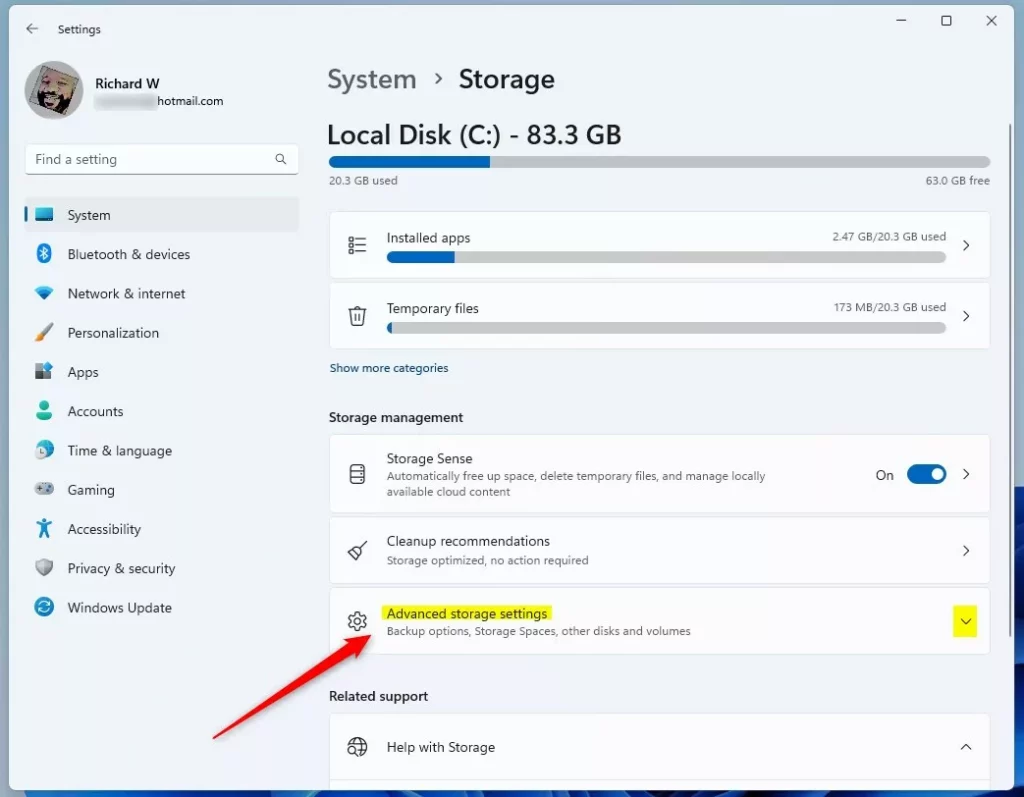
You can change the USB removal policy for your drives using Windows Settings by opening the Settings app and going to Storage.
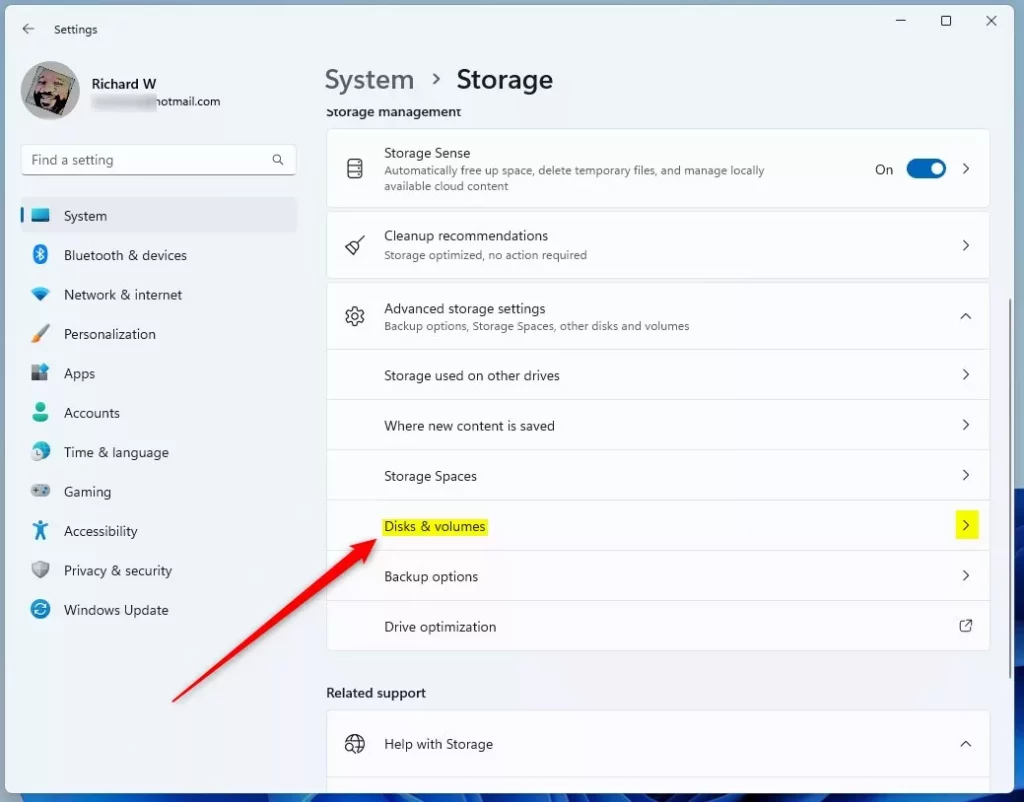
You can change the USB removal policy for your drives using Windows Settings by opening the Settings app and going to Storage.
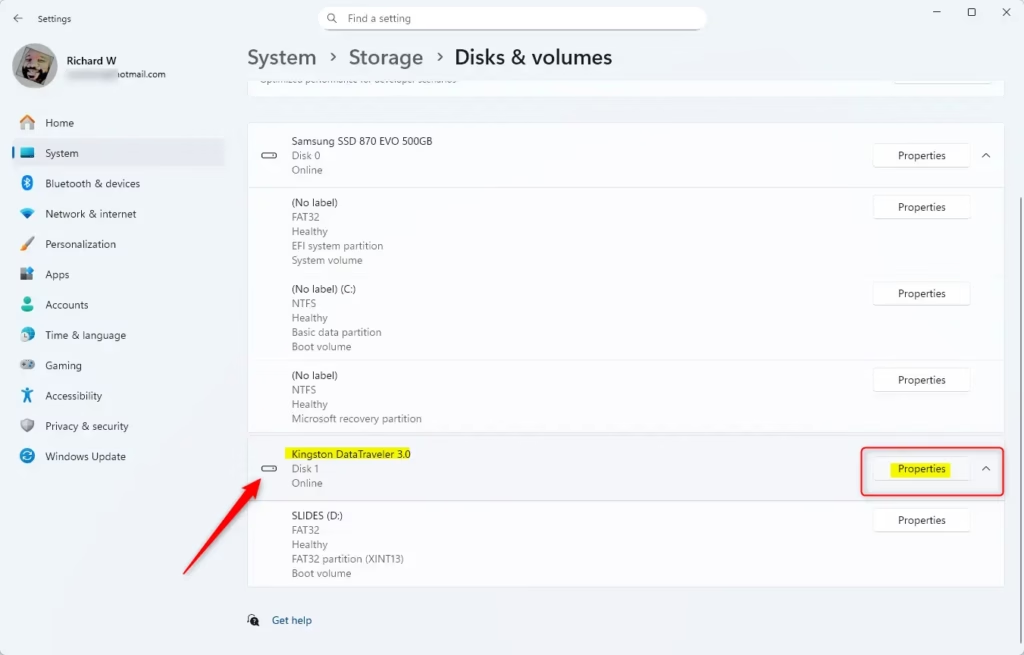
You can change the USB removal policy for your drives using Windows Settings by opening the Settings app and going to Storage.
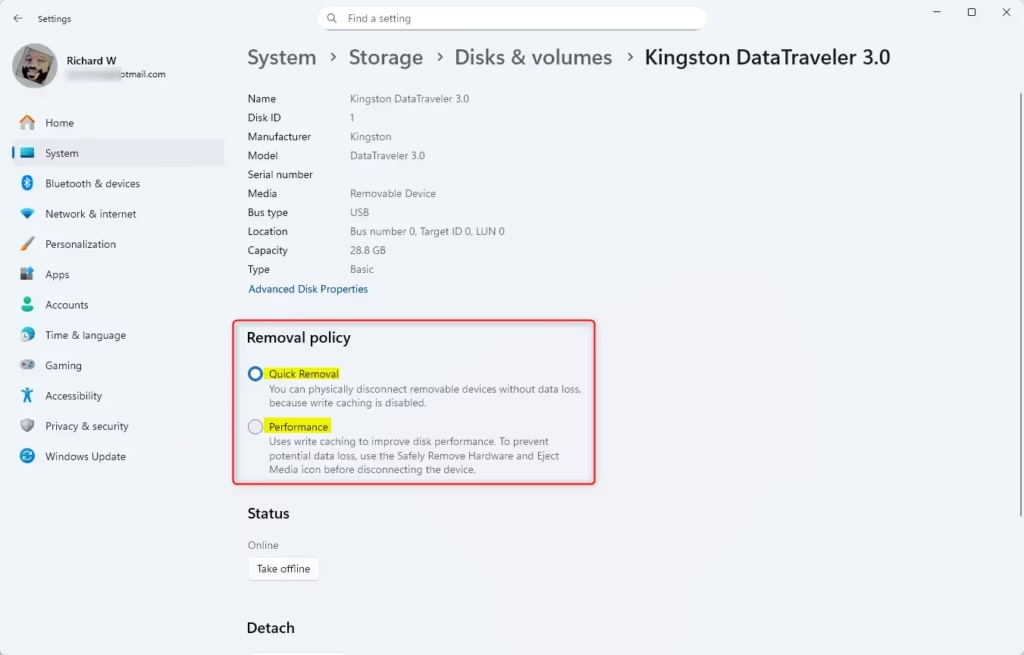
You can change the USB removal policy for your drives using Windows Settings by opening the Settings app and going to Storage.
Option 2Change Using Disk Management
- Press Windows key + R, type
diskmgmt.msc, and press Enter to open Disk Management. - In the list at the bottom, find your removable drive and right-click its label (like “Disk 1”).
- Select Properties from the menu.
- Go to the Policies tab.
- Choose Quick removal or Better performance, then click OK.
- Close Disk Management.
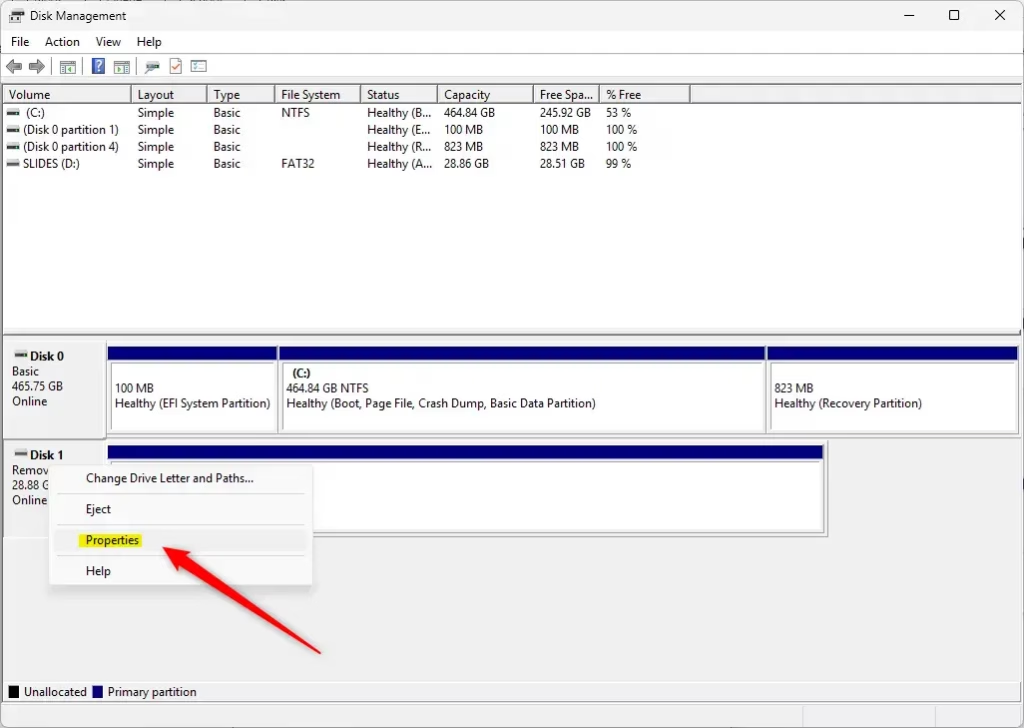
Another way to adjust the USB removal policy is through the Disk Management tool, which lets you pick between quick removal and better performance for your drives.
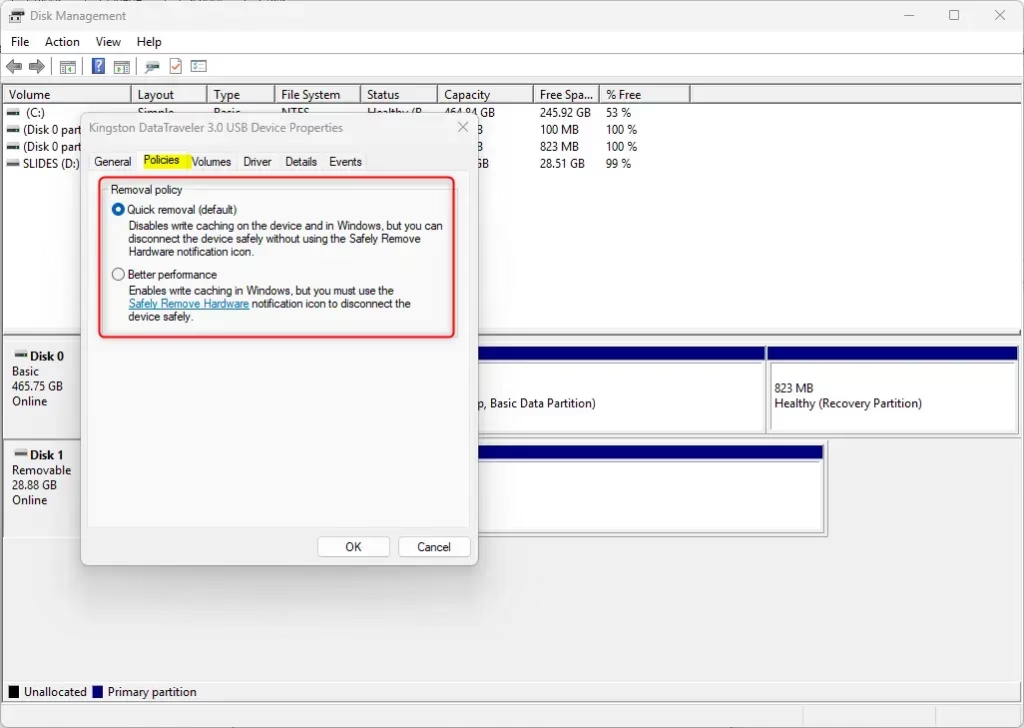
Another way to adjust the USB removal policy is through the Disk Management tool, which lets you pick between quick removal and better performance for your drives.
Option 3Change Using Device Manager
- Press Windows key + R, type
devmgmt.msc, and press Enter to open Device Manager. - Expand the Disk drives section.
- Double-click your removable drive.
- Go to the Policies tab.
- Select Quick removal or Better performance, then click OK.
- Close Device Manager.
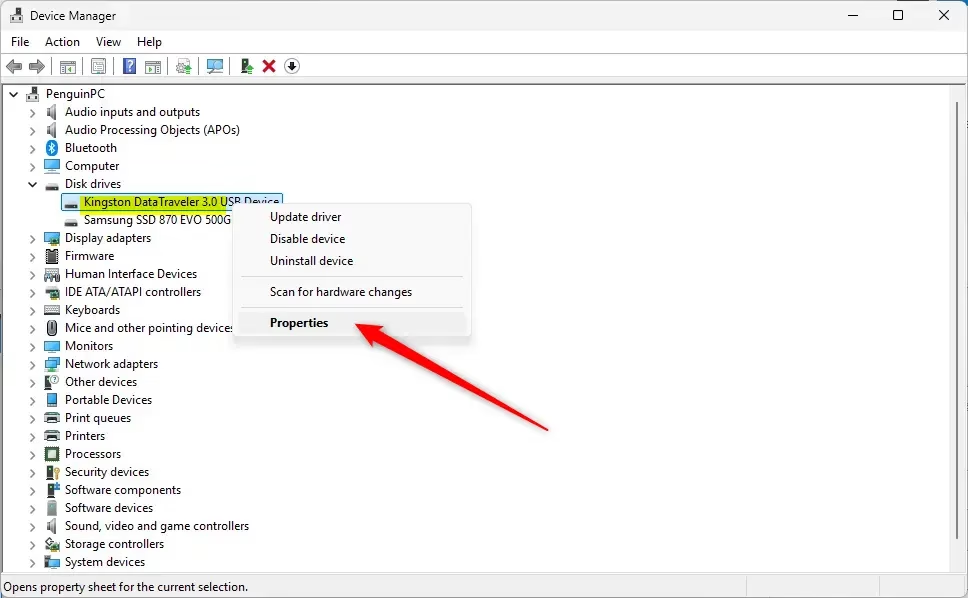
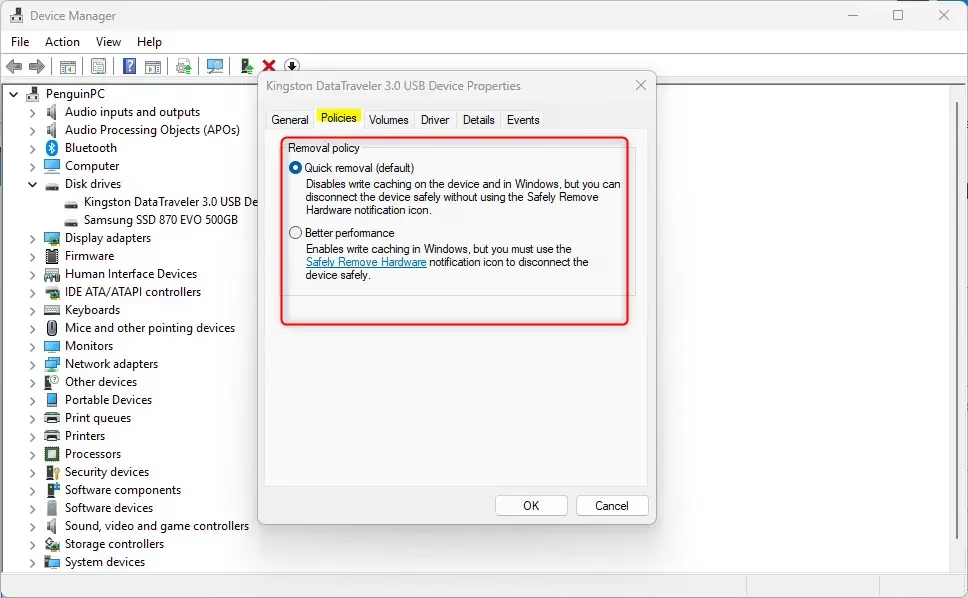
Summary
Windows 11 offers two USB removal policies: ‘Quick removal’ lets you unplug drives instantly for convenience, though it might slightly slow things down, while ‘Better performance’ boosts speed but needs you to safely eject first.- Quick removal: Unplug your USB or external drive anytime without extra steps. You get slightly slower performance.
- Better performance: You get faster data transfers, but you must always use “Safely Remove Hardware” before unplugging.
- You can change these settings anytime while your drive is plugged in.
- Three ways to change settings: Settings, Disk Management, or Device Manager.
- Administrator permission is needed to make changes.
- Changing this setting helps protect your data or improve speed, depending on what you need.
Helpful Links
Windows official guide on removal policies
Microsoft Support: Internal SATA drives as removable media
What is the removal policy in 🪟 Windows 11?
The removal policy in Windows 11 dictates how your computer handles external drives, affecting data writing and the safety of unplugging; the default ‘Quick removal’ allows unplugging anytime, while ‘Better performance’ offers faster speeds but needs a safe eject.
Was this guide helpful?

About the Author
Richard
Tech Writer, IT Professional
Richard, a writer for Geek Rewind, is a tech enthusiast who loves breaking down complex IT topics into simple, easy-to-understand ideas. With years of hands-on experience in system administration and enterprise IT operations, he’s developed a knack for offering practical tips and solutions. Richard aims to make technology more accessible and actionable. He's deeply committed to the Geek Rewind community, always ready to answer questions and engage in discussions.




No comments yet — be the first to share your thoughts!