How to Set Windows Spotlight as Desktop Wallpaper

You can set Windows Spotlight as your desktop wallpaper to automatically change your background with beautiful, curated images.
Windows Spotlight is a Windows 10 and Windows 11 feature that displays high-quality photos on your lock screen. This tutorial shows you how to make those same images appear on your desktop.
Previously, you could only see these dynamic wallpapers when your computer was locked. Now, you can easily select any Spotlight image to become your permanent desktop background.
This lets you bring stunning photography directly to your PC, transforming your workspace with fresh visuals every time you unlock your computer.
Open Settings, go to Personalization, then Background, and select Windows Spotlight from the dropdown menu. This will set dynamic, high-quality images as your desktop wallpaper.
Why use Windows Spotlight?
Using Windows Spotlight keeps your desktop feeling fresh. Instead of looking at the same static image every day, your wallpaper will rotate through professional, high-quality photos automatically. It is a great way to discover new places without changing your settings manually.
What happens when you are done?
Once you finish these steps, your desktop background will switch to the Windows Spotlight theme. Your wallpaper will update periodically with new, high-quality images provided by Windows. You will enjoy a dynamic, 4K desktop background that changes daily.
Requirements
This feature is currently available in the Windows 11 build 25169. It is only accessible to users in the Windows Dev channels or those enrolled in the Microsoft Insider Preview program.
Steps to set Windows Spotlight as your wallpaper
- Open your computer’s settings. Press Windows key + I on your keyboard, or click Start and select Settings.
windows 11 start menu settings updated - Click the Personalization tab on the left side of the screen.
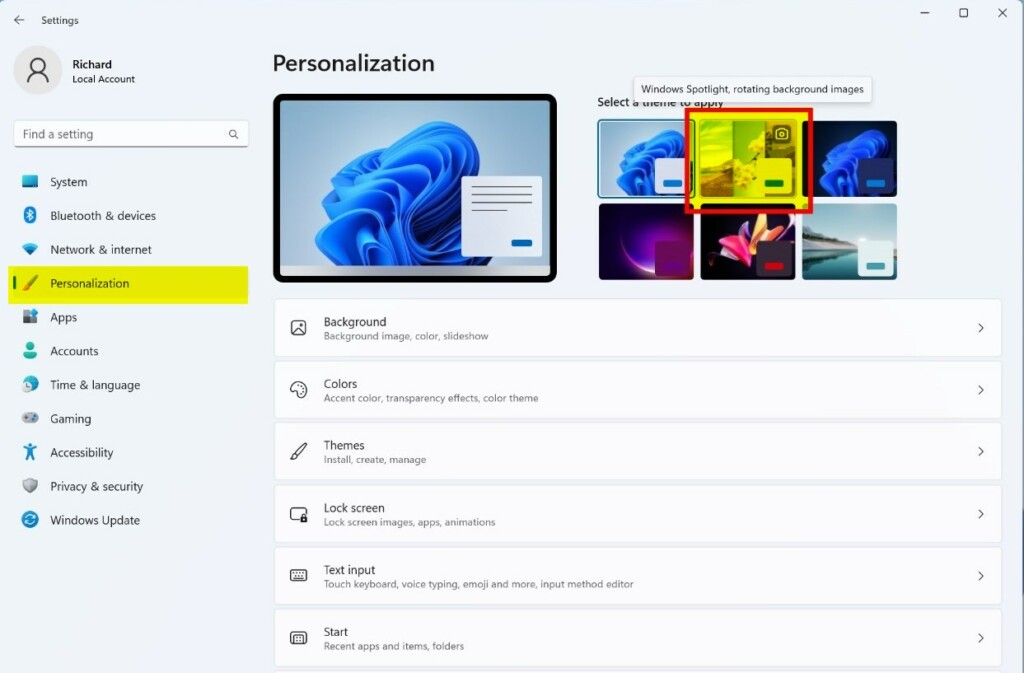
windows 11 windows spotlight theme - In the Personalization menu, click Background.
- Under Personalize your background, select Windows Spotlight from the dropdown menu.
How to find and save Windows Spotlight images
Finding and saving Windows Spotlight images is simple once you know where they’re stored; you can access these pictures directly from a hidden folder on your computer to use them as your desktop wallpaper.
- Open File Explorer and paste this path into the address bar:
%LocalAppData%\Packages\Microsoft.Windows.ContentDeliveryManager_cw5n1h2txyewy\LocalState\Assets - You will see files with no extensions. Copy these files to a new folder on your desktop.
- Rename each file by adding
.jpgto the end (e.g.,image1.jpg). - You can now view these files and set them as your desktop wallpaper.
Troubleshooting: Why is my Windows Spotlight stuck?
If your Windows Spotlight images aren’t changing, it’s probably because the cache is corrupted, and you can fix this Windows Spotlight stuck problem by resetting the spotlight settings using the Command Prompt.
del /f /s /q /a %LocalAppData%\Packages\Microsoft.Windows.ContentDeliveryManager_cw5n1h2txyewy\LocalState\Assets\*
del /f /s /q /a %LocalAppData%\Packages\Microsoft.Windows.ContentDeliveryManager_cw5n1h2txyewy\Settings\*
After running these, restart your computer to refresh the service.
Summary
By following these steps, you can turn your desktop into a gallery of global photography. We covered how to enable the feature, how to extract hidden files from the AppData folder, and how to fix common issues. Remember to check your Windows Insider status if the option is missing.
Where are Windows Spotlight images stored on my PC?
Windows Spotlight images are stored in the hidden AppData folder. You can access them by navigating to the LocalState\Assets folder within the Microsoft.Windows.ContentDeliveryManager package directory. These files are saved as raw data, so you must add a .jpg file extension to view them properly as images.
Can I download Windows Spotlight images in 4K resolution?
Yes, many of the images cached in the Assets folder are available in high-definition or 4K resolution. By extracting the files from the system folder and converting them to JPEG format, you can save these high-quality photos to your personal collection and use them as permanent desktop backgrounds.
Was this guide helpful?

About the Author
Richard
Tech Writer, IT Professional
Richard, a writer for Geek Rewind, is a tech enthusiast who loves breaking down complex IT topics into simple, easy-to-understand ideas. With years of hands-on experience in system administration and enterprise IT operations, he’s developed a knack for offering practical tips and solutions. Richard aims to make technology more accessible and actionable. He's deeply committed to the Geek Rewind community, always ready to answer questions and engage in discussions.


[…] allows you to customize the lock screen background using Windows Spotlight, Pictures, or a Slideshow that randomly displays your chosen […]
[…] Windows comes with a standard desktop background. Users can change or replace that background with a custom picture, slideshow, or Windows Spotlight image. […]
[…] can use interesting photos, slideshow, or Spotlight images as background […]
[…] Windows 11 has two ways to change the desktop background wallpaper automatically. One is to use its slideshow feature, where you select a folder with pictures to change at intervals. The other is to use Windows Spotlight. […]
[…] Windows Spotlight Background […]
[…] Spotlight Windows Spotlight allows your desktop background and lock screen to automatically download beautiful, random images […]
[…] Spotlight Windows Spotlight allows your desktop background and lock screen to connect to Microsoft servers. It downloads […]