How to Open Windows Media Player on Windows 11

You can open Windows Media Player on Windows 11 by searching for it in the Start menu or using the Run command.
Windows Media Player is a built-in application for playing audio and video files on your PC. It’s the classic version, often referred to as Windows Media Player 12.
While Windows 11 features a new Media Player app, the older, familiar version is still accessible. This tutorial shows you exactly how to find and launch it.
Search for “Media Player” in the Start menu and select it from the results. Alternatively, click the Start button, select “All apps,” and then click “Media Player” in the app list.
How to Open Windows Media Player
Here’s how you can open Windows Media Player if you want to play your music or videos:
- Click the Start button on your taskbar.
- Select All apps from the menu.
- Scroll through the list and click on Media Player to launch it.
If you cannot find the app, it might not be installed. You can get it from the Microsoft Store using this link: Install Windows Media Player.
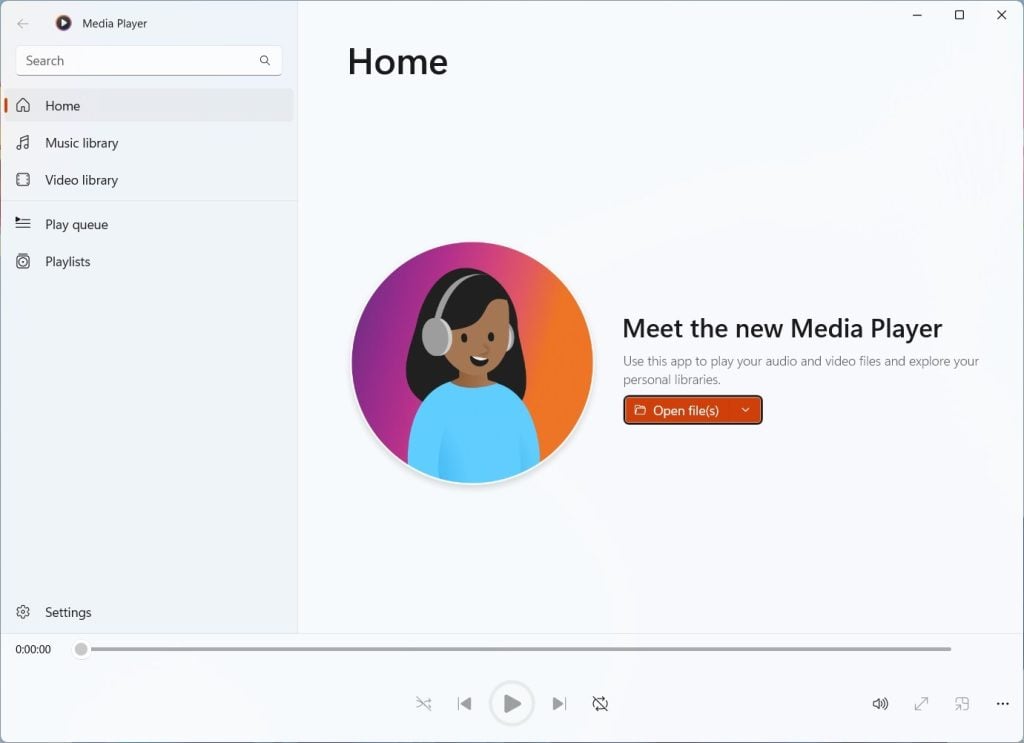
Once the app opens, you will see the home page. From here, you can add your music and video folders so the app can find your files.
Handy Keyboard Shortcuts
You can use these keys to control the app quickly:
- Ctrl+1: Switch to library mode
- Ctrl+2: Switch to skin mode
- Ctrl+3: Switch to player mode
- Ctrl+7: Add to Play
- Ctrl+8: Add to Burn
- Ctrl+9: Add to Sync
- Ctrl+A: Select everything in a list
- Ctrl+J: Eject
- Ctrl+N: Create a playlist
- Ctrl+O: Show Open dialog
- Ctrl+Shift+B: Rewind
- Right Arrow: Skip forward
- Left Arrow: Skip backward
- Ctrl + Click: Resize player to image
- Escape: Return to Now Playing
Summary
In short, Windows Media Player is the go-to app for watching videos and listening to music on Windows 11. By opening it through the Start menu, you gain access to a simple interface that supports most common file formats. Use the keyboard shortcuts listed above to make navigating your media faster.
Was this guide helpful?
0% of readers found this helpful (2 votes)

About the Author
Richard
Tech Writer, IT Professional
Richard, a writer for Geek Rewind, is a tech enthusiast who loves breaking down complex IT topics into simple, easy-to-understand ideas. With years of hands-on experience in system administration and enterprise IT operations, he’s developed a knack for offering practical tips and solutions. Richard aims to make technology more accessible and actionable. He's deeply committed to the Geek Rewind community, always ready to answer questions and engage in discussions.



[…] The Windows Media Player app is a built-in application that allows you to play various media files, such as videos, music, and images. It is a useful tool for managing and playing your media collection in Windows. It supports various file formats and offers basic playback controls such as play, pause, stop, rewind, and fast-forward. […]
[…] The Windows Media Player app is a built-in application that allows you to play various media files, such as videos, music, and images. It is a useful tool for managing and playing your media collection in Windows. It supports various file formats and offers basic playback controls such as play, pause, stop, rewind, and fast-forward. […]
[…] The Windows Media Player app is a built-in application that allows you to play various media files, such as videos, music, and images. It is a useful tool for managing and playing your media collection in Windows. It supports various file formats and offers basic playback controls such as play, pause, stop, rewind, and fast-forward. […]
[…] The Windows Media Player app is a built-in application that lets you play various media files, like videos, music, and images. It is a useful tool for managing and playing your media collection in Windows. It supports multiple file formats and offers basic playback controls, including play, pause, stop, rewind, and fast-forward. […]
This does not leave me any the wiser regarding how to play music using Media Player.
I have a significant number of albums transferred from an external HD into the Music folder and showing up as ‘present’ ie listed when I open Media Player and select Music.
However nothing happens when I select artist/album/track etc and activate the Play icon other than the red line under the display moving from left to right. No timer movement, no sound.
(Realistically, I do not expect Windows post XP to be user friendly …)