How to Refresh Media Library Locations in Windows Media Player

You refresh media library locations in Windows Media Player to ensure it detects all your newly added or moved music, videos, and pictures.
Windows Media Player is your go-to built-in Windows application for managing and playing digital media files, supporting a vast array of formats.
If you add new media files to folders that aren’t automatically monitored by Windows Media Player, like a custom folder on your D: drive, they won’t appear in your library until you manually update its scan.
Refreshing the library forces Windows Media Player to rescan your designated folders, making sure your entire collection is visible and playable. This process is especially important if you’ve recently reorganized your files, such as moving your entire music library to a new location.
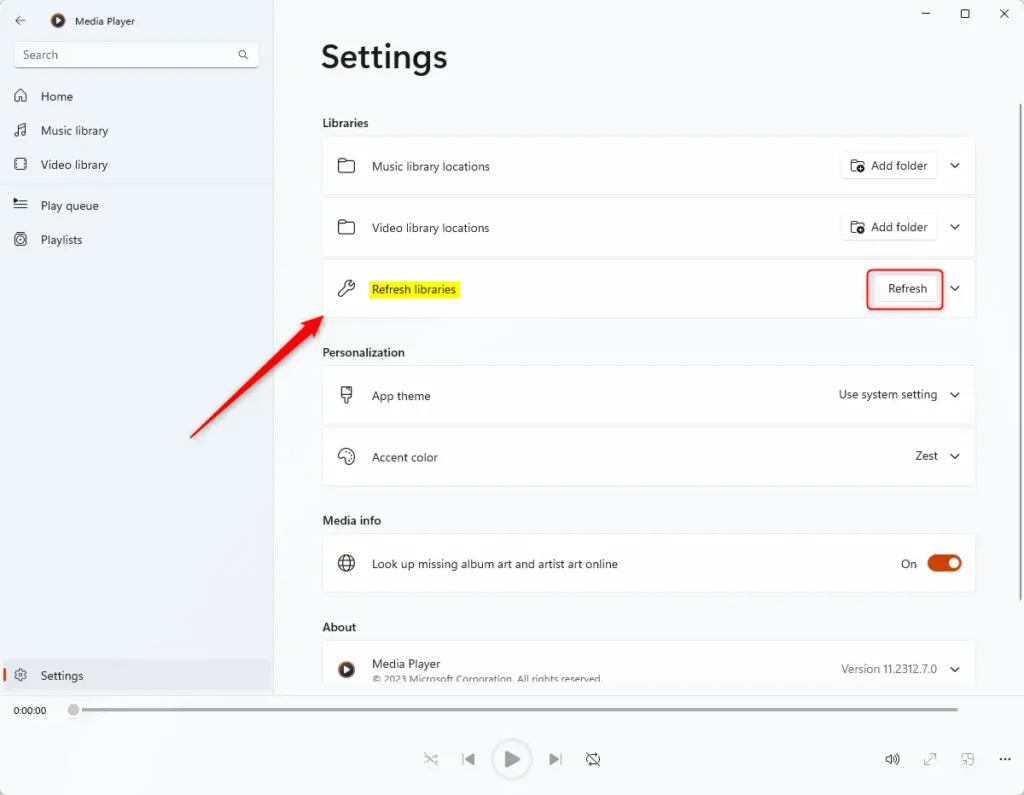
Click Settings on the left sidebar in Windows Media Player, then click Refresh to rescan your folders. This updates the library to show any new or moved media files.
How to refresh library locations
Refreshing your media library locations in Windows Media Player is how you get it to scan your folders again when new music, videos, or pictures aren’t showing up.
- Open the open the Windows Media Player app.
- Click the Settings button located on the left sidebar.
- Click the Refresh button in the settings menu to scan your folders and update your library.
The app relies on the Windows Search Indexing service, which helps Windows find files, to work correctly. Ensure that the Windows Search Indexing service is enabled and running on your system. Note: Changing system services may require admin privileges.
Summary
Refreshing your Windows Media Player library ensures that the app sees every file on your computer. By following the steps above, you force the app to rescan your folders. This fixes missing media issues and keeps your collection organized and ready to play.
How to refresh vlc media library?
And display any new files added since the last session. If your new files are still not showing. Click media open folder navigate to the folder containing your new music or videos select the folder.
Was this guide helpful?

About the Author
Richard
Tech Writer, IT Professional
Richard, a writer for Geek Rewind, is a tech enthusiast who loves breaking down complex IT topics into simple, easy-to-understand ideas. With years of hands-on experience in system administration and enterprise IT operations, he’s developed a knack for offering practical tips and solutions. Richard aims to make technology more accessible and actionable. He's deeply committed to the Geek Rewind community, always ready to answer questions and engage in discussions.


No comments yet — be the first to share your thoughts!