Manage Recent Media Settings in Windows 11 Media Player

You manage recent media settings in Windows 11 Media Player to control what playback history appears on its Home screen.
Windows 11 Media Player is the built-in application on your PC for playing music, videos, and photos. It automatically keeps a record of recently played items, offering quick access for convenience.
If you share your computer, you might want to disable the “Remember Recent Media” setting to maintain your privacy. This action will clear your playback history from the Home page, preventing others from seeing what you’ve watched or listened to.
To manage recent media settings, open the Media Player app and click the Settings button. Scroll to the Privacy section and toggle “Remember recent media” to Off to hide your playback history.
How to hide your recent media history
Windows Media Player lets you hide your recent media history by simply turning off a setting in the app.
- Click the Settings button located on the left sidebar of the app.
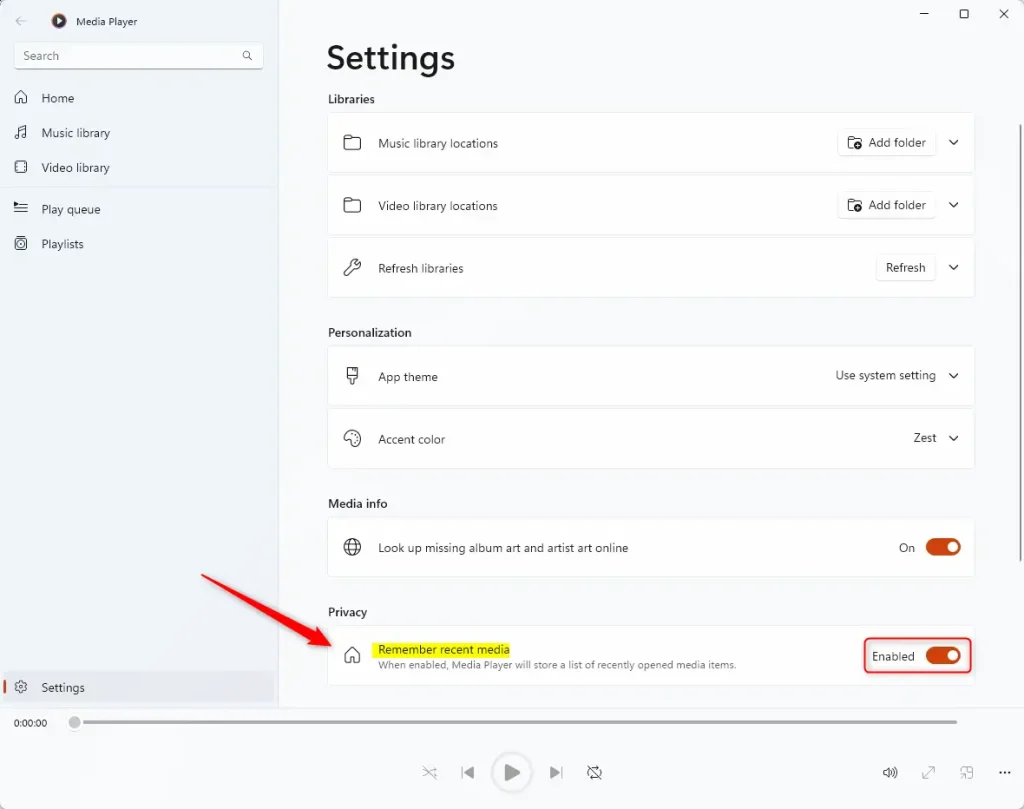
On the Settings page, scroll down until you see the Privacy section. Find the switch labeled Remember recent media and toggle it to the Off position.
That’s all you need to do to hide your recently opened items.
Summary
Keeping your Windows Media Player recent media private is simple. Turning off the ‘Remember recent media’ setting stops your past files from showing up on the Home page, giving you better control over your privacy.
How to hide your recent media history
How to check history on Windows Media Player?
Every time when you right click on the Windows Media Player icon which is on the Taskbar you will get list of recently played items. I hope I answered your question.
Was this guide helpful?

About the Author
Richard
Tech Writer, IT Professional
Richard, a writer for Geek Rewind, is a tech enthusiast who loves breaking down complex IT topics into simple, easy-to-understand ideas. With years of hands-on experience in system administration and enterprise IT operations, he’s developed a knack for offering practical tips and solutions. Richard aims to make technology more accessible and actionable. He's deeply committed to the Geek Rewind community, always ready to answer questions and engage in discussions.



No comments yet — be the first to share your thoughts!