How to Show or Hide Recently Opened Items in Windows 11

You can easily show or hide recently opened items in Windows 11 to manage privacy and reduce clutter.
Recently opened items include files, folders, and applications that Windows 11 tracks and displays in various locations to help you quickly find what you’re working on.
These appear in the Start menu’s Recommended section, Jump Lists, and File Explorer. For instance, Windows 11 typically keeps a record of your last 50 recently accessed files.
By adjusting this setting, you prevent Windows from logging and displaying these activities. This gives you more control over your digital footprint and keeps your PC usage private.
Go to Settings > Personalization > Start and toggle off “Show recently opened items in Start, Jump Lists, and File Explorer.” This prevents Windows from displaying your recent files, folders, and apps.
Managing Recent Items via Settings
You can easily control whether Windows 11 shows your recently opened items directly from the Settings app, helping keep your Start menu and File Explorer tidy by deciding if you want to see a list of files you’ve recently worked on.
Windows makes it possible to control this feature through the main Settings app. Here’s how:
- Open the Settings app by pressing Windows key + I or by searching for it in the Start menu.
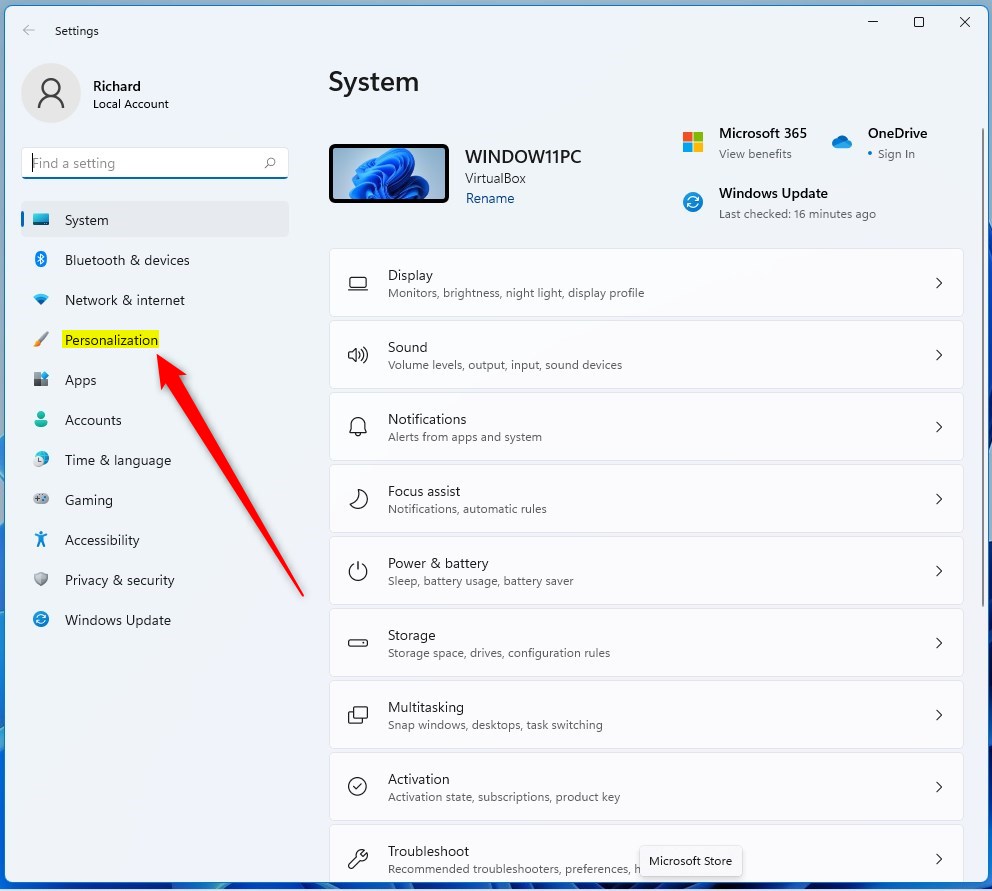
2. In the Settings app, click Personalization on the left side.
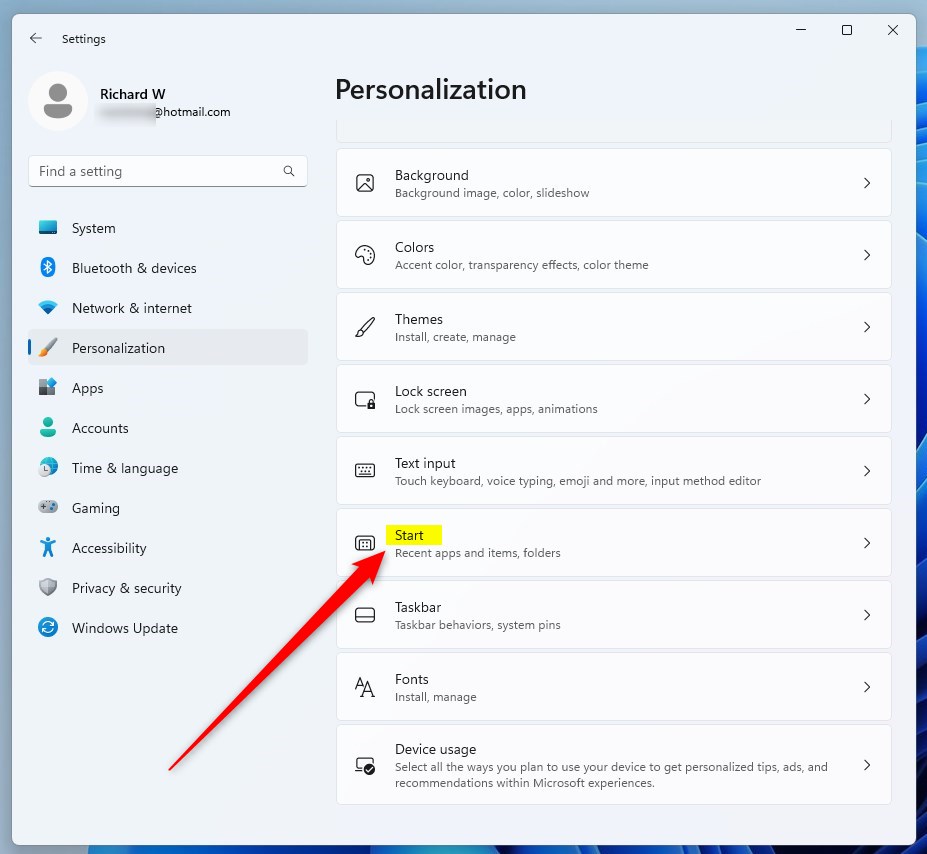
3. On the right side, click on the Start tile.
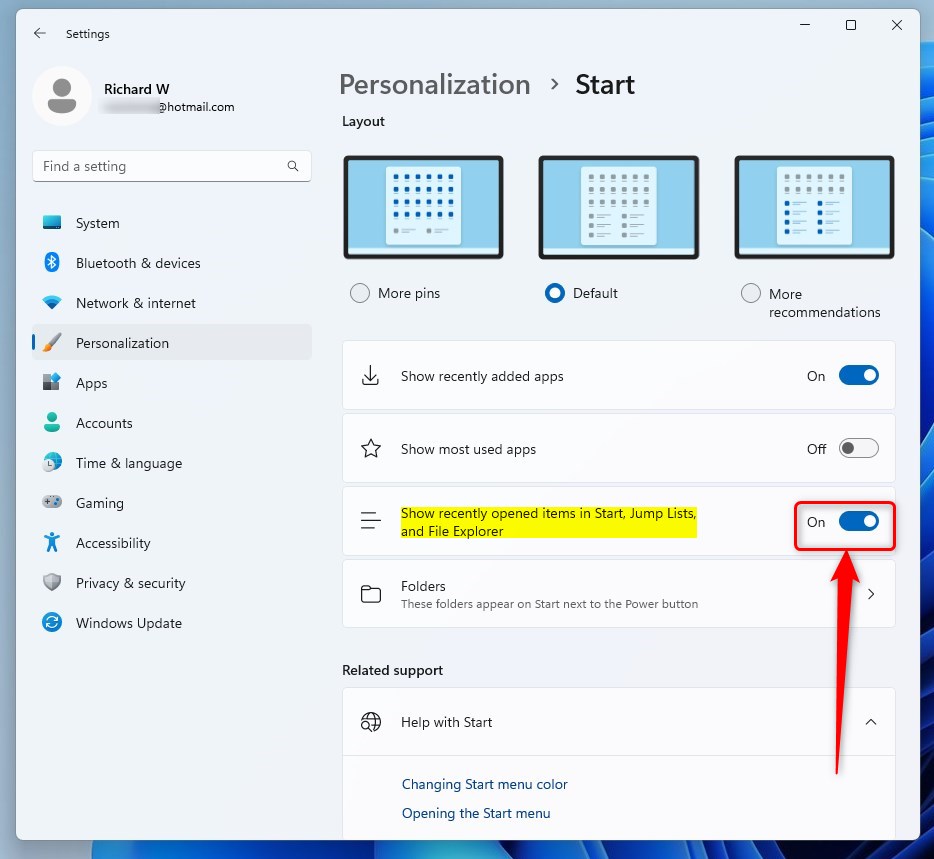
4. Locate the switch labeled Show recently opened items in Start, Jump Lists, and File Explorer. Toggle this switch to On to enable it or Off to hide your recent items.
Troubleshooting: Why are my recent files not showing up in 🪟 Windows 11?
If your recent files aren’t showing up in Windows 11, it’s often because a privacy setting is turned off or the tracking history needs a refresh, so double-checking that the option to show recent items is on is the first step.
If your recent files aren’t showing up, it’s often because privacy settings are off or cache files are corrupted. First, ensure the toggle in Settings > Personalization > Start is set to On. If it is already on, try clearing your Activity History. Go to Settings > Privacy & security > Activity history and click Clear. This resets how Windows tracks your activities.
Advanced Control: Registry Editor and PowerShell
*Note: These methods require administrator privileges. Be careful when editing the registry, as mistakes can cause system problems.*
Using Registry Editor
For more control over your recently opened items in Windows 11, you can use the Registry Editor, which lets you manually change a setting to hide or show recent documents by editing specific values.
You can force this setting using the registry. Press Windows key + R, type regedit, and press Enter. Navigate to HKEY_CURRENT_USER\Software\Microsoft\Windows\CurrentVersion\Policies\Explorer. If the key doesn’t exist, right-click Explorer, choose New > DWORD (32-bit) Value, and name it NoRecentDocsHistory. Set its value to 1 to hide recent items, or 0 to show them.
Using PowerShell
Using PowerShell
Open PowerShell as an administrator. Run this command to disable recent items: Set-ItemProperty -Path 'HKCU:\\Software\\Microsoft\\Windows\\CurrentVersion\\Policies\\Explorer' -Name 'NoRecentDocsHistory' -Value 1. This achieves the same result as the registry edit but via the command line.
Managing Recent Items via Group Policy
If you’re using a professional version of Windows 11 with administrator rights, you can manage recent items using Group Policy, which allows you to centrally control whether your computer keeps a history of recently opened documents across user accounts.
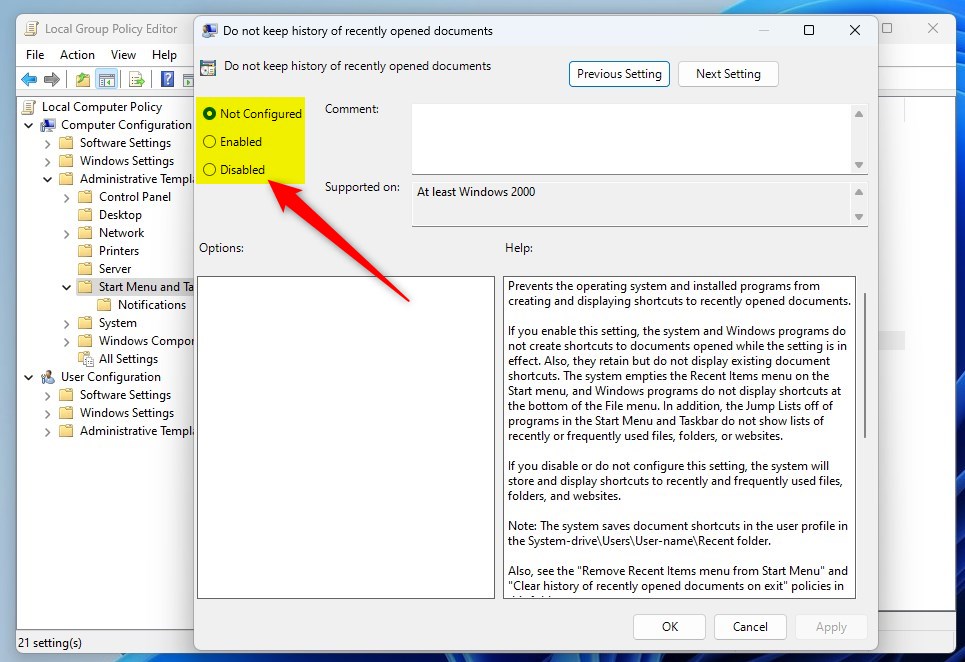
- Open the Start menu, search for Edit group policy, and select it.

2. In the Local Group Policy Editor, go to: Computer Configuration\Administrative Templates\Start Menu and Taskbar.
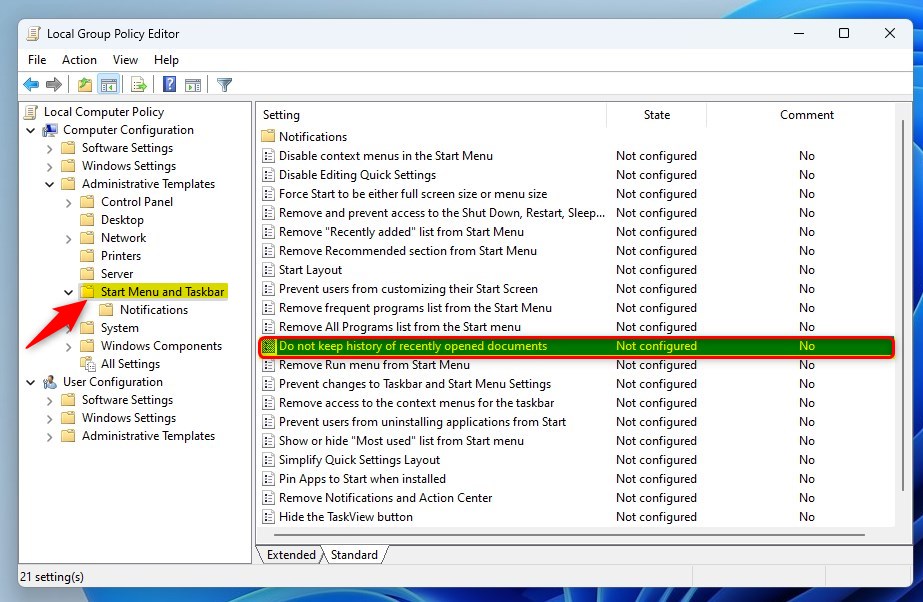
3. Find Do not keep a history of recently opened documents and double-click it. Select ‘Enabled’ to hide your history, ‘Disabled’ to show it, or ‘Not Configured’ to stick with Windows’ default settings.
Summary
Windows 11 tracks your activity to help you work faster by showing recent files in places like Jump Lists and the Recommended section, and you can easily turn this feature on or off using Settings, Registry Editor, or Group Policy.
How do I clear my recent file history in 🪟 Windows 11?
To clear your recent file history, go to Settings > Privacy & security, then select Activity history. Click the ‘Clear’ button next to ‘Clear activity history’. This will remove the list of files and folders you’ve recently opened, resetting your recent items view in the Start menu and File Explorer.
What is the difference between Quick Access and Recent Files?
Quick Access is a list of folders you pin to File Explorer to keep them handy, no matter how often you use them. Recent Files, on the other hand, is a dynamic list that Windows automatically updates with the files you’ve opened most recently on your computer.
Was this guide helpful?

About the Author
Richard
Tech Writer, IT Professional
Richard, a writer for Geek Rewind, is a tech enthusiast who loves breaking down complex IT topics into simple, easy-to-understand ideas. With years of hands-on experience in system administration and enterprise IT operations, he’s developed a knack for offering practical tips and solutions. Richard aims to make technology more accessible and actionable. He's deeply committed to the Geek Rewind community, always ready to answer questions and engage in discussions.



[…] The Start menu in Windows 11 has three sections: Pinned, All apps, and Recommended – which contains a list of recently added apps and opened items. […]