How to Clear Activity History in Windows 11

This guide explains how to clear your Activity history in Windows 11.
Open Settings by pressing Windows key + I, navigate to Privacy & security, click Activity history, and then select the Clear button. This removes your local activity log.
Why Clear Activity History?
Windows 11 keeps a log of the apps you open and the files you view. This feature helps you quickly return to your work. However, you might want to clear this data for privacy reasons or to reduce clutter. When you clear this data, your computer won’t keep a record of your recent activity.
What Happens When You Clear History?
When you clear your history, Windows removes the local record of your recent activities. This means suggestions in your Start menu or search bar will reset. Don’t worry, though – this action won’t uninstall your apps or delete your personal files. It just clears the trail of your interactions.
Browser History vs. Windows Activity History
It is important to understand that clearing your Windows activity history does not remove your browser history. Your web browser, such as Microsoft Edge or Google Chrome, maintains its own separate database of visited websites and cookies. To remove your web browsing data, you must clear the history directly within your browser settings.
How to Clear Activity History in 🪟 Windows 11
You can manage your local activity tracking through the main Windows Settings app. Follow these steps:
1. Press Windows key + I to open Settings.

2. Select Privacy & security from the left-hand menu.
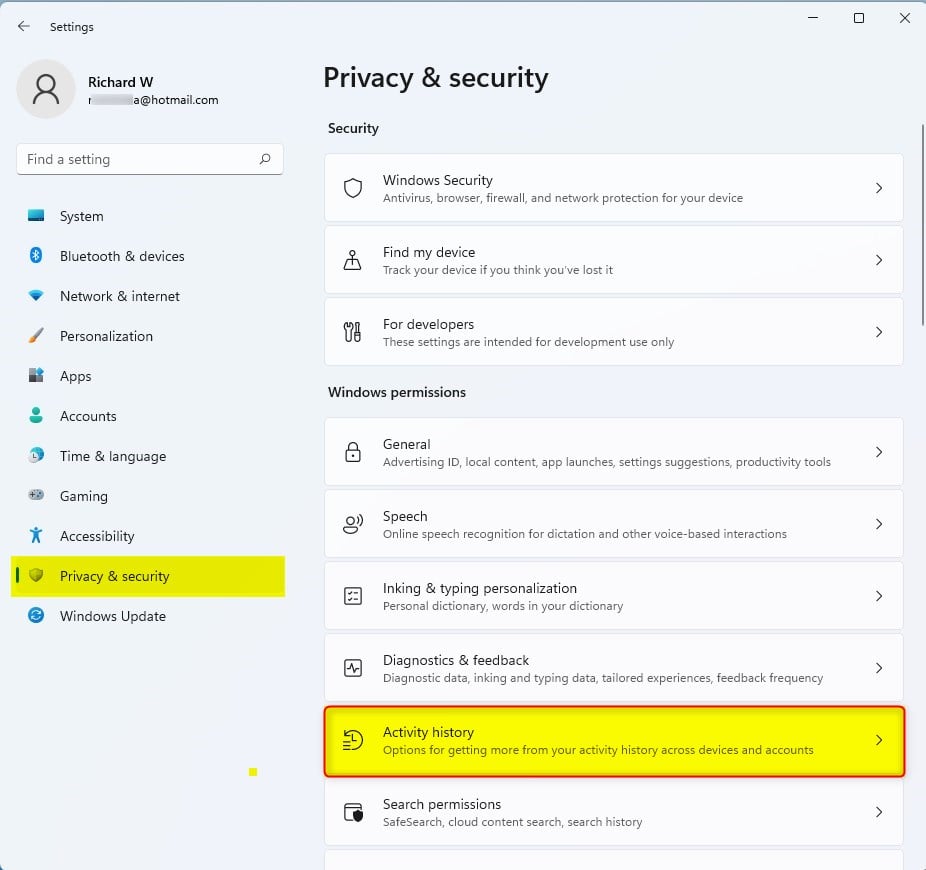
3. Click on the Activity history tile.
4. Locate Clear activity history for this account and click the Clear button.
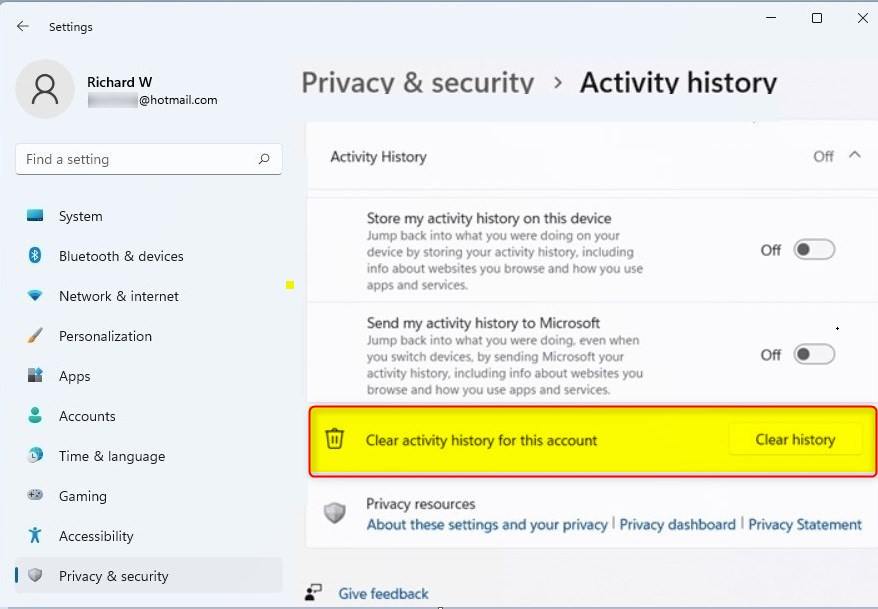
Note: This action requires standard user permissions. If you are on a managed work or school computer, some settings may be locked by your administrator.
Managing Cloud Data via Microsoft Privacy Dashboard
If you sign in with a Microsoft account, some activity data might be sent to and saved online. To ensure this is removed, you must visit the Microsoft Privacy Dashboard. Once signed in, navigate to the App and Services activity section to clear your cloud-stored data permanently.
Summary
Clearing your activity history in Windows 11 is a great way to maintain your privacy. You can wipe your local logs using the Privacy & security settings. Remember this doesn’t touch your browser history, which needs clearing separately. If you use a Microsoft account, be sure to visit the online Privacy Dashboard to remove all cloud-synced data too.
Can I disable activity history permanently?
Yes, you can disable it. In the same Activity history settings menu, toggle the switch for Store my activity history on this device to Off. This prevents Windows from recording your future actions, ensuring your local device storage remains clear of new activity logs.
Is activity history synced across all my Windows devices?
While older versions of Windows supported cross-device syncing, Microsoft has deprecated this feature. Activity history is now primarily stored locally on your specific device. Clearing history on one computer will not automatically remove data from another device linked to the same Microsoft account.
Was this guide helpful?

About the Author
Richard
Tech Writer, IT Professional
Richard, a writer for Geek Rewind, is a tech enthusiast who loves breaking down complex IT topics into simple, easy-to-understand ideas. With years of hands-on experience in system administration and enterprise IT operations, he’s developed a knack for offering practical tips and solutions. Richard aims to make technology more accessible and actionable. He's deeply committed to the Geek Rewind community, always ready to answer questions and engage in discussions.


No comments yet — be the first to share your thoughts!