How to Enable or Disable App Launch Tracking in Windows 11

You can enable or disable app launch tracking in Windows 11 to manage how the operating system records and uses your application usage data.
App launch tracking is a Windows 11 privacy setting that monitors the programs you open. This allows Windows to personalize your Start menu and search results by highlighting your most frequently used apps.
By default, Windows 11 may track app launches to optimize your user experience, for example, by suggesting or pinning commonly used programs like File Explorer.
Disabling this feature prevents Windows 11 from collecting your app usage data, resulting in a less dynamically tailored Start menu experience.
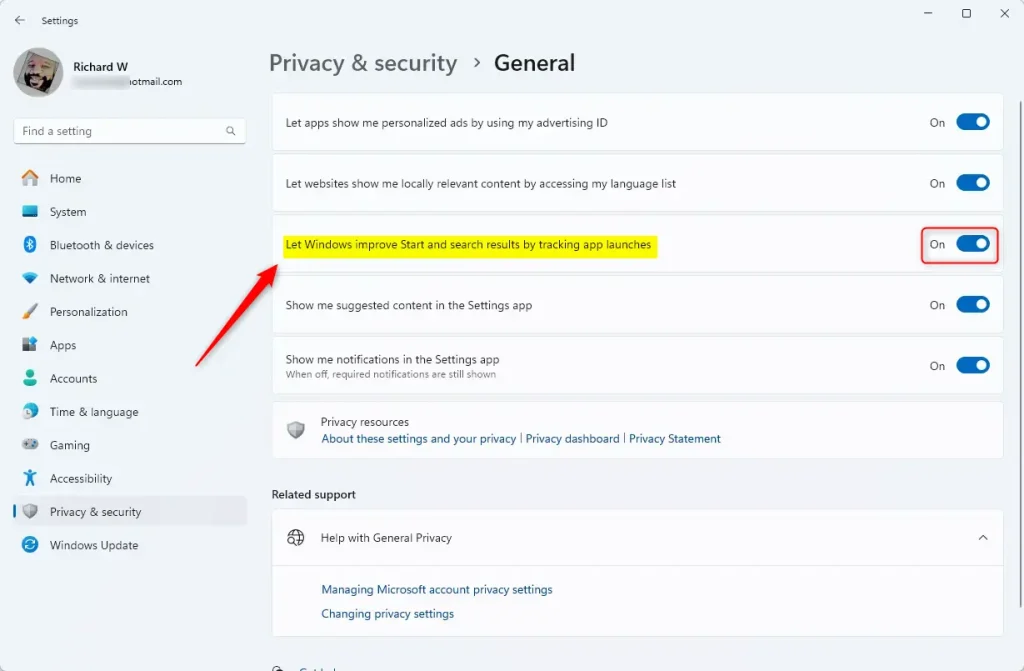
To enable or disable app launch tracking, open Settings, navigate to Privacy and security, then General, and toggle “Let Windows improve Start and search results by tracking app launches.” Alternatively, use the Group Policy Editor or Registry Editor for more advanced control.
Prerequisites
Before modifying advanced system settings, ensure you have administrative privileges. Some methods, such as using the Registry Editor or Group Policy, require an account with full system access. Always back up your registry before making changes.
Comparison of Methods
| Method | Difficulty | Best For |
|---|---|---|
| Settings App | Easy | General users |
| Group Policy | Advanced | IT Pros and Pro users |
| Registry Editor | Expert | Custom configurations |
Using the Settings App
You can turn app launch tracking in Windows 11 on or off using the Settings app. This is the easiest way to manage this privacy setting.
- Open the Windows Settings app.
- Select Privacy and security on the left.
- Click the General tile on the right.
- Find the setting labeled “Let Windows improve Start and search results by tracking app launches.”
- Toggle the switch to On or Off.
Using the Local Group Policy Editor
If you need more control, you can disable app launch tracking in Windows 11 with the Local Group Policy Editor, but you’ll need admin rights to do this.
- Press the Windows key, type
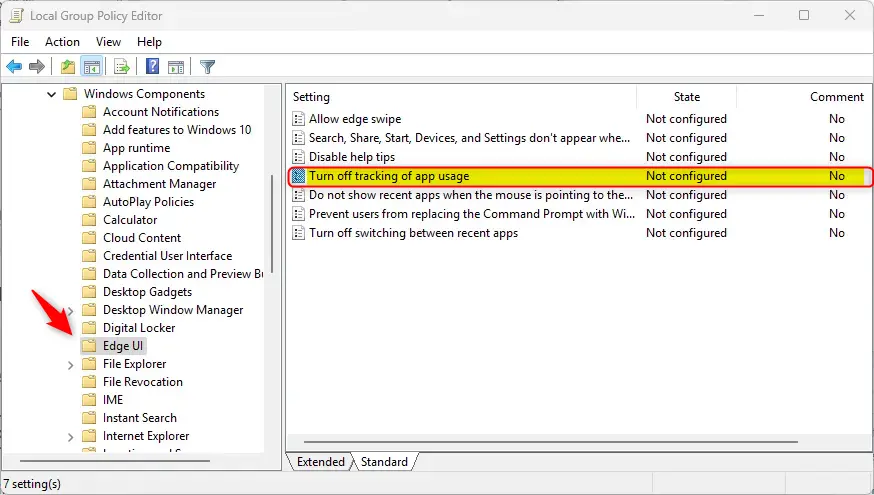
gpedit.msc, and hit Enter. - Go to: User Configuration > Administrative Templates > Windows Components > Edge UI.
- Double-click Turn off tracking of app usage.
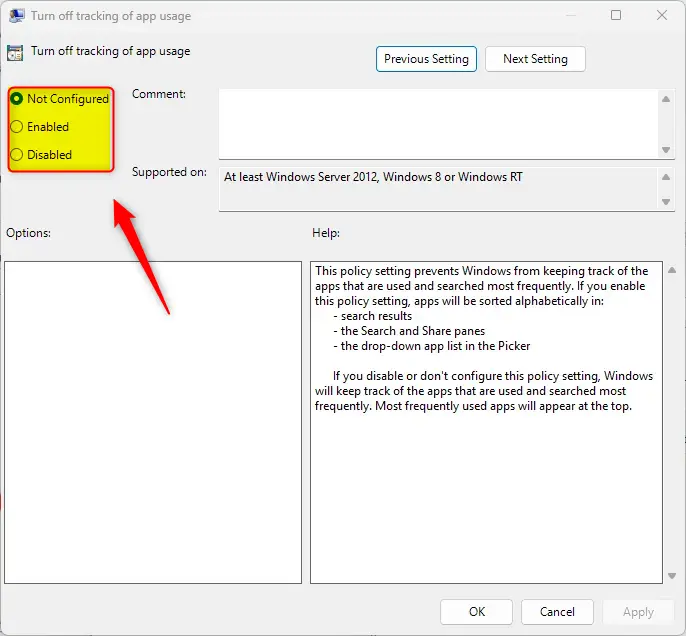
- Choose Enabled to stop tracking, or Disabled to let Windows track your apps.
- Click OK and restart your computer.
Using the Windows Registry Editor
You can also change app launch tracking in Windows 11 using the Registry Editor, but you must be very careful. Making wrong changes here can cause problems with your computer.
- Open the Windows Registry editor by searching for
regeditin the Start menu. - Navigate to this path:
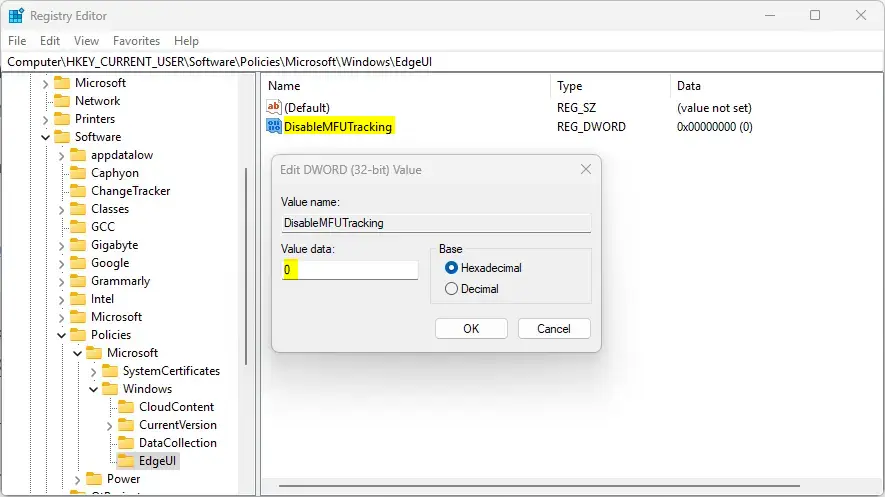
Computer\HKEY_CURRENT_USER\Software\Policies\Microsoft\Windows\EdgeUI - If you do not see
EdgeUI, right-click theWindowsfolder, select New > Key, and name itEdgeUI. - Right-click in the empty space on the right, select New > DWORD (32-bit) Value, and name it
DisableMFUTracking. - Double-click
DisableMFUTrackingand set the value to1to stop tracking.
Troubleshooting and Performance
If your computer is running slowly, the Task Manager can help you check app usage in Windows 11, showing how much power and data your apps are consuming.
Summary
Managing app launch tracking in Windows 11 lets you control your privacy while still getting personalized results, and you can use Settings, Group Policy, or the Registry to make changes.
Does disabling app tracking improve 🪟 Windows 11 performance?
Disabling app tracking has a negligible impact on overall system performance. While it technically stops a background process from logging your activity, the resource usage is minimal. You will not notice a significant speed boost by turning this feature off, but it is a valid step for privacy-focused users.
Is app launch tracking a privacy concern in 🪟 Windows 11?
Some users consider app tracking a privacy concern because it logs your usage habits. While Microsoft uses this data to improve the Start menu experience, you may prefer to disable it if you want to limit the amount of telemetry data sent from your computer to Microsoft servers.
Was this guide helpful?

About the Author
Richard
Tech Writer, IT Professional
Richard, a writer for Geek Rewind, is a tech enthusiast who loves breaking down complex IT topics into simple, easy-to-understand ideas. With years of hands-on experience in system administration and enterprise IT operations, he’s developed a knack for offering practical tips and solutions. Richard aims to make technology more accessible and actionable. He's deeply committed to the Geek Rewind community, always ready to answer questions and engage in discussions.




No comments yet — be the first to share your thoughts!