How to Manage Activity History in Windows 11

You can manage your activity history in Windows 11 to control what data Microsoft collects about your app usage, file access, and website visits.
Activity history is Windows 11’s way of remembering your recent actions to provide personalized suggestions and help you resume tasks faster.
This feature records your interactions locally on your PC and can optionally sync this data to your Microsoft account. For example, it logs actions like opening files or running applications.
By managing this history, you protect your digital privacy. Disabling it prevents Windows from recording your usage patterns for recommendations.
Once disabled, Windows stops collecting this data, ensuring your activities remain private.
Manage your Windows 11 activity history by going to Settings > Privacy & security > Activity history. Toggle “Send my activity history to Microsoft” to On or Off. You can also clear your history via the Microsoft Account Dashboard.
How to View and Clear Activity History
You can view and manage the data associated with your account through the Microsoft Account Dashboard. Think of it as your main spot for privacy settings.
- Visit the Microsoft Privacy Dashboard in your web browser.
- Sign in with your Microsoft account.
- Navigate to the Activity history tab.
- Here, you can view your recent activity and click Clear activity to remove it from the cloud.
How to turn activity history settings on or off
You can adjust these settings using the main Windows settings menu. Follow these steps:
- Open the Settings app. You can do this by pressing the Windows key + I on your keyboard or by clicking Start then Settings.

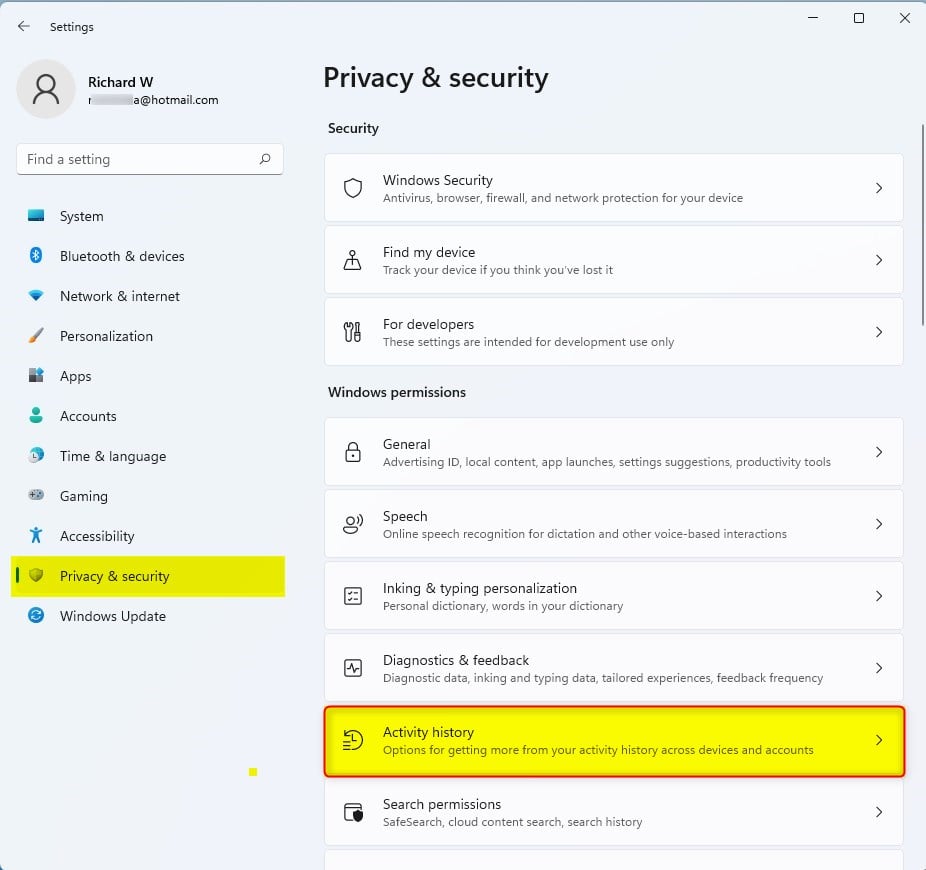
- Once the Settings window opens, click on Privacy & security on the left sidebar.
- Select the Activity history tile on the right side of the screen.
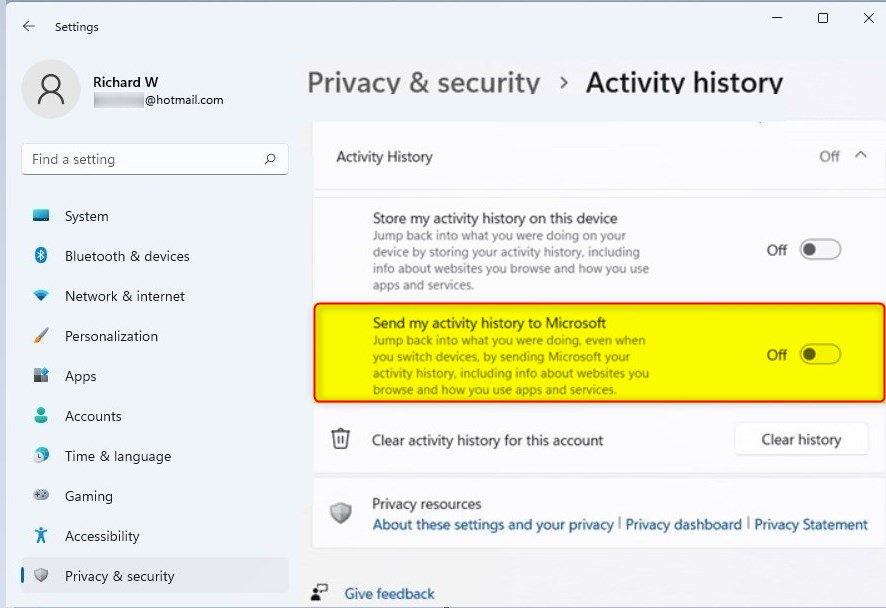
- On the Activity history page, find the option labeled Send my activity history to Microsoft.
- Toggle the switch to On or Off based on your preference.
Note: Good news: you don’t need administrator rights to change these privacy settings. They’re personal to your account.
Pro Tip: Disabling activity history may reduce the effectiveness of Windows Search personalization. If you find that your search results are not showing your most frequently used files, you may want to re-enable this feature.
Summary
Managing your Windows 11 activity history is a good way to protect your privacy. By understanding the difference between local storage and cloud synchronization, you can choose the level of data sharing that makes you comfortable. Whether you want to clear your history via the Microsoft Account Dashboard or toggle settings in the Windows menu, you remain in full control of your digital footprint.
Does clearing activity history delete my files?
No, clearing your activity history does not delete your files, photos, or documents. It only removes the log of your recent interactions with those files. Your actual data remains safe on your hard drive, but Windows will no longer show those specific files in your recent items list.
How do I stop Windows from syncing my activity to the cloud?
To stop syncing, navigate to Settings, select Privacy & security, and then click Activity history. Toggle the switch for ‘Send my activity history to Microsoft’ to the Off position. This ensures that your local activity data is no longer uploaded to the cloud and is not shared across your other devices.
Is activity history the same as browser history?
No, they are different. Activity history tracks system-wide actions like opening apps and files. Browser history is specific to your web browser, such as Microsoft Edge or Chrome, and tracks the specific websites you visit. You must clear browser history separately within the settings of your chosen web browser.
Can I view my activity history for multiple accounts?
Yes, but you must sign into the Microsoft Account Dashboard separately for each account. Activity history is tied to the specific user profile or Microsoft account currently signed into Windows. You cannot view the history of one account while logged into another without switching profiles or signing into the web dashboard.
Was this guide helpful?

About the Author
Richard
Tech Writer, IT Professional
Richard, a writer for Geek Rewind, is a tech enthusiast who loves breaking down complex IT topics into simple, easy-to-understand ideas. With years of hands-on experience in system administration and enterprise IT operations, he’s developed a knack for offering practical tips and solutions. Richard aims to make technology more accessible and actionable. He's deeply committed to the Geek Rewind community, always ready to answer questions and engage in discussions.




No comments yet — be the first to share your thoughts!