How to Enable or Disable App Launch Tracking in Windows 11

You can enable or disable app launch tracking in Windows 11 to control whether the operating system monitors which applications you open most often.
App launch tracking is a Windows 11 privacy and personalization feature that records which programs you use, helping Windows tailor your Start menu and search results to your habits. This feature is part of Windows 11’s broader telemetry settings, designed to improve your experience by collecting usage data.
When enabled, Windows 11 uses your app usage to predictively suggest applications in your Start menu, making your most-used tools readily accessible. For instance, if you frequently open File Explorer, it might appear pinned or prioritized.
Disabling app launch tracking stops Windows 11 from collecting this specific data, meaning your Start menu will not dynamically adapt based on your application usage, offering a more static app display.
Prerequisites
Before modifying advanced system settings, ensure you have administrative privileges. Some methods, such as using the Registry Editor or Group Policy, require an account with full system access. Always back up your registry before making changes.
Comparison of Methods
| Method | Difficulty | Best For |
|---|---|---|
| Settings App | Easy | General users |
| Group Policy | Advanced | IT Pros and Pro users |
| Registry Editor | Expert | Custom configurations |
Using the Settings App
This is the safest and easiest way to manage your privacy settings.
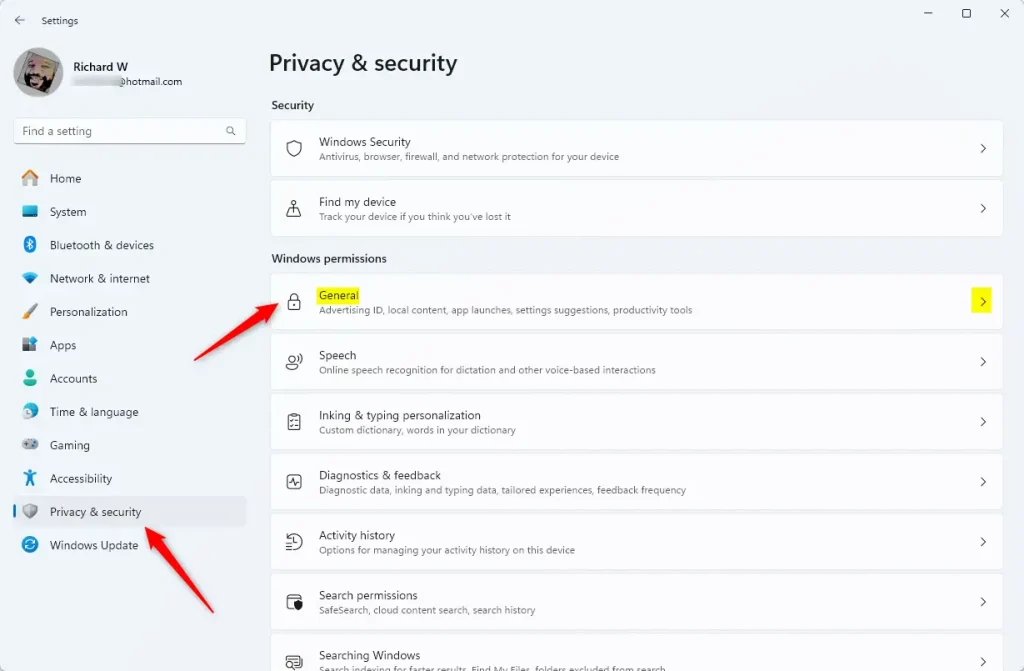
- Open the Windows Settings app.
- Select Privacy and security on the left.
- Click the General tile on the right.
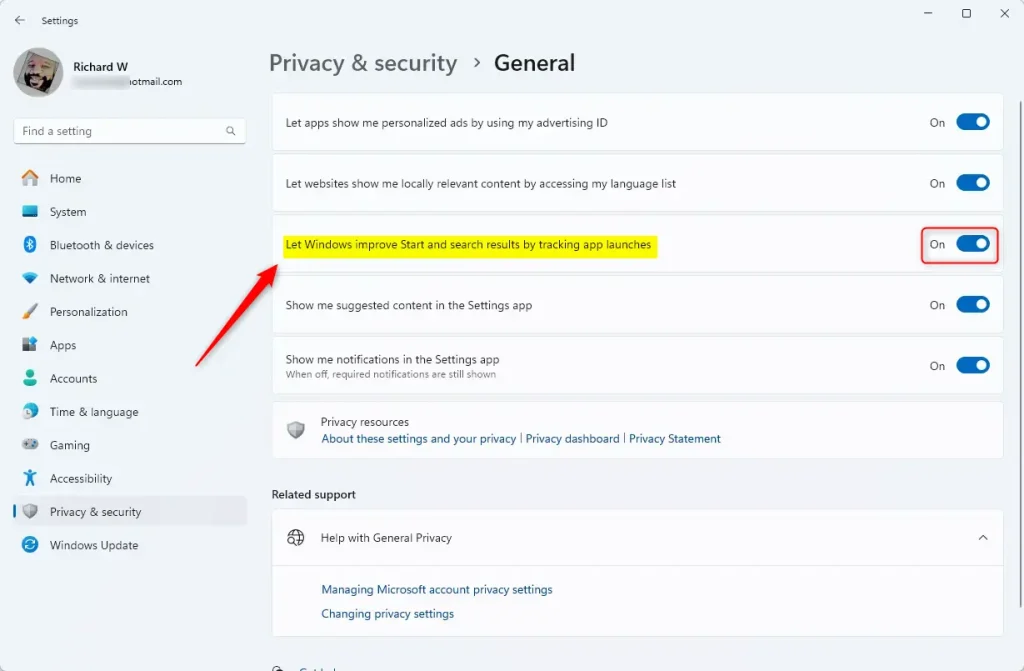
- Find the setting labeled “Let Windows improve Start and search results by tracking app launches.”
- Toggle the switch to On or Off.
Using the Local Group Policy Editor
Note: This method requires admin privileges.
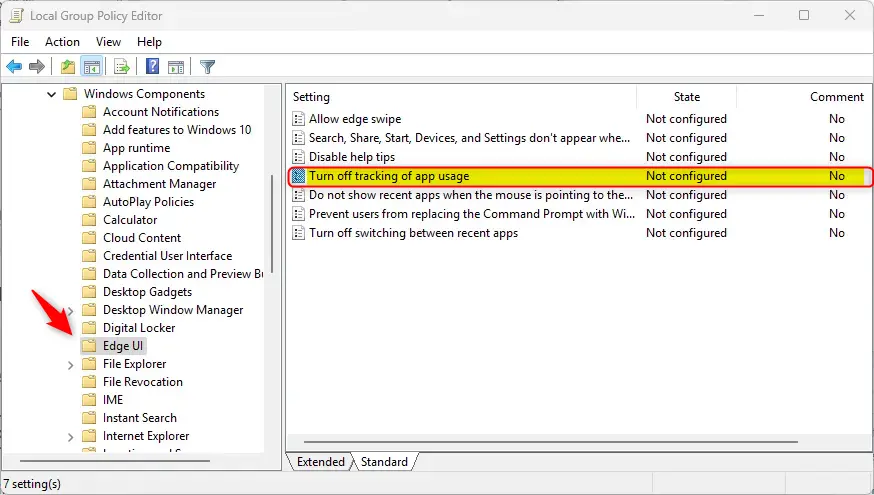
- Press the Windows key, type
gpedit.msc, and hit Enter. - Go to: User Configuration > Administrative Templates > Windows Components > Edge UI.
- Double-click Turn off tracking of app usage.
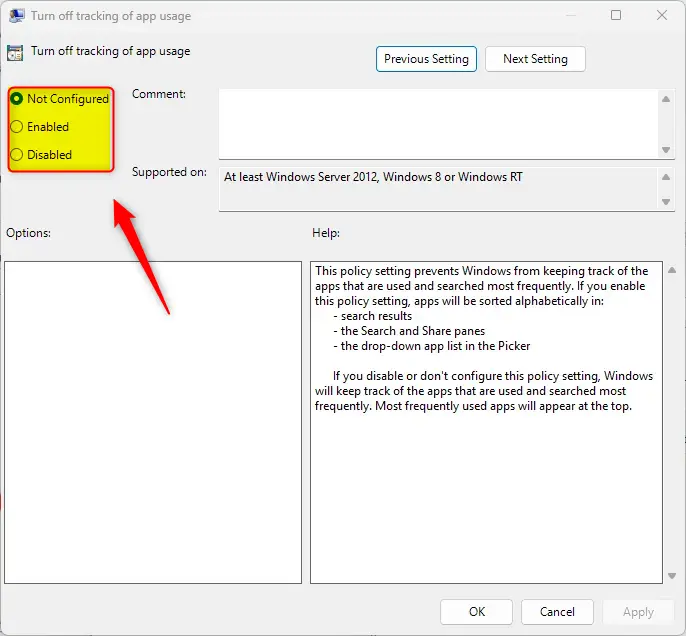
- Choose Enabled to stop tracking, or Disabled to let Windows track your apps.
- Click OK and restart your computer.
Using the Windows Registry Editor
Note: This method requires admin privileges. Be careful, as changing the registry can affect your system.
- Open the Windows Registry editor by searching for
regeditin the Start menu. - Navigate to this path:
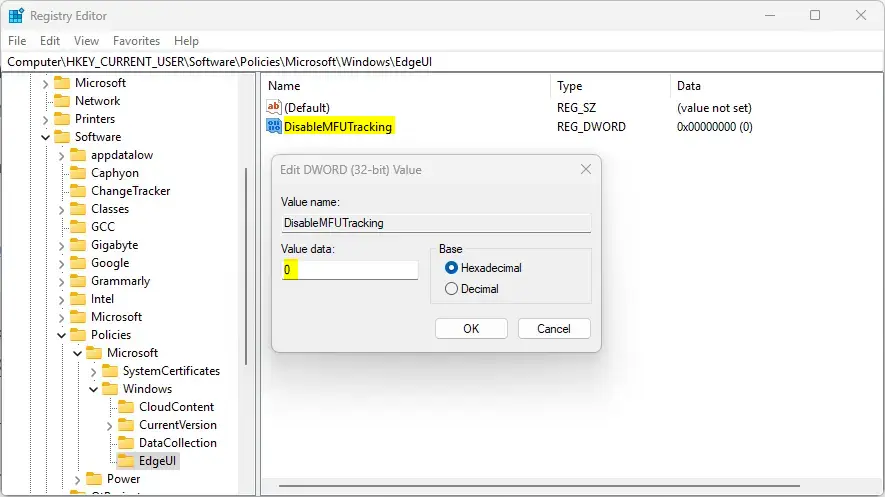
Computer\HKEY_CURRENT_USER\Software\Policies\Microsoft\Windows\EdgeUI - If you do not see
EdgeUI, right-click theWindowsfolder, select New > Key, and name itEdgeUI. - Right-click in the empty space on the right, select New > DWORD (32-bit) Value, and name it
DisableMFUTracking. - Double-click
DisableMFUTrackingand set the value to1to stop tracking.
Troubleshooting and Performance
If you notice high system resource usage, you might want to check the Task Manager. The App History tab shows how much CPU time and network data your apps have used. If the tab is missing, it is usually because you are using a local account without proper permissions or the service is disabled.
Summary
Managing app launch tracking in Windows 11 is a simple way to balance personalization and privacy. Whether you use the Settings app for quick changes or the Registry for deep control, you are in charge of your data. Remember to check your Task Manager if you want to monitor overall resource usage and app history.
Does disabling app tracking improve 🪟 Windows 11 performance?
Disabling app tracking has a negligible impact on overall system performance. While it technically stops a background process from logging your activity, the resource usage is minimal. You will not notice a significant speed boost by turning this feature off, but it is a valid step for privacy-focused users.
Is app launch tracking a privacy concern in 🪟 Windows 11?
Some users consider app tracking a privacy concern because it logs your usage habits. While Microsoft uses this data to improve the Start menu experience, you may prefer to disable it if you want to limit the amount of telemetry data sent from your computer to Microsoft servers.
Was this guide helpful?

About the Author
Richard
Tech Writer, IT Professional
Richard, a writer for Geek Rewind, is a tech enthusiast who loves breaking down complex IT topics into simple, easy-to-understand ideas. With years of hands-on experience in system administration and enterprise IT operations, he’s developed a knack for offering practical tips and solutions. Richard aims to make technology more accessible and actionable. He's deeply committed to the Geek Rewind community, always ready to answer questions and engage in discussions.
No comments yet — be the first to share your thoughts!