How to Enable or Disable Recommended Section in Windows 11

You can enable or disable the “Recommended” section in Windows 11 File Explorer to customize your file management view.
The “Recommended” section, introduced in Windows 11 build 23403.1001, surfaces files you access frequently to help you find them faster.
This feature appears on the File Explorer Home screen and is most prominent when you use a work or school Microsoft account.
Follow these steps to control whether you see these cloud-based recommended files, which include those you own and those shared with you.
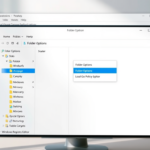
Open File Explorer, click the three-dot menu, select Options, then go to the General tab. In the Privacy section, check or uncheck “Show recommended section” to enable or disable it. Apply the changes.
What is the purpose of the recommended section in the 🪟 Windows 11 start menu?
The Recommended section in the Windows 11 Start menu displays your recently opened files, installed apps, and frequently used items. It's a helpful section that lets you quickly open apps.
Was this guide helpful?

About the Author
Richard
Tech Writer, IT Professional
Richard, a writer for Geek Rewind, is a tech enthusiast who loves breaking down complex IT topics into simple, easy-to-understand ideas. With years of hands-on experience in system administration and enterprise IT operations, he’s developed a knack for offering practical tips and solutions. Richard aims to make technology more accessible and actionable. He's deeply committed to the Geek Rewind community, always ready to answer questions and engage in discussions.



No comments yet — be the first to share your thoughts!