How to Add or Remove Favorites in Windows 11 File Explorer

You add and remove Favorites in Windows 11 File Explorer to create shortcuts for your most frequently accessed files and folders directly within the navigation pane.
Favorites offer a personalized quick-access menu, distinct from web browser bookmarks, designed to boost your PC productivity.
By pinning locations, you ensure that essential resources are just one click away, making your daily computer tasks significantly more efficient.
Learn precisely how to pin a folder to Favorites in Windows 11, typically appearing under the “Quick access” section, and how to remove them when they’re no longer needed.
Restart Windows Explorer via Task Manager if the “Add to Favorites” option is missing. Check for and install any pending Windows 11 updates. These steps usually resolve the issue by refreshing File Explorer’s functionality.
Why Use the Favorites Feature?
The Favorites feature in Windows 11 File Explorer helps you quickly access files and folders you use often, saving you time by keeping them pinned to the Home view.
Is ‘Favorites’ the Same as ‘Quick Access’?
In older versions of Windows, this was called Quick Access. In Windows 11, Microsoft updated the interface to include a dedicated Favorites section. While they function similarly by pinning items, Favorites is now a distinct area in the Home view designed for your most important documents.
How to Pin Folders to the Favorites Section
Pinning folders to the Favorites section in Windows 11 File Explorer makes it super easy to find the files you use most often, keeping them right where you need them on the Home screen.
Step 1: Open File Explorer by pressing Win + E.
Step 2: Find the folder you want to keep handy.
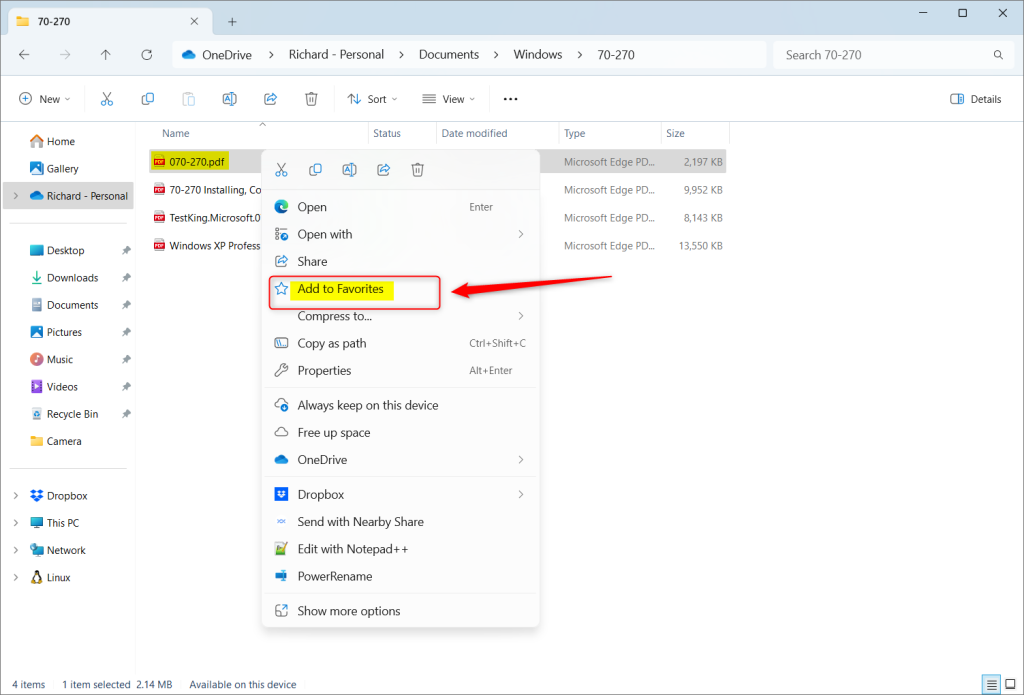
Step 3: Right-click the folder and select Add to Favorites from the menu.
Step 4: The folder will now appear in the Favorites section of your Home screen.
Troubleshooting: ‘Add to Favorites’ Option Missing
If you can’t find the ‘Add to Favorites’ option in Windows 11 File Explorer, don’t worry. This usually means there’s a small glitch, and you can often fix it by restarting File Explorer or making sure your Windows is up to date.
Step 1: Restart Windows Explorer. You can do this by opening Task Manager (Ctrl + Shift + Esc), finding Windows Explorer, and selecting Restart.
Step 2: Check for updates. Head to Settings > Windows Update to make sure your system is current. Microsoft often releases fixes for File Explorer through official support documentation.
Step 3 (Admin Required): If the problem continues, you might need to reset your folder view settings. Open the Registry Editor (a tool for managing Windows settings) by typing regedit in the Start menu. Navigate to HKEY_CURRENT_USER\Software\Microsoft\Windows\CurrentVersion\Explorer and ensure the settings are default.
Can I Sync My Favorites Across Devices?
Currently, File Explorer Favorites are local to your specific computer. They do not sync automatically through your Microsoft account like browser bookmarks do. You must manually pin your favorite folders on each Windows 11 device you use.
Summary
Windows 11 File Explorer’s Favorites feature lets you pin important files and folders for quick access on the Home screen, making file management easier.
Why is the ‘Add to Favorites’ option missing from my right-click menu?
This usually happens if the Windows Explorer process is stuck or if your system files need an update. Try restarting the Windows Explorer process via the Task Manager. If that fails, check for pending Windows 11 updates in your system settings to ensure your File Explorer features are fully functional.
Was this guide helpful?

About the Author
Richard
Tech Writer, IT Professional
Richard, a writer for Geek Rewind, is a tech enthusiast who loves breaking down complex IT topics into simple, easy-to-understand ideas. With years of hands-on experience in system administration and enterprise IT operations, he’s developed a knack for offering practical tips and solutions. Richard aims to make technology more accessible and actionable. He's deeply committed to the Geek Rewind community, always ready to answer questions and engage in discussions.

No comments yet — be the first to share your thoughts!