How to Pin Files and Folders to Home and Quick Access in Windows 11

You can pin files and folders to Home and Quick Access in Windows 11 to quickly access your most important items.
Home in Windows 11 File Explorer displays your recent files and frequently used folders automatically, while Quick Access lets you manually pin specific items for persistent visibility.
Pinning a folder, like your frequently accessed “Client Reports” directory, means you can open it instantly from the File Explorer sidebar without digging through multiple levels of subfolders.
This simple trick saves you valuable time and helps you organize your digital workspace efficiently.
Pin files and folders in Windows 11 by right-clicking the item in File Explorer and selecting “Pin to Quick access.” This adds it to the persistent list in the left sidebar for immediate access.
Why use Quick Access and Home?
Quick Access is a list on the left side of your File Explorer. It acts like a bookmark bar for your computer. It helps you open your most-used items with just one click instead of searching through your hard drive.
What happens when you are done?
Once you pin your files or folders, they will always stay at the top of your File Explorer sidebar. You will save time by not having to click through multiple sub-folders to find your work.
Home vs. Quick Access: Understanding the UI
Windows 11’s Home and Quick Access are essentially the same place for pinning your favorite files and folders, even though Microsoft changed the name to Home in recent updates.
How to pin items to Quick Access
You can easily pin your most-used files and folders to Quick Access in Windows 11 to find them much faster.
- Open File Explorer.
- Find the folder or file you use often.
- Right-click the item.
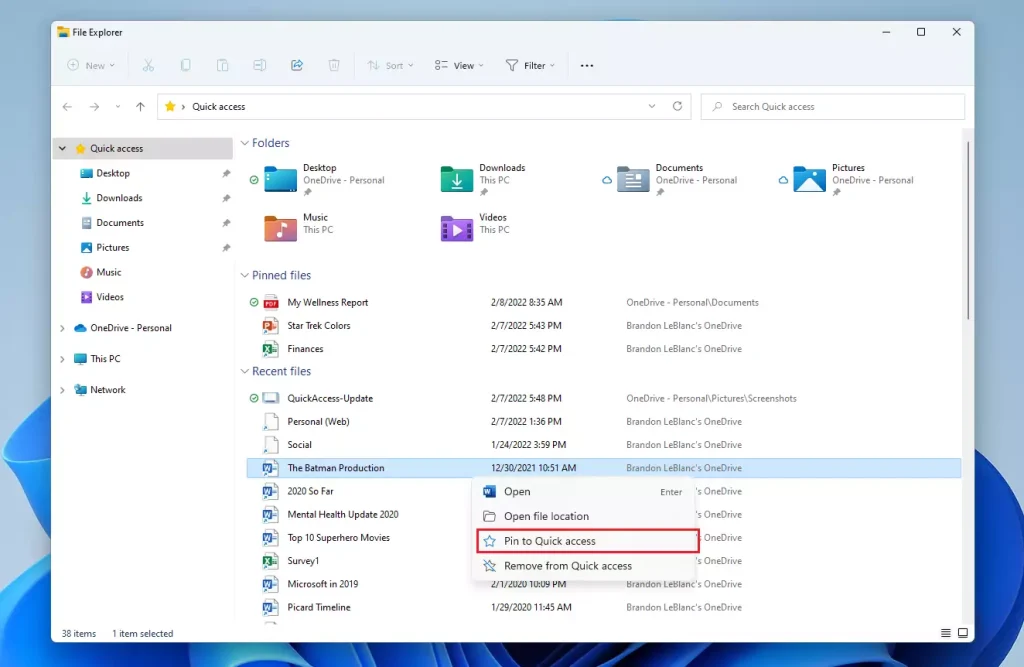
- Select Pin to Quick access from the context menu.
If your computer is updated, you will see options similar to the image below when you right-click a file.
How to remove items
If you no longer need an item in your list, it is easy to remove it:
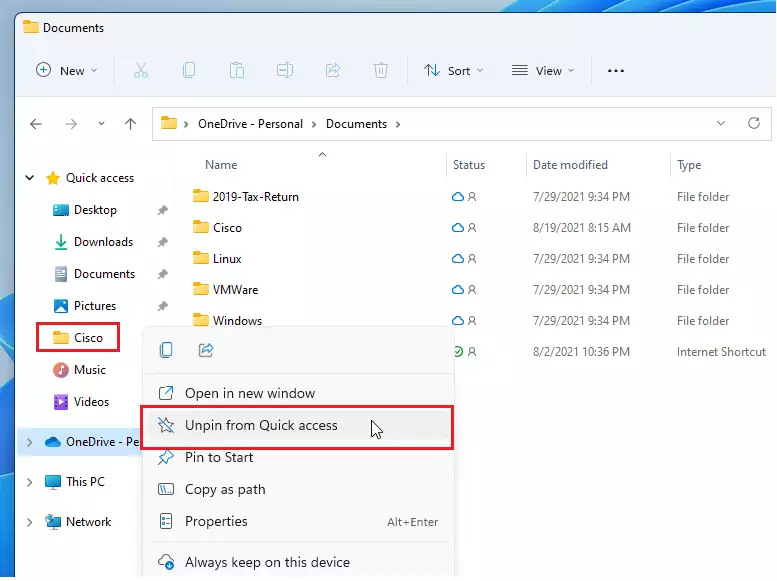
- Right-click the item in the Home or Quick Access sidebar.
- Select Unpin from Quick access.
Troubleshooting Missing Pins and Bugs
If your pinned files or folders aren’t showing up in Quick Access on Windows 11, it’s usually because a setting needs to be checked or reset.
- Open File Explorer.
- Click the three dots (…) in the top ribbon menu.
- Select Options.
- Under the General tab, ensure Show recently used files and Show frequently used folders are checked.
- Click Clear to reset the history if you are experiencing glitches.
Advanced: Resetting via Command Prompt (Admin Privileges Required)
If checking your File Explorer settings doesn’t fix issues with Quick Access pins in Windows 11, you can try resetting it using the Command Prompt with administrator rights.
- Press the Windows key and type cmd.
- Right-click Command Prompt and select Run as administrator.
- Type the following command and press Enter:Command Prompt
del /f /s /q %AppData%\Microsoft\Windows\Recent\*
- This clears the cache that might be causing your pinning issues.
Summary
Pinning files and folders to Quick Access in Windows 11 is a great way to keep your important items handy, and most issues can be fixed by checking settings or clearing history.
Why did my pinned folders disappear after a Windows update?
Sometimes, a major Windows update resets your File Explorer history or clears the cache. This can cause your pinned items to vanish. To fix this, check your File Explorer settings to ensure the navigation pane is set to show all folders, or try re-pinning your most important items manually.
Can I pin individual files to Quick Access in 🪟 Windows 11?
Yes, in modern versions of Windows 11, you can pin individual files. Simply right-click the file and select Pin to Quick access. If you do not see this option, ensure your Windows 11 system is fully updated via Windows Update to at least build 22621 or higher.
How do I reset Quick Access if it becomes corrupted?
If your pins are not working, you can clear the history. Open File Explorer, click the three dots (…) in the top menu, select Options, and click the Clear button next to Clear File Explorer history. This often fixes bugs where items refuse to pin or unpin correctly.
Was this guide helpful?

About the Author
Richard
Tech Writer, IT Professional
Richard, a writer for Geek Rewind, is a tech enthusiast who loves breaking down complex IT topics into simple, easy-to-understand ideas. With years of hands-on experience in system administration and enterprise IT operations, he’s developed a knack for offering practical tips and solutions. Richard aims to make technology more accessible and actionable. He's deeply committed to the Geek Rewind community, always ready to answer questions and engage in discussions.

No comments yet — be the first to share your thoughts!