How to Access the Videos Folder in Windows 11

You access your Videos folder in Windows 11 by opening File Explorer and navigating to Quick Access or This PC.
The Videos folder is a built-in Windows library where you store all your video files, keeping them organized and easy to find.
This folder usually lives in your user profile, like 📁C:\Users\[YourUsername]\Videos, making it a central spot for all your video content.
Knowing where this folder is helps you manage your downloaded clips or free up space on your PC.
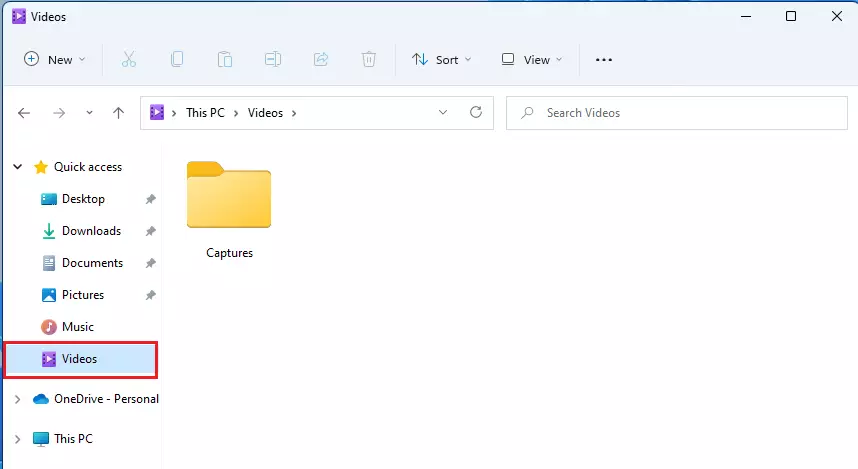
Open File Explorer and click “Videos” under Quick Access on the left sidebar. This will immediately display all your saved video files. You can also find it at C:Users[YourUsername]Videos.
What Is the Videos Folder?
The Videos folder in Windows 11 is your computer’s main spot for saving all video files, keeping them organized in one easy-to-find place.
Why does this matter? Having a central hub keeps your media organized. You do not have to hunt through your hard drive to find a specific clip.
When you record a video or download a clip, your computer automatically places it here. This keeps your files tidy and easy to manage.
Note: This folder was once called “My Videos” in older versions of Windows.
Where Is the Videos Folder Located?
By default, your folder is located at:
C:\Users\genericuser\Videos
Replace “genericuser” with your actual Windows username. You can access this quickly by typing %USERPROFILE%\Videos into the File Explorer address bar.
How to Find the Videos Folder Using File Explorer
The fastest way to open your folder is through File Explorer:
- Click the yellow folder icon on your taskbar.
- Look at the sidebar on the left.
- Click on “Videos” under the “Quick Access” area.
Once you click it, the folder will open to show all your saved videos.
How to Add Videos to Your Start Menu
Adding your Videos folder to the Windows 11 Start menu lets you open it with a single click, making it quicker to access your video files.
- Press the Windows key + I to open Settings.
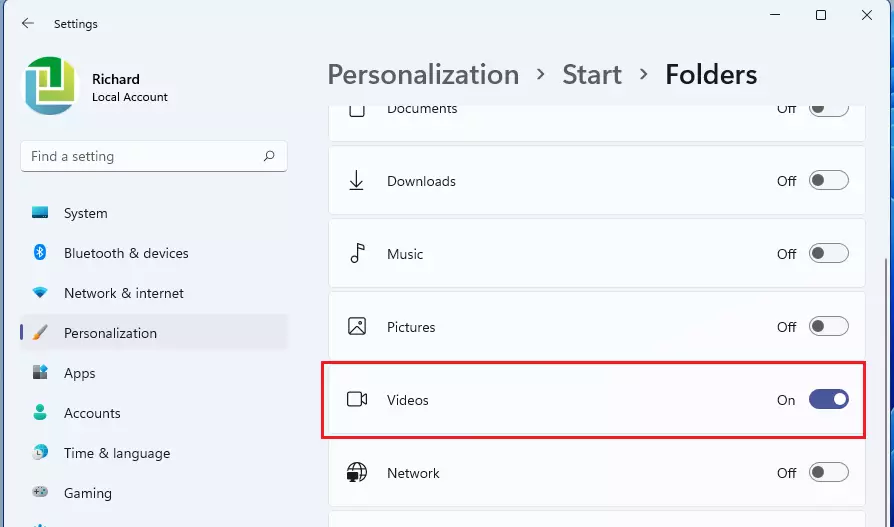
- Go to Personalization > Start.
- Scroll down and click on Folders.
- Find the “Videos” toggle and turn it On.
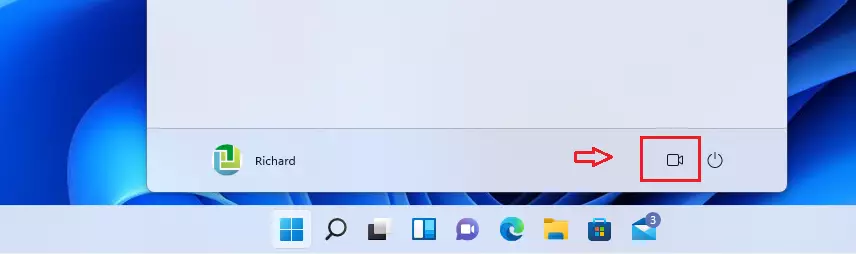
Your Videos folder will now show up right next to the Power button in your Start menu.
Managing Storage and Moving the Videos Folder
You can move your Videos folder in Windows 11 to another drive, like an external hard drive, if your main drive is running low on space.
If your boot drive is running out of space, you can move the Videos folder to an external hard drive or a different partition. Right-click your Videos folder, choose Properties, then select the Location tab. Click ‘Move’ to pick a new folder location.
Advanced Automation and Registry Management
For advanced users, you can change where the Videos folder is saved by using the Registry Editor in Windows 11.
OneDrive Integration
Windows 11 often syncs your Videos folder to OneDrive. If you see a blue cloud icon, your files are being backed up to the cloud. You can manage this in the OneDrive settings menu to save space on your local drive.
Summary
The Videos folder in Windows 11 is your main spot for keeping all video files organized and easy to find.
How do I change the default save location for videos in 🪟 Windows 11?
Right-click your Videos folder in File Explorer and select Properties. Navigate to the Location tab and click the Move button. Select a new folder on your desired drive, click Apply, and confirm the move. This changes the default save location for all future video files.
Why is my Videos folder purple or showing a different icon?
If your folder icon looks different, it may be due to a custom icon setting or a sync status indicator from OneDrive. You can reset the icon by right-clicking the folder, selecting Properties, going to the Customize tab, and clicking Change Icon to restore the default Windows folder appearance.
How do I restore the default Videos folder location?
If you moved your folder and want to reset it, right-click the Videos folder, select Properties, and click the Location tab. Click the Restore Default button. Windows will prompt you to move the files back to the original 📁C:\Users\genericuser\Videos path automatically.
Was this guide helpful?

About the Author
Richard
Tech Writer, IT Professional
Richard, a writer for Geek Rewind, is a tech enthusiast who loves breaking down complex IT topics into simple, easy-to-understand ideas. With years of hands-on experience in system administration and enterprise IT operations, he’s developed a knack for offering practical tips and solutions. Richard aims to make technology more accessible and actionable. He's deeply committed to the Geek Rewind community, always ready to answer questions and engage in discussions.
📚 Related Tutorials

Perhaps you can help me. When I download videos in windows 11 they end up in the pictures folder as though they are images. I try to drag and drop them to “videos” but that does not work. It’s so frustrating because I have images and videos in my pictures folder and can’t separate them. What am I doing wrong? Thanks.