How to Free Up Disk Space with OneDrive in Windows 11

You free up disk space in Windows 11 by utilizing OneDrive’s “Files On-Demand” feature.
Files On-Demand shows all your OneDrive files directly in File Explorer, but they only download to your PC when you open them.
This clever system ensures that your local storage isn’t cluttered with files you aren’t actively using, saving significant space on your C: drive.
For instance, if you have 50GB of photos stored in OneDrive, they consume zero local disk space until you click to open one.
Right-click the OneDrive icon in your taskbar, select Help & Settings, then Settings. Navigate to Sync and backup, expand Advanced settings, and click Free up disk space. Alternatively, right-click any file or folder in File Explorer and select Free up space.
What Happens When You Free Up Disk Space?
Freeing up disk space with OneDrive means Windows removes the local copy of a file, keeping the original safe in the cloud.
Understanding OneDrive Files On-Demand Status Icons
You can tell if a file is taking up space by looking at the status icon in File Explorer. Use this table to understand your sync status:
| Icon | Meaning | Storage Used |
|---|---|---|
| Cloud | Online-only | None |
| Green Check | Locally available | Yes |
| Solid Green Check | Always keep on this device | Yes |
How to Use Files On-Demand to Free Up Disk Space
You can free up disk space on your Windows 11 PC using OneDrive’s Files On-Demand feature, which keeps your files stored safely in the cloud until you actually open them.
- Right-click the OneDrive cloud icon in your taskbar.
- Select Help & Settings, then click Settings.
- Go to the Sync and backup tab.
- Expand Advanced settings.
- Click the Free up disk space button.
Note: You don’t need admin privileges for your personal user account to do this.
How to Revert ‘Always keep on this device’ Status
If you’ve previously marked files or folders to ‘Always keep on this device’ and need to free up space, you can easily change them back to online-only.
- Open File Explorer (Windows Key + E).
- Right-click the folder or file.
- Select Free up space from the menu.
The icon will change to a cloud, meaning the file is now online-only.
Troubleshooting Missing OneDrive Settings
If you can’t find the Files On-Demand option, your app might be outdated. Make sure your OneDrive is updated to the latest version. For advanced issues, visit the official Microsoft support page.
Summary
Freeing up disk space with OneDrive is a smart way to keep your computer running fast by using Files On-Demand.
What is the difference between deleting a file and freeing up space?
Deleting a file removes it from both your computer and the cloud, often sending it to the Recycle Bin. Freeing up space only removes the local copy from your hard drive, leaving the file safely stored in your OneDrive cloud account for future access.
Can I free up space for specific folders only?
Yes. You don’t have to free up space for everything at once. You can right-click any specific folder or file within your OneDrive directory in File Explorer and select the ‘Free up space’ option. This gives you granular control over your local storage management.
Was this guide helpful?

About the Author
Richard
Tech Writer, IT Professional
Richard, a writer for Geek Rewind, is a tech enthusiast who loves breaking down complex IT topics into simple, easy-to-understand ideas. With years of hands-on experience in system administration and enterprise IT operations, he’s developed a knack for offering practical tips and solutions. Richard aims to make technology more accessible and actionable. He's deeply committed to the Geek Rewind community, always ready to answer questions and engage in discussions.
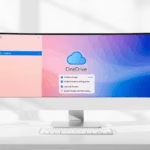



[…] If you want to save space later, you can upload files back to OneDrive and remove local copies. Learn more on how to free up disk space with OneDrive. […]