How to Download All Files from OneDrive to Windows

You can download all your files from OneDrive to your Windows PC by using the OneDrive sync client or by manually selecting and downloading them through the OneDrive website.
The OneDrive sync client automatically keeps a local copy of your selected OneDrive folders and files on your computer, ensuring they are always accessible offline.
This process is crucial if you need offline access to your entire cloud storage, whether it’s for editing documents without an internet connection or creating a local backup. For instance, if you have a large photo library stored in OneDrive, downloading it ensures you can browse and edit those images anytime.
Open OneDrive settings, navigate to Sync and backup, then click Advanced settings. Select the “Download all files” button to save your entire OneDrive to your computer for offline access.
What is OneDrive?
OneDrive is a Microsoft app that keeps your files safe in the cloud (online storage). You can access these files on any device — like your phone, tablet, or another computer — by signing in.
You can even automatically back up important folders like Desktop, Documents, and Pictures to OneDrive. This keeps your files safe and synced on all devices.
Usually, OneDrive shows your files as online links, so they don’t take up space on your computer. But if you want to have all files saved on your computer (useful if you’ll be offline), here’s an easy way to download everything.
Steps to Download All Files from OneDrive
- Find the OneDrive icon on your taskbar (bottom right corner of your screen). You might need to click the up arrow to see it.
OneDrive Settings button on taskbar - Click the OneDrive icon, then click the gear ⚙️ icon and choose Settings.
- Alternatively, open File Explorer (the folder icon on your taskbar or press
Windows + E), then open your OneDrive folder. Click the OneDrive button on the top right, then click Settings.
OneDrive Settings in File Explorer - In the OneDrive settings window, click Sync and backup from the menu on the left side.
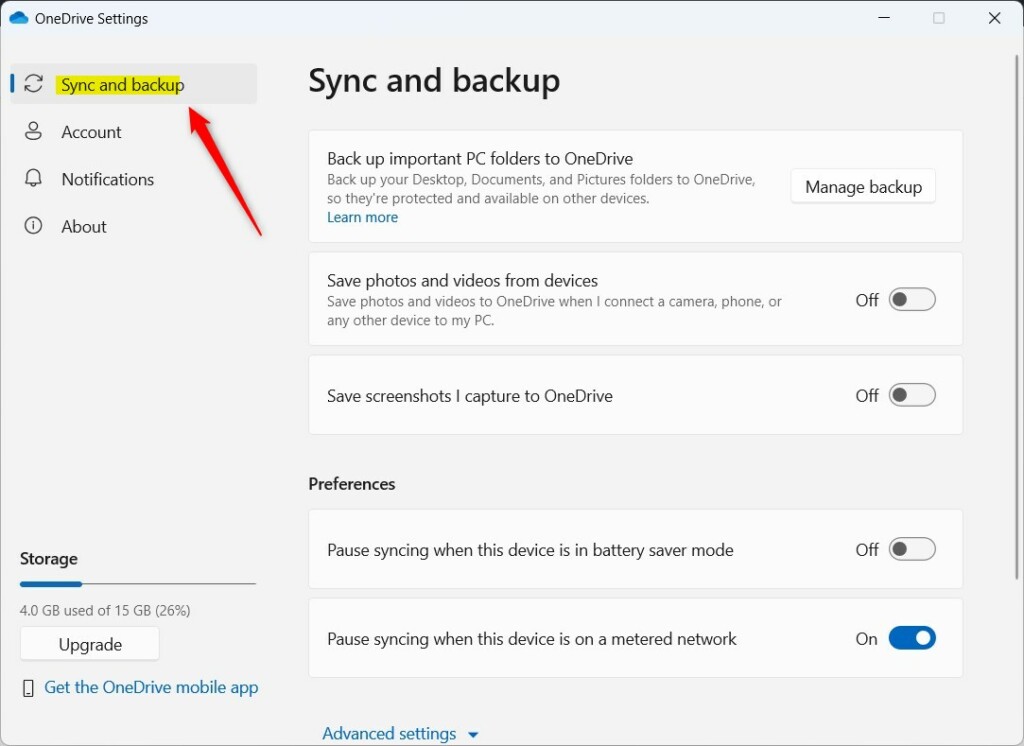
OneDrive Sync and backup settings - Under Preferences, click Advanced settings to open more options.
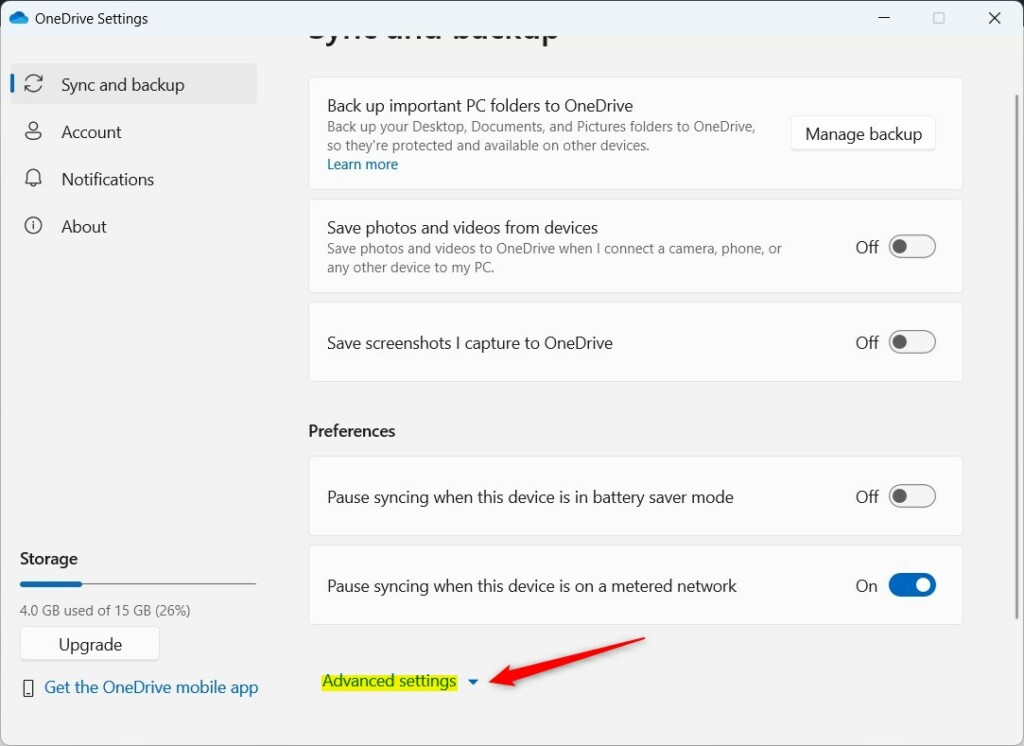
OneDrive advanced settings - You will see how much space your files will take on your computer. Click Continue to start the download.
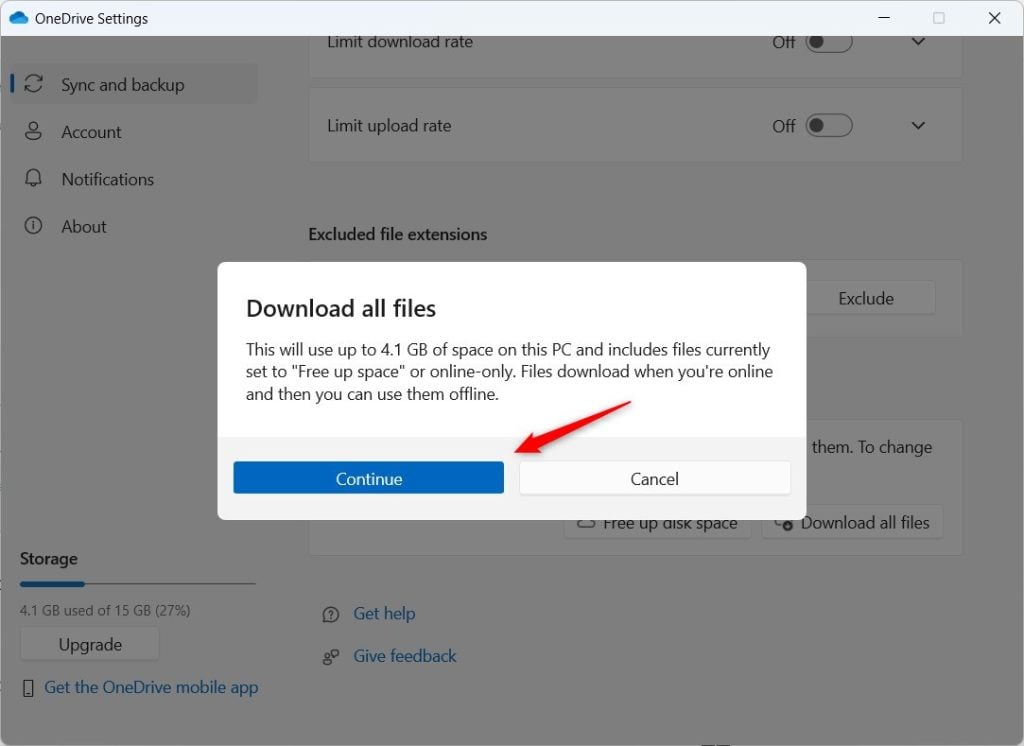
OneDrive download all files continue
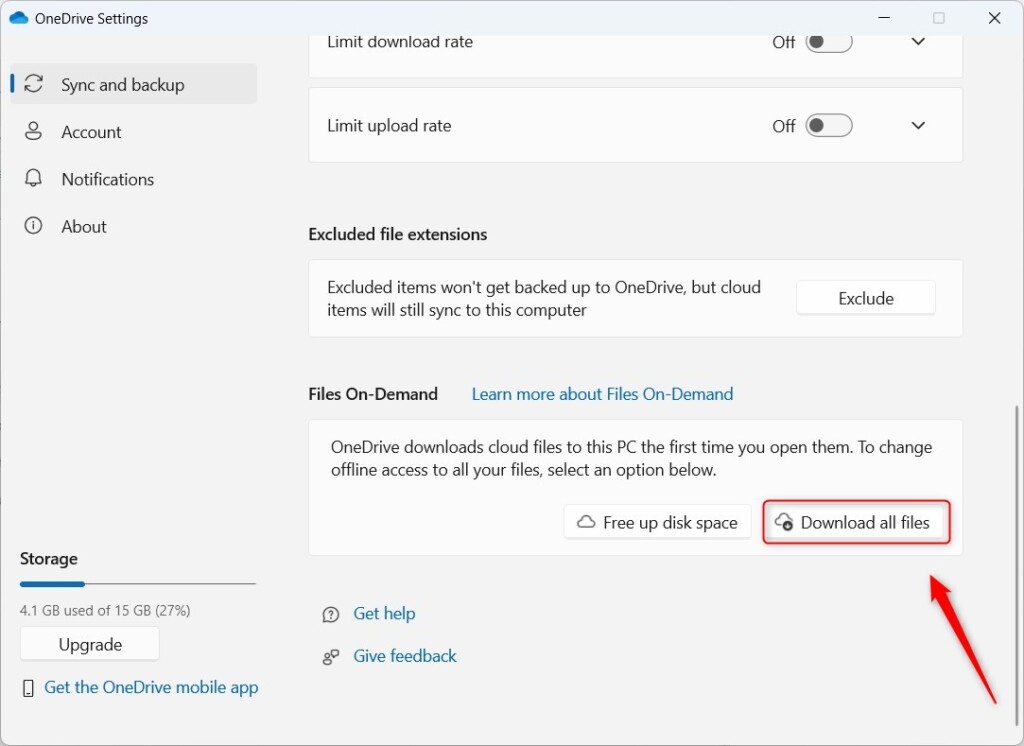
Now, OneDrive will download all your files and save them on your computer. You can open and edit them anytime—even without internet!
Why Download Your Files?
- You can use your files offline.
- You have a backup copy on your computer in case something happens to your online files.
- Opening files is faster because they’re already on your device.
If you want to save space later, you can upload files back to OneDrive and remove local copies. Learn more on how to free up disk space with OneDrive.
Tip: Remember to keep an eye on your computer’s storage space. Downloading all files can use a lot of space depending on how many files you have.
Summary
Downloading all your OneDrive files to your Windows computer is simple. Just open OneDrive settings, go to Sync and backup, then click Advanced settings and select Download all files. Your files will then save to your computer so you can use them anytime—even without internet. This gives you a backup copy and faster access to your files. Just make sure you have enough storage space on your computer before you start.
Can I download OneDrive files to my computer?
You can download files and folders from Microsoft OneDrive, or from SharePoint in Microsoft 365, SharePoint Server Subscription Edition, or SharePoint Server 2019 to your computer with just a few clicks.
How do I download everything off OneDrive?
Select Help & Settings (gear icon), then choose Preferences. In the Preferences tab, under the “Files on Demand (Advanced)” section, click on Download All OneDrive Files now. If you do not have enough space to store the files on your Mac, you will need to move files to another location or online storage to make room.
Was this guide helpful?

About the Author
Richard
Tech Writer, IT Professional
Richard, a writer for Geek Rewind, is a tech enthusiast who loves breaking down complex IT topics into simple, easy-to-understand ideas. With years of hands-on experience in system administration and enterprise IT operations, he’s developed a knack for offering practical tips and solutions. Richard aims to make technology more accessible and actionable. He's deeply committed to the Geek Rewind community, always ready to answer questions and engage in discussions.


No comments yet — be the first to share your thoughts!