How to Check Your Drive’s Storage Space in Windows 11

You check your drive’s storage space in Windows 11 by opening File Explorer and navigating to “This PC.”
It’s important to know how much storage you’re using to keep your PC running well. This process shows you exactly how much free and used space is available on each of your internal and external drives.
Windows 11 displays this information clearly. For instance, your C: drive, where Windows lives, will show its total capacity and how much is currently occupied by programs, documents, and system files.
Knowing your storage levels helps you identify when you’re running low on space, preventing potential slowdowns or errors. You can see if that large game installation or extensive photo library is the culprit.
Open File Explorer, click “This PC,” then right-click the drive you want to check and select “Properties.” Alternatively, go to Settings > System > Storage for a detailed breakdown of your drive usage.
Why Check Your Storage?
- See what’s taking up space on your computer.
- Find and delete files or apps you don’t need.
- Keep your PC running smoothly by managing storage.
Option 1Check Storage Using File Explorer
- Press the Windows key + E to open File Explorer.
- Click on This PC from the left menu.
- Right-click on the drive you want to check (usually C:\) and select Properties.
- In the window that appears, click the Storage usage or Details button.
- You will see a breakdown of how the space is being used (like Apps, Documents, Pictures, etc.).
- You can click on each category to manage or delete files if needed.
You can easily check your drive’s storage space in Windows 11 using File Explorer by opening it and going to ‘This PC’.
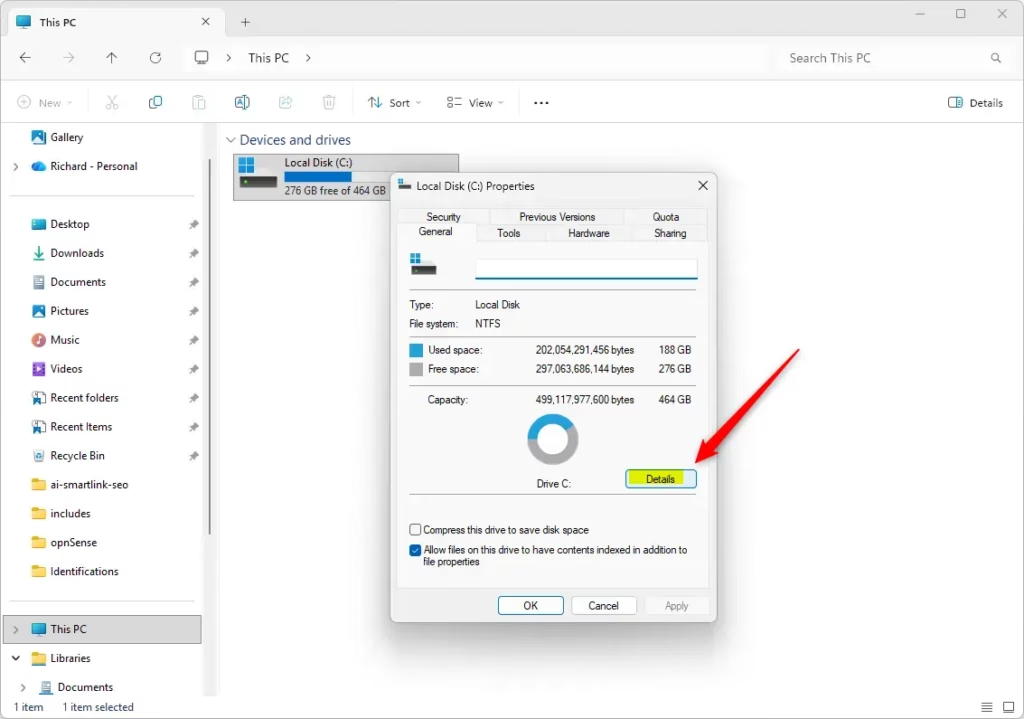
You can easily check your drive’s storage space in Windows 11 using File Explorer by opening it and going to ‘This PC’.
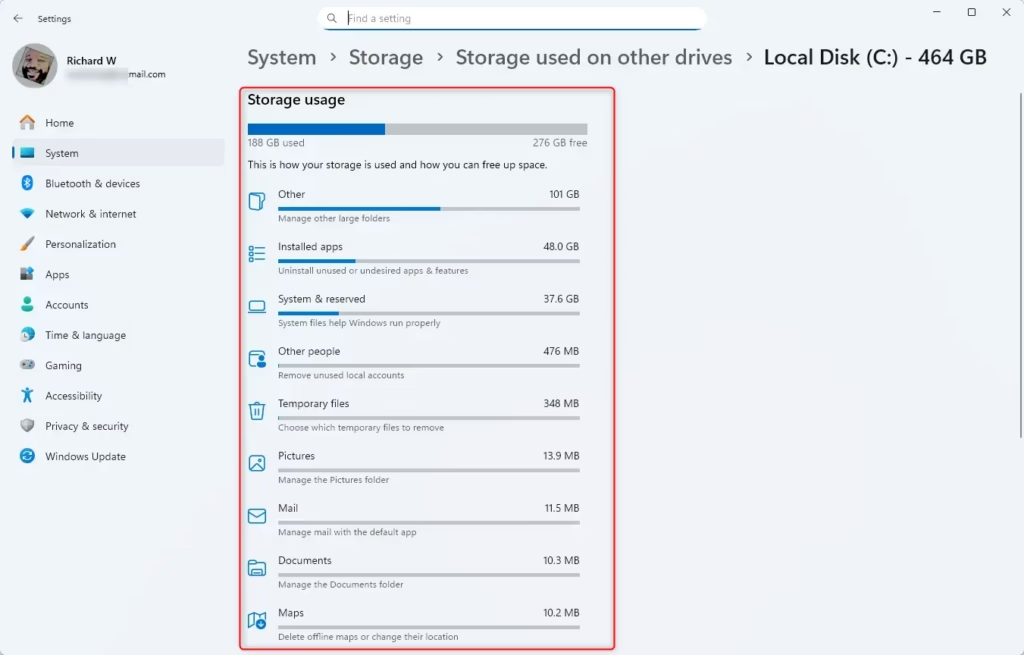
You can easily check your drive’s storage space in Windows 11 using File Explorer by opening it and going to ‘This PC’.
Option 2Check Storage in Windows Settings
- Click on System on the left, then choose Storage on the right.
- ⚙️ Admin Required: If a User Account Control (UAC) box appears, click Yes to continue.
- Scroll down and click Advanced storage settings to expand it.
- Select Storage used on other drives.
- Click on the drive you want to check.
- You’ll see a detailed view of what’s using space on that drive. You can click on categories to free up space.
- You can also open Storage Settings directly by clicking this link: Open Storage Settings
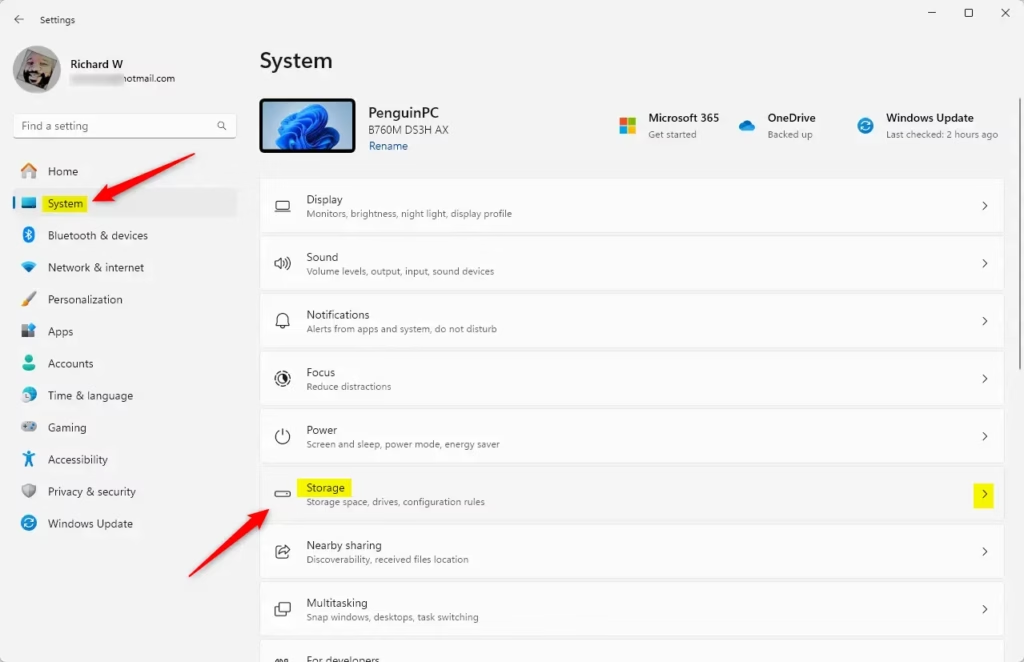
Checking your storage in Windows 11 is simple through the Settings app; just open Settings and go to System, then select Storage.
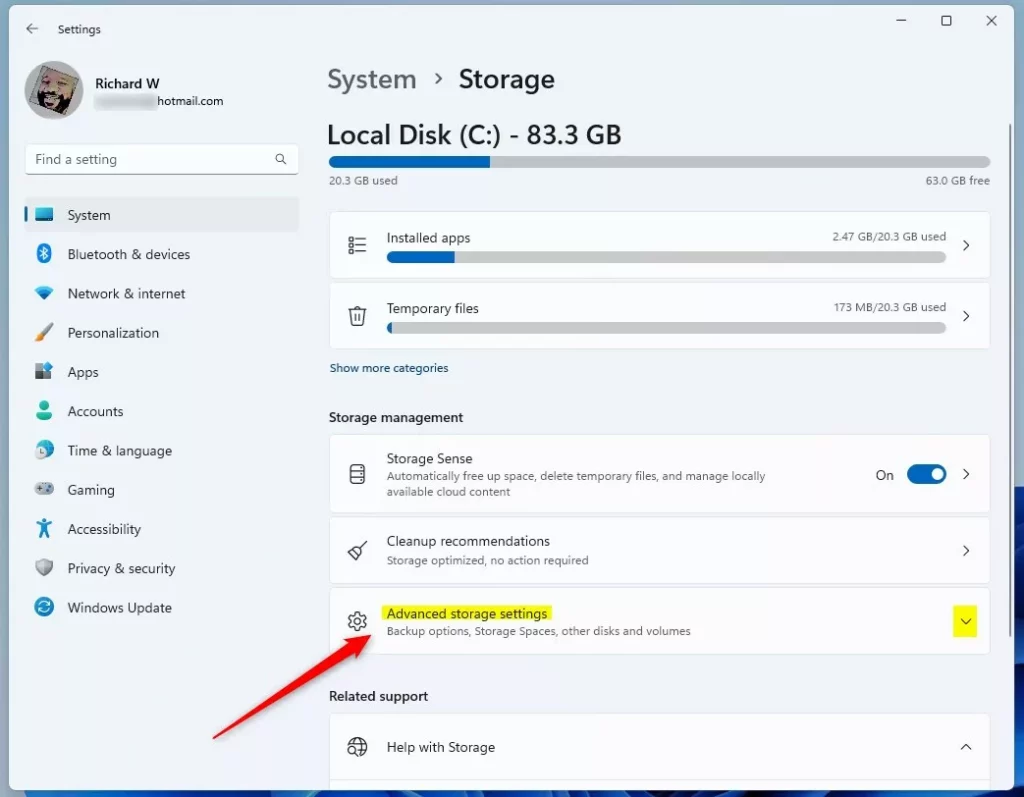
Checking your storage in Windows 11 is simple through the Settings app; just open Settings and go to System, then select Storage.
Option 3See Your System Drive Storage Quickly
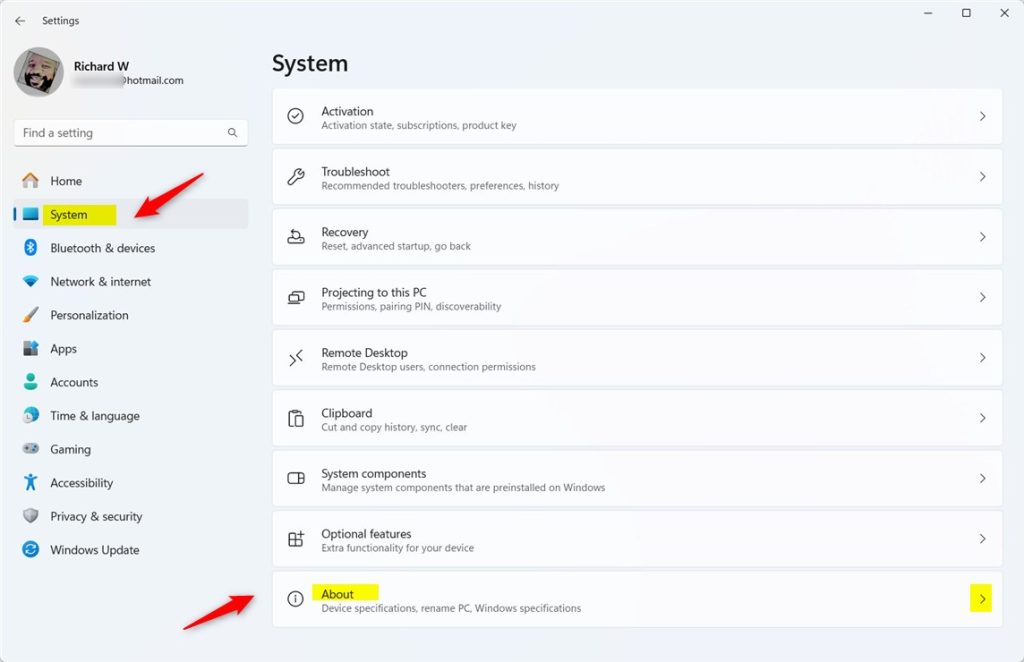
- Open Settings by pressing Windows key + I.
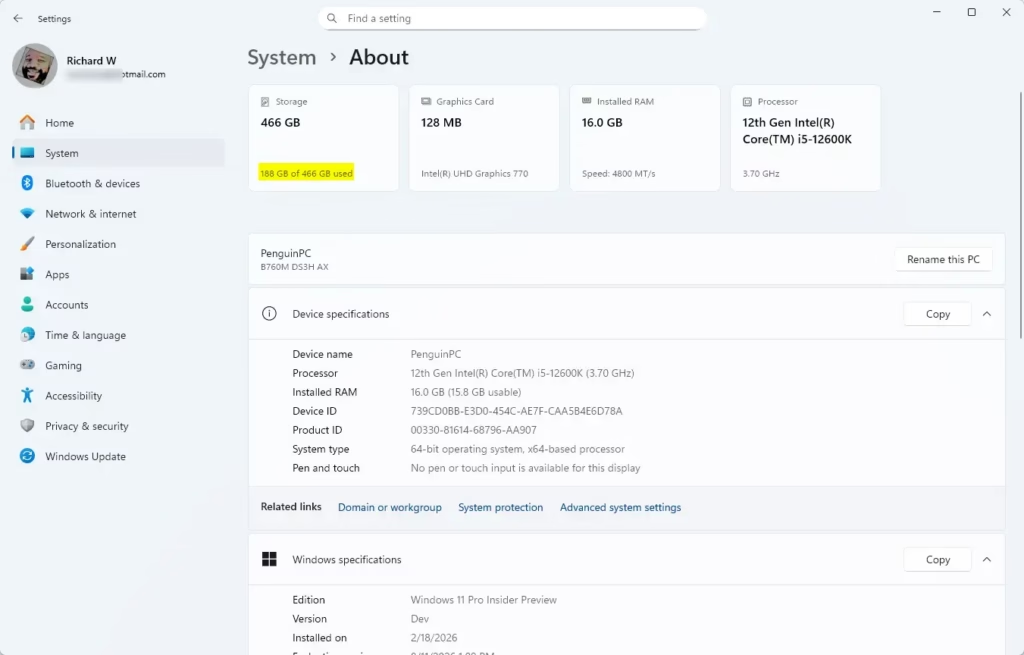
- Click System on the left, then select About on the right.
- At the top, you’ll see a summary of storage used on your system drive (usually C:\).
- Quick access: Open About Settings
Summary
Knowing how your storage is used in Windows 11 helps keep your PC running smoothly, and you can easily check it using built-in tools like File Explorer or Settings.- Knowing how your storage is used helps you keep your PC clean and fast.
- Windows 11 makes it easy to check storage either from File Explorer or Settings.
- Regularly clearing out old files and apps frees up space and improves performance.
- Use the built-in tools to safely manage storage without extra software.
- Try these steps anytime you want to see what’s taking up space and keep your computer running great!
How do I see my storage on 🪟 Windows 11?
You can see storage consumption broken down into categories like Installed apps, Temporary files, System & reserved, and more. To access Storage settings: In Windows Settings, select System. Then, select Storage.
Was this guide helpful?

About the Author
Richard
Tech Writer, IT Professional
Richard, a writer for Geek Rewind, is a tech enthusiast who loves breaking down complex IT topics into simple, easy-to-understand ideas. With years of hands-on experience in system administration and enterprise IT operations, he’s developed a knack for offering practical tips and solutions. Richard aims to make technology more accessible and actionable. He's deeply committed to the Geek Rewind community, always ready to answer questions and engage in discussions.


No comments yet — be the first to share your thoughts!