How to Change Where Windows 11 Saves Your Files and Apps

You can change where Windows 11 saves your new files and apps by adjusting settings in the System section of the Settings app.
This process redirects Windows 11 to use a different drive, such as an additional SSD or HDD, for your documents, pictures, music, videos, and newly installed applications.
By default, these items install to your C: drive, potentially consuming valuable space, especially if you have a smaller primary drive like a 256GB SSD and a larger secondary drive.
Choosing a different save location helps keep your primary drive free for the operating system and core programs, which can boost your PC’s performance.
Adjust Windows 11 storage settings to save new files and apps to a different drive. Go to Settings > System > Storage > Advanced storage settings > Where new content is saved, then select your preferred drive for documents, pictures, apps, and more.
Step-by-Step: Change Default Save Location in 🪟 Windows 11
You can change where Windows 11 saves your documents, music, pictures, and new apps by adjusting a few settings. This guide shows you exactly how to pick a new default save location for your files and applications.
- Open Windows Settings: Press Windows key + I on your keyboard. Or click Start and then Settings.
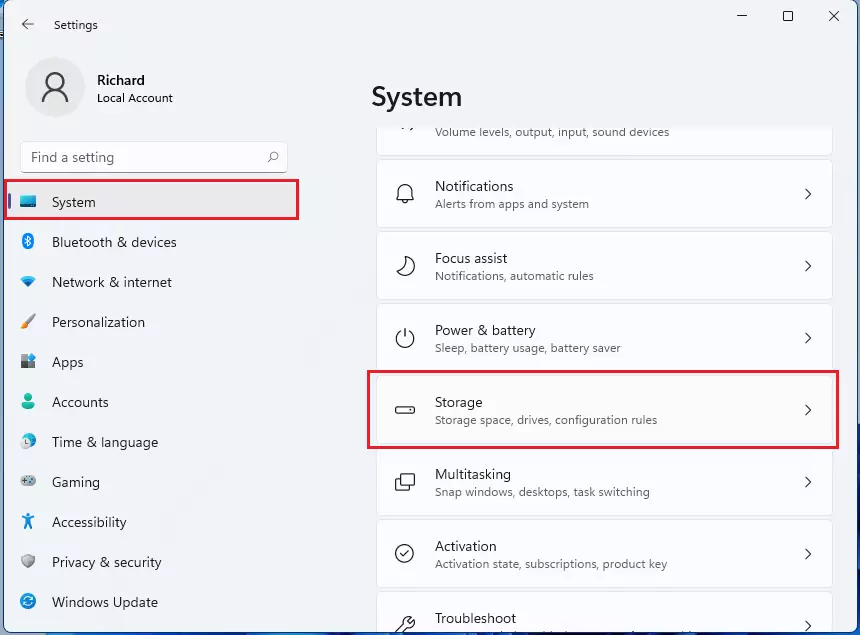
- In Settings, click on System.
- On the right side, select Storage.
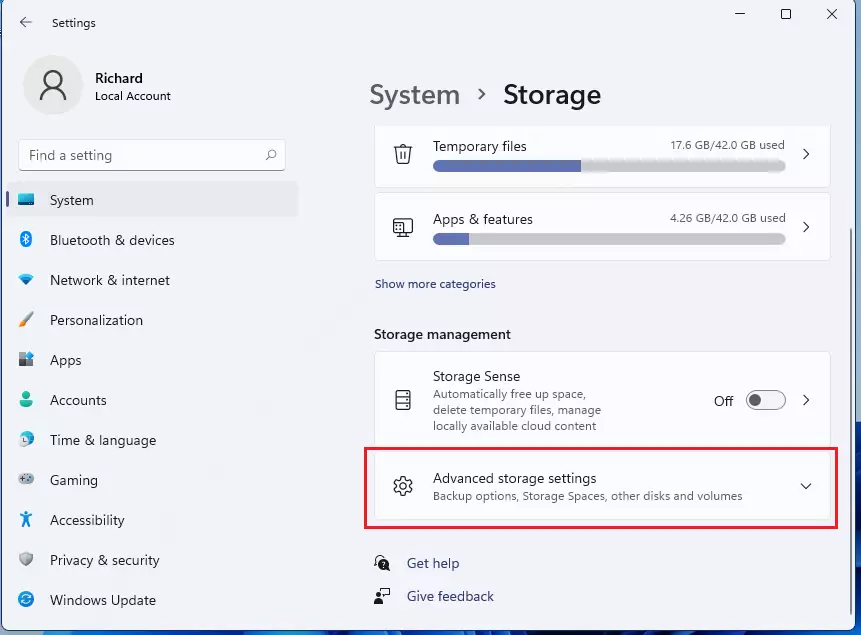
- Click Advanced storage settings.
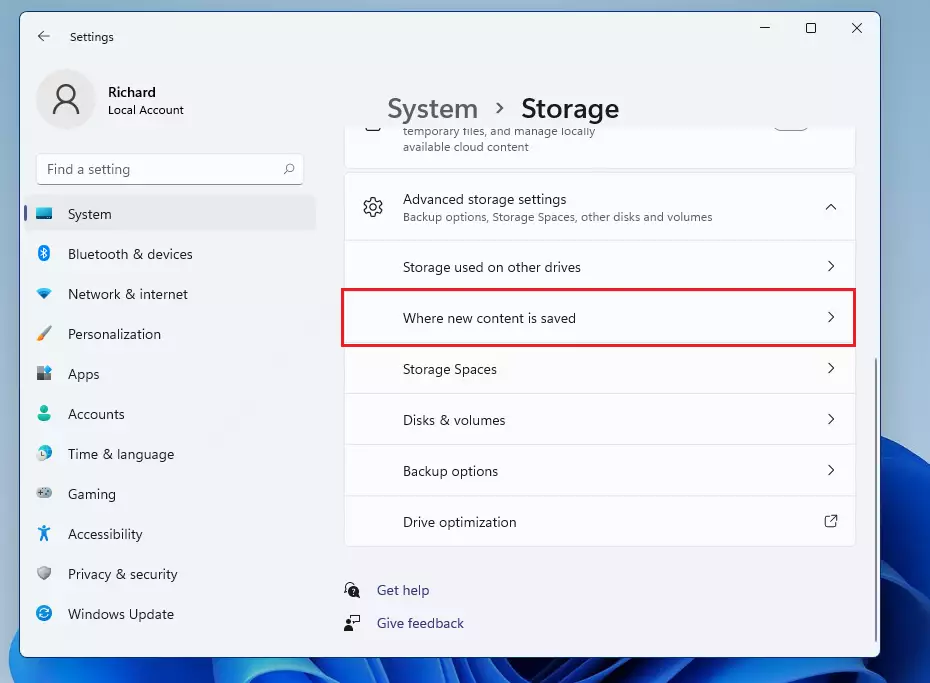
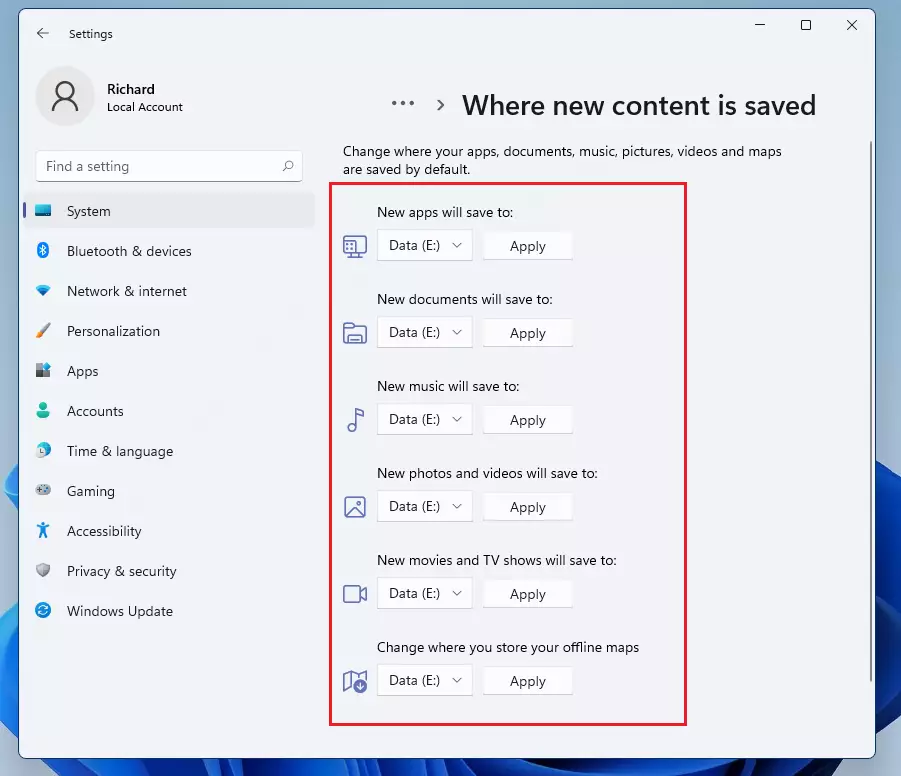
- Choose Where new content is saved.
Here, you’ll find options for Documents, Music, Pictures, Videos, and Apps. By default, each one is set to your main drive, which is usually Local Disk (C:).
If you have another drive (like D: or E:) with more space, click the dropdown menu for each category and select the drive you want.
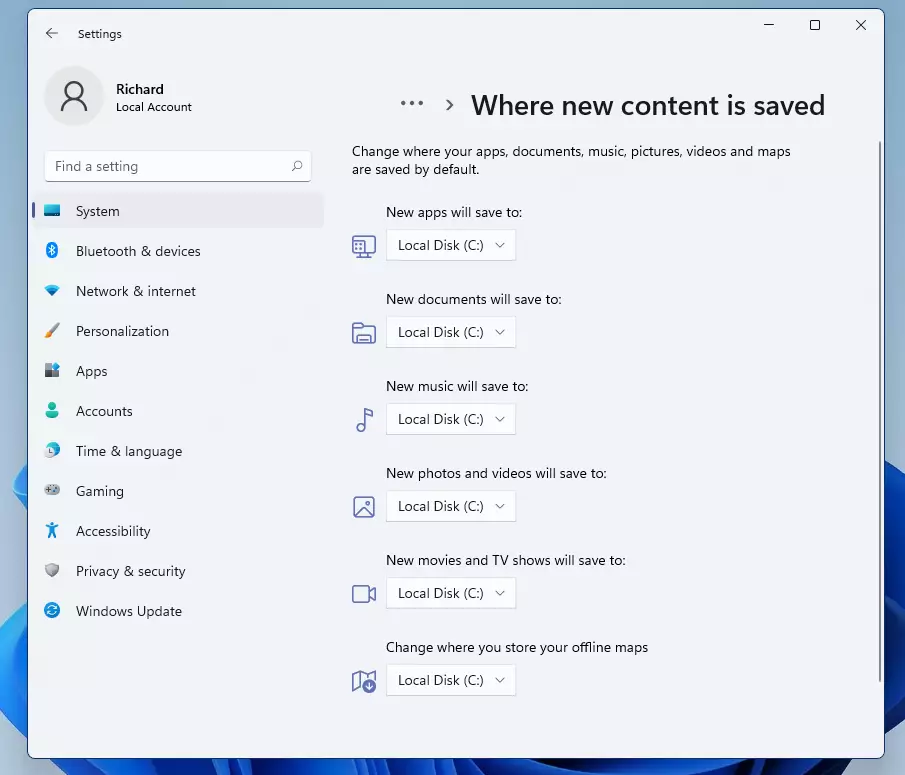
After choosing your new save locations, click the Apply button to save your changes.
Important Things to Know
Before you change your default save location in Windows 11, it’s good to know a few things. You can only choose one spot for each file type, and new apps won’t move automatically. Also, remember you can’t save apps to network drives.- You can only pick one location at a time for each type of file (documents, music, etc.).
- You cannot install apps on network drives (shared drives over the internet or local network).
- Only new apps you install after changing the location will save to the new drive. Old apps stay where they are.
- You can install apps on external USB drives, but the drive must be plugged in whenever you use those apps.
- If the external drive is removed, apps installed on it won’t work until you reconnect the drive.
Why Change the Default Save Location?
Changing where Windows 11 saves your files and apps is a smart move, especially if your main C: drive is getting full. It helps keep your computer running smoothly by freeing up space and lets you organize your files better on a different drive.
- More Space: Use a bigger or faster drive for your files and apps.
- Better Organization: Keep your files separated by drive.
- Easy Setup: You don’t have to move files manually every time you save something new.
Give this a try the next time your C: drive is getting full. It’s quick and can free up a lot of space!
Need more help? Visit the official Microsoft guide here: Change where new content is saved in Windows 11
Summary
Changing the default save location in Windows 11 lets you move where new documents, music, pictures, videos, and apps are stored. This is very useful for freeing up space on your C: drive. Just remember that only new items will go to the new spot.
How do you change the default location to which Documents are saved?
Press Ctrl+S in an unsaved document to open the Save this file dialog. In the list of locations, right-click the preferred local folder and select Set As Default Location.
Was this guide helpful?

About the Author
Richard
Tech Writer, IT Professional
Richard, a writer for Geek Rewind, is a tech enthusiast who loves breaking down complex IT topics into simple, easy-to-understand ideas. With years of hands-on experience in system administration and enterprise IT operations, he’s developed a knack for offering practical tips and solutions. Richard aims to make technology more accessible and actionable. He's deeply committed to the Geek Rewind community, always ready to answer questions and engage in discussions.



No comments yet — be the first to share your thoughts!