How to Enable Dropbox as Save Location in Office

You enable Dropbox as a save location in Microsoft Office on Windows 11 by adding it as a “Place” directly within your Office application’s save dialog.
This integration allows you to save Word, Excel, and PowerPoint files straight to your Dropbox cloud storage, providing a convenient alternative to the built-in OneDrive. You get seamless access to your cloud files without leaving Office.
For instance, with recent versions of Office 365, you access this feature by selecting “Add a Place” in the “Save As” menu. Once you set it up, Dropbox appears as a direct save destination, simplifying your workflow.
Enable Dropbox as a save location in Office by checking the “Show Dropbox as a save location in Microsoft Office” box in Dropbox Preferences. This adds Dropbox as a “Place” in the Office Save As dialog. Restart Office applications for the change to take effect.
Understanding AutoSave and Account Types
AutoSave in Office works best with OneDrive and SharePoint, not directly with Dropbox.
Account Type Requirements
You can connect either a personal Dropbox account or a Dropbox for Teams account to Office, and the steps are the same for both.
How to add Dropbox to Office
You can add Dropbox as a save location in Office by opening the Dropbox app on your computer and going to its preferences.
- Open the Dropbox menu from the bottom-right corner of your screen. You may need to click the Taskbar overflow icon first.
Windows 11 turn on start Dropbox on system startup - Click the Settings gear icon at the top of the window and select Preferences.

Windows 11 turn on start Dropbox on system startup - Go to the General tab.
- Look for the section labeled Microsoft Office add-in.
- Check the box that says Show Dropbox as a save location in Microsoft Office.
- Click the Apply button to save your changes.
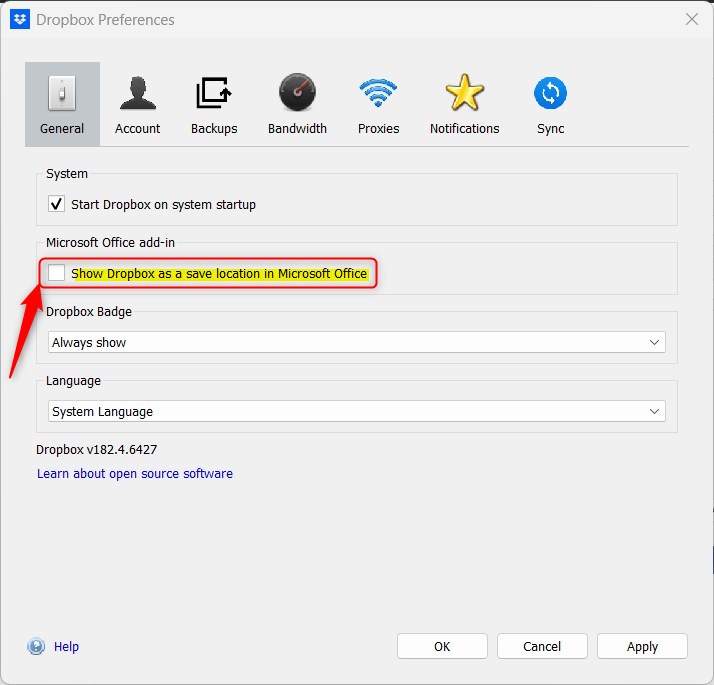
Add Dropbox add in for Office in Windows 11
Note: You must close and restart your Microsoft Office programs for this change to take effect.
Note: If you run into permission issues while installing or updating the add-in, you may need to run the Dropbox application with admin privileges. Right-click the Dropbox icon and select Run as administrator if the settings fail to save.
Troubleshooting Default Save Paths
If Office keeps saving to OneDrive by default, you can easily change the default save location to a Dropbox folder.
Summary
Linking Dropbox to Office makes it a direct save location, though AutoSave is best with OneDrive.
Can I use AutoSave with a personal Dropbox account?
No, the AutoSave feature in Microsoft Office is specifically designed for files stored on OneDrive or SharePoint. While you can save files to Dropbox, the AutoSave toggle will not be available for those documents. You must manually save your progress or rely on Dropbox’s own file versioning history.
Does adding Dropbox as a ‘Place’ enable real-time co-authoring?
Adding Dropbox as a save location allows you to access files easily, but it does not enable the same real-time co-authoring experience found in OneDrive. For the best collaborative experience with multiple users editing a document simultaneously, Microsoft recommends using their native cloud storage solutions.
Was this guide helpful?

About the Author
Richard
Tech Writer, IT Professional
Richard, a writer for Geek Rewind, is a tech enthusiast who loves breaking down complex IT topics into simple, easy-to-understand ideas. With years of hands-on experience in system administration and enterprise IT operations, he’s developed a knack for offering practical tips and solutions. Richard aims to make technology more accessible and actionable. He's deeply committed to the Geek Rewind community, always ready to answer questions and engage in discussions.



[…] Dropbox on system startup, disabling Dropbox startup in the background, adding Microsoft Office add-in, and […]
[…] Dropbox on system startup, disabling Dropbox startup in the background, adding Microsoft Office add-in, turning notifications on or off, managing backups, turning automatic backups on or […]
[…] including starting Dropbox on system startup, disabling Dropbox startup in the background, adding Microsoft Office add-in, turning notifications on or off, managing backups, turning automatic backups on or off, […]
[…] the app, such as starting Dropbox on system startup, disabling Dropbox startup in the background, adding Microsoft Office add-in, turning notifications on or off, managing backups, automatic backups on or off, renaming backup […]