How to Enable Camera Upload in Dropbox on Windows 11

You enable camera uploads in Dropbox on Windows 11 by configuring the Dropbox desktop application.
This feature automatically backs up photos and videos from your connected devices directly to your Dropbox cloud storage.
Once set up, Dropbox can begin uploading new media as soon as it detects a recognized camera or phone connected to your PC, ensuring your memories are safe.
You’ll need the Dropbox desktop app installed and running on your Windows 11 system to utilize this functionality.
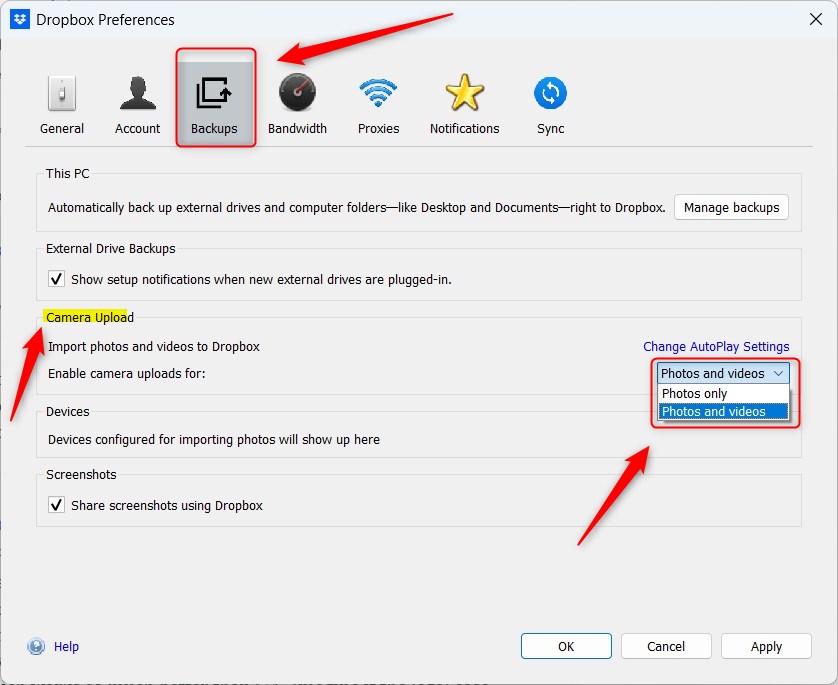
Enable camera uploads by configuring Windows AutoPlay to import photos and videos via Dropbox. Then, open Dropbox Preferences, go to the Backups tab, and select your upload options under “Camera Upload.
What happens when done?
Once finished, every time you plug your camera or phone into your computer, your photos and videos will automatically start uploading to your secure online storage. Dropbox will create a dedicated folder to organize these files. You can then access them from any device using the Dropbox app.
How to import your photos and videos
You can set up Dropbox camera upload on Windows 11 by first checking your Windows AutoPlay settings to make sure photos and videos import automatically.
Step 1: Configure Windows AutoPlay
- Click the Start button and open Settings.
- Go to Bluetooth & devices, then click on AutoPlay.
- Under “Choose AutoPlay defaults,” find your device and select Import photos and videos (Dropbox).
Step 2: Configure Dropbox Preferences
- Click the Taskbar overflow icon and click the Dropbox icon to open the menu.
- Click the Settings (gear icon) and select Preferences.
- Click the Backups tab.
- Under “Camera Upload,” select whether you want to upload Photos only or Photos and videos.
- Click Apply or OK to save your changes.


Note: If you need to perform system-wide changes to these settings, you may require admin privileges.
Troubleshooting Camera Uploads
If your Dropbox camera uploads aren’t working on Windows 11, check if the Dropbox sync is running, your account has permission to access the device, or try a different connection.
- Background Sync: Ensure the Dropbox background sync process is running. Check your Task Manager to see if Dropbox is active.
- Permissions: Verify that your user account has permission to access the external device.
- Connection: Try a different USB cable or port if your device is not detected.
- Storage Space: Check your Dropbox account quota. If your cloud storage is full, uploads will pause.
Summary
Setting up Dropbox camera uploads on Windows 11 automatically backs up your photos and videos, keeping them safe and organized.
Can I choose which folder my photos upload to?
By default, Dropbox uploads photos to a folder called “Camera Uploads” in your main Dropbox directory. While you cannot change this specific folder name through the app settings, you can move the files manually after they have finished uploading to keep your storage organized exactly how you prefer.
Why don’t I see the option to turn on camera uploads?
If you can’t find the camera uploads option in Dropbox on Windows 11, ensure your app is updated and try restarting it or your computer.
Can I use camera uploads on my personal and work account?
You can use Dropbox camera uploads for both personal and work accounts on Windows 11, but you need to set which account gets the uploads in preferences.
Was this guide helpful?

About the Author
Richard
Tech Writer, IT Professional
Richard, a writer for Geek Rewind, is a tech enthusiast who loves breaking down complex IT topics into simple, easy-to-understand ideas. With years of hands-on experience in system administration and enterprise IT operations, he’s developed a knack for offering practical tips and solutions. Richard aims to make technology more accessible and actionable. He's deeply committed to the Geek Rewind community, always ready to answer questions and engage in discussions.




No comments yet — be the first to share your thoughts!