How to Manage Automatic Backups in Dropbox on Windows 11

You manage automatic Dropbox backups on Windows 11 directly within the Dropbox desktop application’s settings.
Automatic backups, essentially file syncing, are crucial for safeguarding your data by sending copies to the cloud, protecting against local issues and enabling access from anywhere.
Features like Dropbox’s Smart Sync give you fine-grained control, letting you decide if files live only online or are fully downloaded, which is perfect for conserving disk space on your Windows 11 PC. For instance, you can designate folders to be online-only.
Mastering these backup configurations helps you avoid hitting your Dropbox storage limits and efficiently manage your internet bandwidth.
Open the Dropbox icon in your taskbar, click Settings, then Preferences. Navigate to the Backups tab and click Manage backups to turn automatic backups on or off for your PC.
How to change your backup settings
Changing your Dropbox automatic backups settings on Windows 11 is simple and can be done directly from your computer.
- Open the Dropbox icon in your taskbar notification area. You may need to click the Taskbar overflow arrow to find it.
Windows 11 turn on start Dropbox on system startup - Click the Settings (gear icon) at the top of the window and choose Preferences.

Windows 11 turn on start Dropbox on system startup - Go to the Backups tab and click the Manage backups button under “This PC.”

Manage backups in Dropbox on Windows 11 - In the Dropbox portal, look for your computer name. Select the Automatic backups tile.
- Use the switch to turn it On or Off.
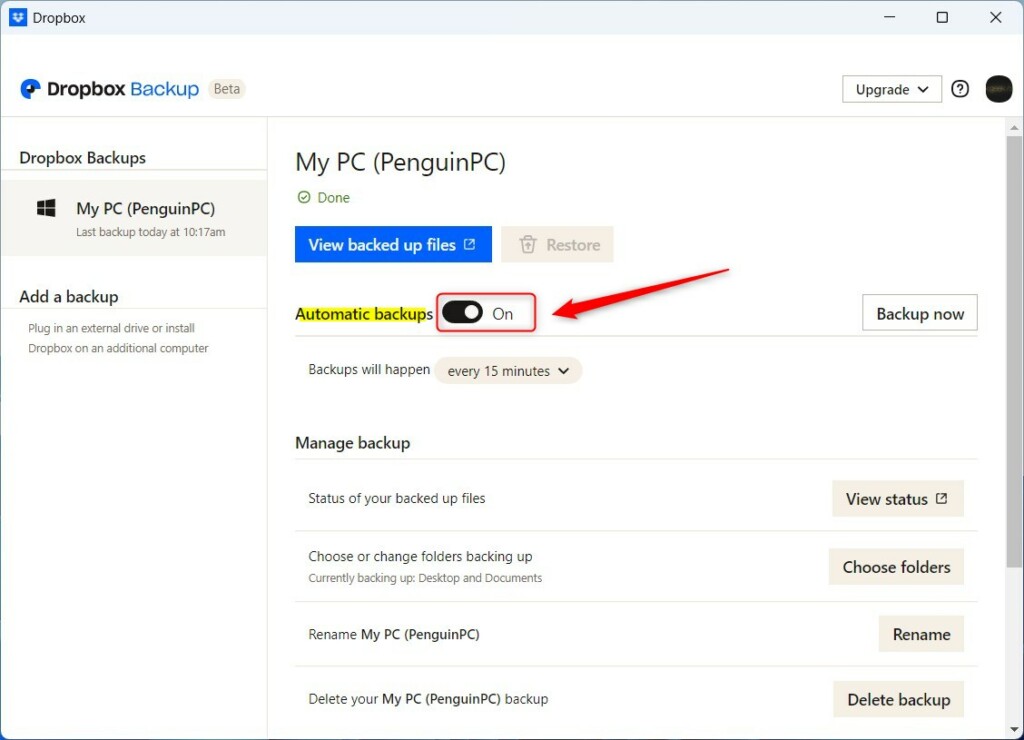
Turn automatic backups on or off in Windows 11
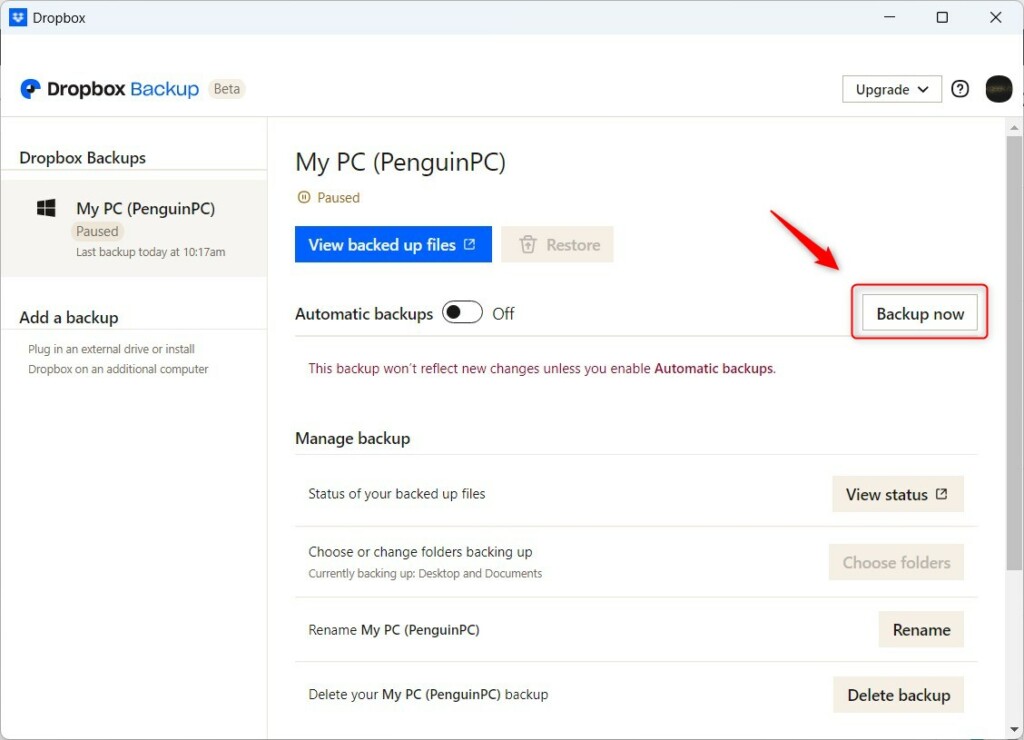
If you choose to turn it off, you can still save your work by clicking the Backup now button whenever you are ready.
External Drive Support
Dropbox lets you back up files from external hard drives, which is super handy for saving large amounts of data like photos or videos.
Restoration Process
If you lose a file, you can restore deleted files easily. Log in to your account on the Dropbox website. Navigate to your Backups page. Select the specific device and folder. You can browse your file history and click Restore to bring your data back to your computer.
Troubleshooting Common Sync Errors
If your Dropbox automatic backups aren’t syncing, the first thing to check is your internet connection and if the Dropbox app is running.
Call to Action
Is your cloud storage full? Check your current storage plan today to ensure you have enough space for all your important files.
Summary
Managing your Dropbox automatic backups gives you control over how your files are saved in the cloud, letting you decide whether to keep them on or turn them off.
How do I delete a Dropbox backup?
You can delete a Dropbox backup by going to the Dropbox website and finding the Backups section to select the device you want to remove.
Does Dropbox Backup work on Mac and Windows?
Yes, Dropbox Backup works the same on both Windows and Mac computers, so you can manage your files easily no matter which system you use.
What happens to my files if I cancel my Dropbox plan?
If you cancel your paid Dropbox plan, your account switches to a free one, and if you have too many files, syncing will stop until you clear space.
Can I back up specific folders only?
Yes, you can choose to back up only specific folders with Dropbox, like your Desktop, Documents, or Downloads, directly from the Manage Backups menu.
Was this guide helpful?

About the Author
Richard
Tech Writer, IT Professional
Richard, a writer for Geek Rewind, is a tech enthusiast who loves breaking down complex IT topics into simple, easy-to-understand ideas. With years of hands-on experience in system administration and enterprise IT operations, he’s developed a knack for offering practical tips and solutions. Richard aims to make technology more accessible and actionable. He's deeply committed to the Geek Rewind community, always ready to answer questions and engage in discussions.



[…] Google Drive’s benefits, some people might still have reasons to use another service like Dropbox or […]
[…] Microsoft Office add-in, turning notifications on or off, managing backups, turning automatic backups on or off, renaming backup device name, changing backup frequency, choosing back up folders, and […]
[…] Microsoft Office add-in, turning notifications on or off, managing backups, turning automatic backups on or off, renaming backup device name, changing backup frequency, and […]