How to Enable or Disable Dropbox Notifications on Windows 11

You enable or disable Dropbox notifications on Windows 11 directly through the Dropbox desktop application’s settings.
Dropbox notifications are system alerts that inform you about file activity, sync status, and other Dropbox-related events on your computer. By default, Windows 11 may show these alerts, but you can customize them.
For example, you might want to disable notifications for completed syncs to reduce interruptions while you’re focused on tasks in Windows 11. You can easily tailor these alerts to suit your workflow.
Adjust Dropbox notification settings within the Dropbox desktop app’s Preferences menu under the Notifications tab. Uncheck desired alerts to disable them or use the Snooze feature for temporary quiet.
What happens when you are done?
Turning off Dropbox notifications on Windows 11 means your computer will be less distracting, showing fewer banners and making fewer sounds for minor file changes.
| Feature | Dropbox Preferences | Windows Settings |
|---|---|---|
| Scope | In-app alerts | System-wide display |
| Control | Specific activity types | Banners and sounds |
| Best for | Filtering content | Total silence |
How to access Dropbox Preferences on 🪟 Windows 11
Accessing Dropbox Preferences on Windows 11 is simple and lets you control how Dropbox notifications work for you.
- Click the Dropbox icon in your system tray at the bottom right of your screen. You may need to click the small arrow to see hidden icons.
- Click the Settings gear icon in the top right corner of the Dropbox window.

- Select Preferences from the menu.
Customizing Dropbox Notifications
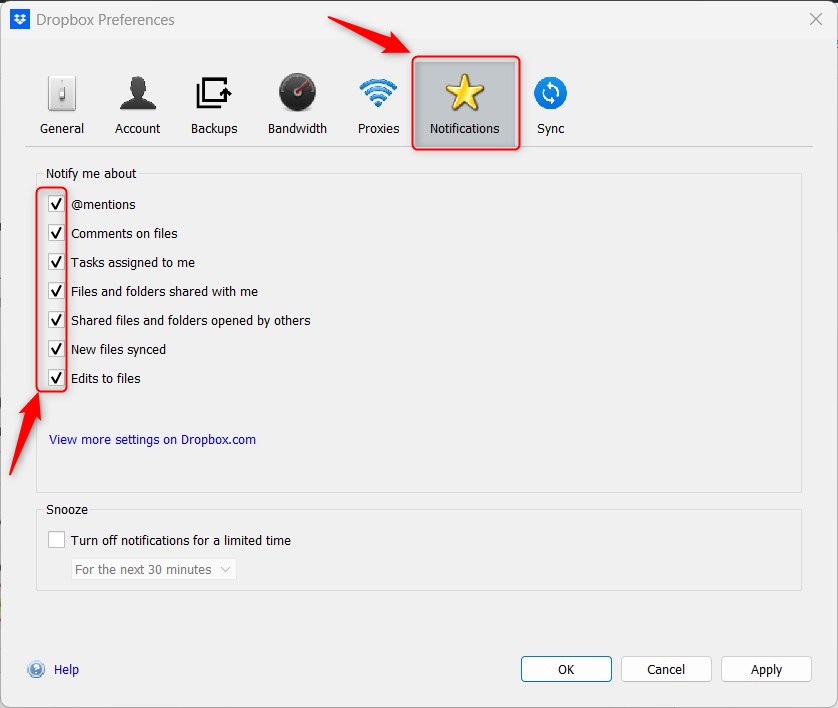
In the Preferences window, click the Notifications tab. Here, you can toggle specific alerts on or off. You can choose to be notified about comments, file edits, or shared folder activity. Uncheck the boxes for items you do not want to see.
Using the Snooze feature
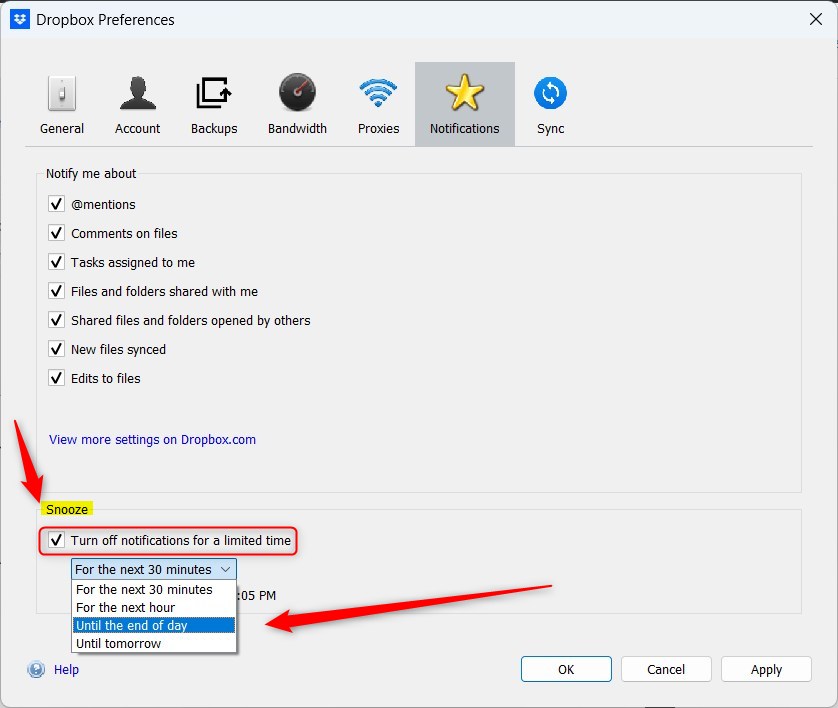
If you need quiet time, use the Snooze feature:
- Check the box labeled Turn off notifications for a limited time.
- Pick a duration like 30 minutes or until the end of the day.
🪟 Windows 11 System Settings vs. Dropbox Preferences
Understanding the difference between Windows 11 System Settings and Dropbox Preferences helps you control notifications effectively.
- Open Settings in Windows 11.
- Go to System > Notifications.
- Find Dropbox in the list and toggle the switch to Off.
Troubleshooting Notification Loops and Sync Issues
Constant Dropbox sync notifications on Windows 11 can often be fixed by clearing the app’s cache folder.
Summary
By using both the Dropbox app settings and Windows 11 system controls, you can fully manage your notification experience. This ensures your workflow remains uninterrupted while keeping you updated on essential file changes.
Why do I still hear Dropbox sounds after disabling notifications?
You might still hear Dropbox sounds after disabling app notifications because Windows 11 system settings may still be allowing alerts.
How do I stop Dropbox from syncing files in the background?
You can stop Dropbox from syncing files in the background on Windows 11 by pausing syncing directly from the system tray icon.
Was this guide helpful?

About the Author
Richard
Tech Writer, IT Professional
Richard, a writer for Geek Rewind, is a tech enthusiast who loves breaking down complex IT topics into simple, easy-to-understand ideas. With years of hands-on experience in system administration and enterprise IT operations, he’s developed a knack for offering practical tips and solutions. Richard aims to make technology more accessible and actionable. He's deeply committed to the Geek Rewind community, always ready to answer questions and engage in discussions.



[…] on system startup, disabling Dropbox startup in the background, adding Microsoft Office add-in, turning notifications on or off, managing backups, turning automatic backups on or off, renaming backup device name, changing […]
[…] on system startup, disabling Dropbox startup in the background, adding Microsoft Office add-in, turning notifications on or off, managing backups, turning automatic backups on or off, renaming backup device name, changing […]
[…] on system startup, disabling Dropbox startup in the background, adding Microsoft Office add-in, turning notifications on or off, managing backups, turning automatic backups on or off, renaming backup device name, changing […]
[…] on system startup, disabling Dropbox startup in the background, adding Microsoft Office add-in, turning notifications on or off, and managing […]